
koala73/worldmonitorConnectors
Real-time global intelligence dashboard. AI-powered news aggregation, geopolitical monitoring, and infrastructure tracking in a unified situational awareness interface
86k
This repo connects an agent to a personal WhatsApp account through MCP. The Go bridge logs in with WhatsApp Web, keeps message history in SQLite, and the Python server exposes tools to search contacts, read chats, and send messages or media. It is designed for Claude Desktop and Cursor, but works with any MCP client.
Builders who want Claude Desktop or Cursor to read and send WhatsApp messages through tools.
You can ask an agent to look up past WhatsApp chats, find contacts, and send replies without leaving your agent workflow.
Find people by name or phone number with the `search_contacts` tool.
List chats, pull message history, and get context around a specific message.
Send text, images, videos, documents, raw audio, and voice messages to people or groups.
Fetch media from a message and save it locally for another tool to use.
Keeps chat and message history in a local SQLite database under `whatsapp-bridge/store/`.
git clone https://github.com/lharries/whatsapp-mcp.git
cd whatsapp-mcp
cd whatsapp-bridge
go run main.go
~/Library/Application Support/Claude/claude_desktop_config.json
~/.cursor/mcp.json
cd whatsapp-bridge
go env -w CGO_ENABLED=1
go run main.go
This is a Model Context Protocol (MCP) server for WhatsApp.
With this you can search and read your personal Whatsapp messages (including images, videos, documents, and audio messages), search your contacts and send messages to either individuals or groups. You can also send media files including images, videos, documents, and audio messages.
It connects to your personal WhatsApp account directly via the Whatsapp web multidevice API (using the whatsmeow library). All your messages are stored locally in a SQLite database and only sent to an LLM (such as Claude) when the agent accesses them through tools (which you control).
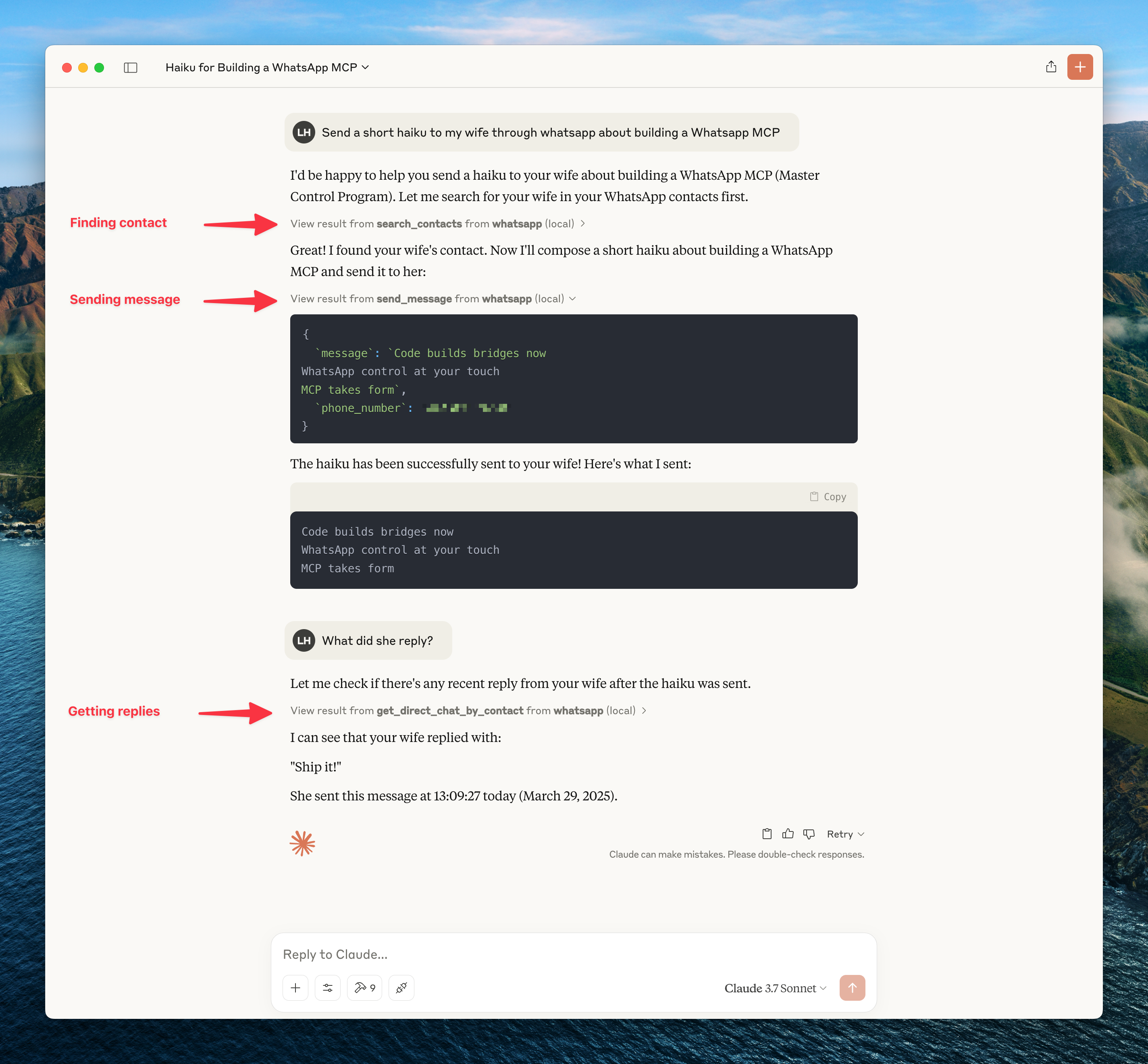
Here's an example of what you can do when it's connected to Claude.
To get updates on this and other projects I work on enter your email here
Caution: as with many MCP servers, the WhatsApp MCP is subject to the lethal trifecta. This means that project injection could lead to private data exfiltration.
curl -LsSf https://astral.sh/uv/install.sh | sh.ogg Opus format. With FFmpeg installed, the MCP server will automatically convert non-Opus audio files. Without FFmpeg, you can still send raw audio files using the send_file tool.Clone this repository
git clone https://github.com/lharries/whatsapp-mcp.git
cd whatsapp-mcp
Run the WhatsApp bridge
Navigate to the whatsapp-bridge directory and run the Go application:
cd whatsapp-bridge
go run main.go
The first time you run it, you will be prompted to scan a QR code. Scan the QR code with your WhatsApp mobile app to authenticate.
After approximately 20 days, you will might need to re-authenticate.
Connect to the MCP server
Copy the below json with the appropriate {{PATH}} values:
{
  "mcpServers": {
    "whatsapp": {
      "command": "{{PATH_TO_UV}}", // Run `which uv` and place the output here
      "args": [
        "--directory",
        "{{PATH_TO_SRC}}/whatsapp-mcp/whatsapp-mcp-server", // cd into the repo, run `pwd` and enter the output here + "/whatsapp-mcp-server"
        "run",
        "main.py"
      ]
    }
  }
}
For Claude, save this as claude_desktop_config.json in your Claude Desktop configuration directory at:
~/Library/Application Support/Claude/claude_desktop_config.json
For Cursor, save this as mcp.json in your Cursor configuration directory at:
~/.cursor/mcp.json
Restart Claude Desktop / Cursor
Open Claude Desktop and you should now see WhatsApp as an available integration.
Or restart Cursor.
If you're running this project on Windows, be aware that go-sqlite3 requires CGO to be enabled in order to compile and work properly. By default, CGO is disabled on Windows, so you need to explicitly enable it and have a C compiler installed.
Install a C compiler
We recommend using MSYS2 to install a C compiler for Windows. After installing MSYS2, make sure to add the ucrt64\bin folder to your PATH.
→ A step-by-step guide is available here.
Enable CGO and run the app
cd whatsapp-bridge
go env -w CGO_ENABLED=1
go run main.go
Without this setup, you'll likely run into errors like:
Binary was compiled with 'CGO_ENABLED=0', go-sqlite3 requires cgo to work.
This application consists of two main components:
Go WhatsApp Bridge (whatsapp-bridge/): A Go application that connects to WhatsApp's web API, handles authentication via QR code, and stores message history in SQLite. It serves as the bridge between WhatsApp and the MCP server.
Python MCP Server (whatsapp-mcp-server/): A Python server implementing the Model Context Protocol (MCP), which provides standardized tools for Claude to interact with WhatsApp data and send/receive messages.
whatsapp-bridge/store/ directoryOnce connected, you can interact with your WhatsApp contacts through Claude, leveraging Claude's AI capabilities in your WhatsApp conversations.
Claude can access the following tools to interact with WhatsApp:
The MCP server supports both sending and receiving various media types:
You can send various media types to your WhatsApp contacts:
send_file tool to share any supported media type.send_audio_message tool to send audio files as playable WhatsApp voice messages.
.ogg Opus format.send_file tool, but they won't appear as playable voice messages.By default, just the metadata of the media is stored in the local database. The message will indicate that media was sent. To access this media you need to use the download_media tool which takes the message_id and chat_jid (which are shown when printing messages containing the meda), this downloads the media and then returns the file path which can be then opened or passed to another tool.
whatsapp-bridge/store/messages.db and whatsapp-bridge/store/whatsapp.db) and restart the bridge to re-authenticate.For additional Claude Desktop integration troubleshooting, see the MCP documentation. The documentation includes helpful tips for checking logs and resolving common issues.
Sign in to join the discussion.
No comments yet. Be the first to say what this is good for.
Real-time global intelligence dashboard. AI-powered news aggregation, geopolitical monitoring, and infrastructure tracking in a unified situational awareness interface
High-performance code intelligence MCP server. Indexes codebases into a persistent knowledge graph — average repo in milliseconds. 158 languages, sub-ms queries, 99% fewer tokens. Single static binary, zero dependencies.
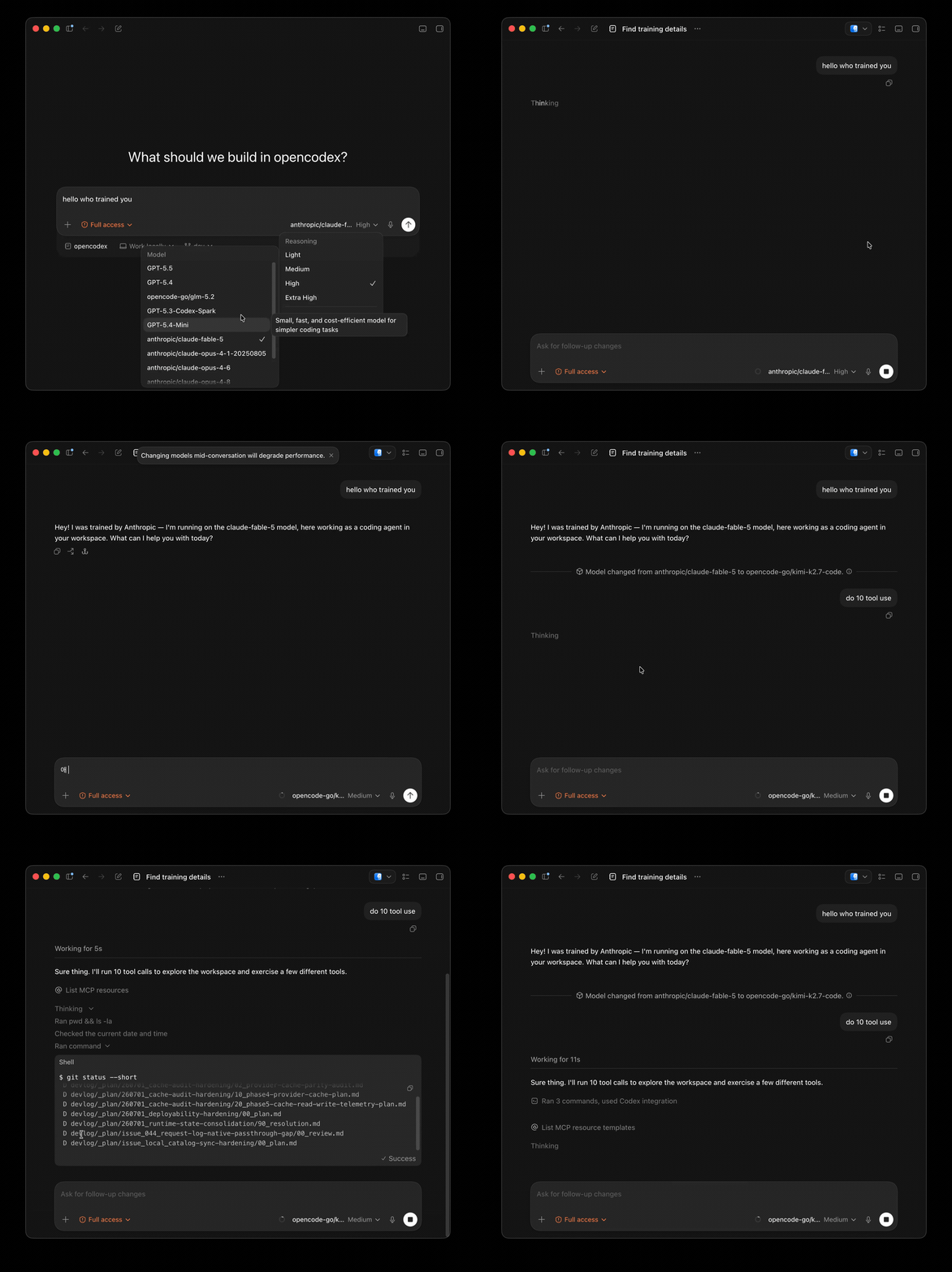
Universal provider proxy for OpenAI Codex & Claude Code — use any LLM (Claude, Gemini, Grok, DeepSeek, Ollama…) with Codex CLI, App, SDK, and Claude Code

Git-native persistent memory for AI coding agents. Implements Google OKF v0.2 with sub-300µs in-memory BM25 search, embedded MCP server, and progressive disclosure. Slashes token bloat by 80% with zero external databases or dependencies. Built in pure Go.

Stop your AI from making things up — it proposes, deterministic tools decide, every claim checked against ground truth with evidence. Grounded facts and context survive resets. Reverse engineering is the proving ground. MCP server + CLI.
x64dbg-MCP Server is a native MCP (Model Context Protocol) plugin for x64dbg that exposes the debugger's full functionality over HTTP. Connect any MCP-compatible AI assistant and control x64dbg programmatically: set breakpoints, step through code, read memory, dump registers, and more. Built with Zig — zero dependencies, single-binary output, cros