

koala73/worldmonitorConnectors
Real-time global intelligence dashboard. AI-powered news aggregation, geopolitical monitoring, and infrastructure tracking in a unified situational awareness interface
86k
This server connects an MCP client to LinkedIn through your own logged-in browser session. It adds tools for viewing profiles, searching people and companies, reading jobs, and sending or reading messages.
Builders who want their agent to work with LinkedIn data from a logged-in browser session.
You can ask an agent to fetch LinkedIn profiles, search jobs, and read messages without leaving your workflow.
Reads person profiles and your own profile, with section-level selection for experience, education, skills, contact info, and posts.
Searches companies and people, lists company employees, and pulls company profile details and posts.
Searches jobs, fetches job details, lists saved jobs, and reads your home feed.
Lists conversations, opens a conversation, searches messages, and sends new messages with confirmation.
Uses your own LinkedIn browser session, with login, session import, logout, and browser profile management.
Supports stdio and streamable HTTP, plus Claude Desktop MCP bundle and Codex plugin install paths.
# Auto-pick the most recently used browser with a live LinkedIn session
uvx mcp-server-linkedin@latest --import-from-browser
# Or target a specific browser
uvx mcp-server-linkedin@latest --import-from-browser brave
# Run with debug logging
uvx mcp-server-linkedin@latest --log-level DEBUG
uvx mcp-server-linkedin@latest --transport streamable-http --host 127.0.0.1 --port 8080 --path /mcp
# Create the directory first so the container can save your session into it
mkdir -p ~/.linkedin-mcp
docker run -it --rm \
  -v ~/.linkedin-mcp:/home/pwuser/.linkedin-mcp \
  -p 127.0.0.1:6080:6080 \
  stickerdaniel/linkedin-mcp-server:latest \
  --login --login-viewer
$sessionDir = Join-Path $env:USERPROFILE ".linkedin-mcp"
New-Item -ItemType Directory -Force -Path $sessionDir | Out-Null
docker run -it --rm `
  -v "${sessionDir}:/home/pwuser/.linkedin-mcp" `
  -p 127.0.0.1:6080:6080 `
  stickerdaniel/linkedin-mcp-server:latest `
--login --login-viewerdocker run -it --rm \ -v ~/.linkedin-mcp:/home/pwuser/.linkedin-mcp \ -p 127.0.0.1:8080:8080 \ stickerdaniel/linkedin-mcp-server:latest \ --transport streamable-http --host 0.0.0.0 --port 8080 --path /mcp



Disclaimer: This is an independent, community project. It is not affiliated with, authorized by, endorsed by, or sponsored by LinkedIn Corporation or Microsoft. "LinkedIn" is a registered trademark of LinkedIn Corporation and is used here only descriptively to identify the third-party service this software interoperates with.
An MCP server that lets AI assistants like Claude read LinkedIn data through your own logged-in browser session. Access profiles and companies, search for jobs, or get job details.
This MCP server is free and open source, supported by Unipile. It runs locally with your own browser session. Unipile is the fully managed cloud alternative: a hosted LinkedIn API for Classic, Sales Navigator, and Recruiter that handles auth, sessions, and infrastructure for you. Try it free for 7 days →




| Tool | Description |
|---|---|
get_person_profile | Get profile info with explicit section selection (experience, education, interests, honors, languages, certifications, skills, projects, contact_info, posts) |
get_my_profile | Get the authenticated user's own LinkedIn profile (same sections as get_person_profile) |
connect_with_person | Send a connection request or accept an incoming one, with optional note |
get_sidebar_profiles | Extract profile URLs from sidebar recommendation sections ("More profiles for you", "Explore premium profiles", "People you may know") on a profile page |
get_inbox | List recent conversations from the LinkedIn messaging inbox |
get_conversation | Read a specific messaging conversation by username or thread ID |
search_conversations | Search messages by keyword |
send_message | Compose/send a new message to a LinkedIn user (requires confirmation; profile-based targeting may open a separate DM instead of replying in an existing thread — see #483) |
get_company_profile | Extract company information with explicit section selection (posts, jobs); about-section references may include a company_urn entry carrying the numeric id used by LinkedIn's people-search currentCompany URL facet |
get_company_posts | Get recent posts from a company's LinkedIn feed |
search_companies | Search for companies on LinkedIn by keywords |
get_company_employees | List employees at a company from the /people/ page, with optional keyword filter |
search_jobs | Search for jobs with keywords and location filters |
get_saved_jobs | List job postings saved by the authenticated user |
search_people | Search for people by keywords, location, connection degree (1st/2nd/3rd), and current company |
get_job_details | Get detailed information about a specific job posting |
get_feed | Get recent posts from the authenticated user's home feed |
search_posts | Search posts/content globally by keyword (the "Posts" tab) with an optional recency filter (past-24h/past-week/past-month) |
close_session | Close browser session and clean up resources |
Prerequisites: Install uv.
Client Configuration
{
  "mcpServers": {
    "mcp-server-linkedin": {
      "command": "uvx",
      "args": ["mcp-server-linkedin@latest"],
      "env": { "UV_HTTP_TIMEOUT": "300" }
    }
  }
}
The @latest tag turns on automatic updates, which keep the server working with LinkedIn's current page structure. The server starts quickly, prepares the shared Patchright Chromium browser cache in the background under ~/.linkedin-mcp/patchright-browsers, and opens a LinkedIn login browser window on the first tool call that needs authentication.
AI agent? Get a quick confirmation from the user before enabling automatic updates.
[!NOTE] Early tool calls may return a setup/authentication-in-progress error until browser setup or login finishes. If you prefer to create a session explicitly, run
uvx mcp-server-linkedin@latest --login.
Transport Modes:
stdioCLI Options:
--login - Open a browser to sign in and save the session--import-from-browser [BROWSER] - Reuse a session from a locally signed-in Chromium browser (chrome, chromium, brave, edge, arc, vivaldi, helium, yandex, whale, auto). Bare flag picks auto, the most recently used browser with a live LinkedIn session.--logout - Clear the stored session--no-headless - Show the browser window (useful for debugging)--log-level {DEBUG,INFO,WARNING,ERROR} - Logging level (default: WARNING)--transport {stdio,streamable-http} - Force the transport mode (default: stdio)--host HOST / --port PORT / --path PATH - HTTP server address (defaults: 127.0.0.1, 8000, /mcp)--timeout MS - Timeout for a single page operation (default: 5000)--tool-timeout SECONDS - Timeout for a whole tool call (default: 180). Raise it for heavy scrapes, slow networks, or a cold-start browser.--login-timeout SECONDS - How long the login browser waits for you to finish signing in (default: 1800; 0 = no limit). --login-viewer ends the session after 30 minutes either way.--login-viewer - Docker only: show the --login browser at a token-protected URL on port 6080 (see Authentication)--login-inline-wait SECONDS - How long a tool call waits for a login to finish before telling the model to retry (default: 25, max 45; 0 = return at once)--browser-wait SECONDS - How long to wait for another server process to hand over the shared browser (default: 25, max 45; 0 = report busy at once). Only matters with several MCP clients running at once.--browser-min-hold SECONDS - Shortest time this process keeps the shared browser before handing it over (default: 20). Clamped to 3 seconds below --browser-wait, so raise that one along with it. Higher means fewer browser restarts but longer waits for other clients.--browser-idle-timeout SECONDS - Close an idle browser and release the profile after this long without a tool call (default: 600; 0 = keep it open)--auto-import / --no-auto-import - Import a session from a signed-in local browser on the first tool call that needs one, before falling back to manual login (default: on). Skipped in Docker, behind a proxy, and on a non-loopback HTTP bind. On macOS the keychain may prompt once.--user-data-dir PATH - Browser profile directory (default: ~/.linkedin-mcp/profile). Rotating or clearing a session deletes this directory and its parent, which holds the stored cookies and derived profiles.--claim-profile-root - Take over a profile directory the server will not claim on its own, such as one whose parent already holds other files. Needed once per directory.--chrome-path PATH - Path to a Chrome/Chromium executable--proxy-server URL - Route browser traffic through a proxy, as scheme://host:port. Set the password via PROXY_PASSWORD, which keeps it out of the process list.Import a session from your everyday browser:
If you are already signed into LinkedIn in Chrome, Chromium, Brave, Edge, Arc, Vivaldi, Helium, Yandex, or Naver Whale, you can skip the manual --login step and reuse that session:
# Auto-pick the most recently used browser with a live LinkedIn session
uvx mcp-server-linkedin@latest --import-from-browser
# Or target a specific browser
uvx mcp-server-linkedin@latest --import-from-browser brave
This reads the browser's LinkedIn cookies, validates them against your feed, and saves them to ~/.linkedin-mcp/profile/, the same place --login writes to. Notes:
v20) cannot be decrypted without OS elevation; in that case use --login instead.Basic Usage Examples:
# Run with debug logging
uvx mcp-server-linkedin@latest --log-level DEBUG
HTTP Mode Example (for web-based MCP clients):
uvx mcp-server-linkedin@latest --transport streamable-http --host 127.0.0.1 --port 8080 --path /mcp
Runtime server logs are emitted by FastMCP/Uvicorn.
Tool calls are serialized to protect the shared LinkedIn browser session, both
within one server process and across separate ones. If you run several MCP
clients at once, each starts its own server process, and only one of them uses
the browser at a time; the others wait briefly and take over as soon as it
finishes a call. A client that waits too long gets a "browser is busy" message
and can simply retry. Use --log-level DEBUG to see the wait/acquire/release
logs.
This covers processes on the same machine and in the same runtime. It does not
extend between the host and a Docker container sharing the same
~/.linkedin-mcp directory, so do not run --login or --logout on the host
while a container is running.
Test with mcp inspector:
bunx @modelcontextprotocol/inspectorStreamable HTTP as Transport TypeURL to http://localhost:8080/mcpInstallation issues:
curl -LsSf https://astral.sh/uv/install.sh | shuv --version (should be 0.4.0 or higher)uvx downloads all Python dependencies. On slow connections, uv's default 30s HTTP timeout may be too short. The recommended config above already sets UV_HTTP_TIMEOUT=300 (seconds) to avoid this.DLL load failed while importing _greenlet: move to greenlet 3.5.5 or newer, whose published Windows wheels carry the C++ runtime inside the extension again. A fresh uvx run resolves that on its own; an environment that pins its dependencies needs uv lock --upgrade-package greenlet. Only greenlet 3.3.1 through 3.5.4 need MSVCP140.dll, which neither the python.org installer nor the uv-managed builds carry, and a greenlet built from source can need it at any version. Where the version cannot be moved, the Microsoft Visual C++ Redistributable supplies that DLL. Reported as greenlet#525, fixed in greenlet#526.Session issues:
~/.linkedin-mcp/profile/~/.linkedin-mcp/patchright-browsers/uvx keeps one archive per version you have ever run, so every one of them holds such a reference and the old revisions stay. The server logs a warning naming the revisions it is holding and how much space they take. To reclaim it, stop every LinkedIn MCP Server instance, delete ~/.linkedin-mcp/patchright-browsers/, and let the next launch download the current browser.Login issues:
--loginuvx mcp-server-linkedin@latest --login which opens a browser where you can solve it manually.Timeout issues:
--timeout 10000 or TIMEOUT=10000 (milliseconds, default 5000).--tool-timeout 300 or TOOL_TIMEOUT=300 (seconds, default 180).AUTO_IMPORT_FROM_BROWSER / --auto-import) instead of forcing a manual login. On macOS the keychain may prompt once for Safe Storage access. If no importable browser session exists, it falls back to opening a login window and waits up to LOGIN_INLINE_WAIT seconds (default 25, max 45; --login-inline-wait) so a quick sign-in resolves in one call. If the wait elapses, the tool returns a pending signal and the model retries in about 30 seconds. Neither the auto-import nor the inline wait applies under Docker or when the server is bound to a non-loopback HTTP host. Create the session on the host with --login, or use the explicit Docker --login --login-viewer command.Told to run --login on the host when you already did:
LINKEDIN_MCP_CONTAINER=false to override the detection; true forces the opposite.Using a proxy:
Most people should not use one. LinkedIn's own guidance for reducing security challenges is to avoid a VPN or proxy, and it scores the addresses a session signs in from. A home connection you have used for years is a trust signal; a commercial exit node with a history you cannot see is not, and switching to one is itself the kind of change that triggers a checkpoint. A proxy is worth it in one case: the server runs somewhere its address is obviously a data centre, or in a different country from the account's history. Even then, a WireGuard or Tailscale exit node on your own home network beats any paid provider, because the address really is yours. If you do buy one, take a dedicated static ISP address and keep it, rather than a rotating residential pool.
--proxy-server http://host:port (http, https, socks4 and socks5 are accepted). Only browser traffic is routed, not the MCP transport.PROXY_USERNAME and PROXY_PASSWORD. There is no --proxy-password flag on purpose: command-line arguments are readable by every other user on the machine. PROXY_SERVER also accepts the combined http://user:pass@host:port form most providers hand out.http(s) endpoint. If your provider only offers authenticated SOCKS5, run a local relay that holds the credentials and point the server at that.localhost is removed when a proxy is set, so add PROXY_BYPASS=localhost,127.0.0.1,::1 if you need local targets reached directly.--login.--login with the proxy already configured. Turning a proxy on for an existing profile moves a logged-in session to a new IP, which is what triggers a LinkedIn checkpoint. The same applies to --import-from-browser, which imports a session created on your real IP. Use a sticky session, not a rotating pool, for the same reason.Custom Chrome path:
--chrome-path /path/to/chromeCHROME_PATH=/path/to/chrome--login, which moves the stored session aside and signs in fresh with the browser you have. --logout also clears it but discards the old session instead of keeping it recoverable, and it asks for confirmation on the terminal, so it is not usable from a server an MCP client started.CHROME_PATH at one turns the check off rather than producing a refusal nothing could satisfy.Prerequisites: Claude Desktop.
One-click installation for Claude Desktop users:
.mcpb artifact from releases.mcpb file to install it into Claude DesktopOn startup, the MCP Bundle starts preparing the shared Patchright Chromium browser cache in the background. If you call a tool too early, Claude will surface a setup-in-progress error. On the first tool call that needs authentication, the server opens a LinkedIn login browser window and asks you to retry after sign-in.
First-time setup behavior:
~/.linkedin-mcp/patchright-browsers/~/.linkedin-mcp/patchright-browsers/, and let the next launch download the current browser.DLL load failed while importing _greenlet: install the Microsoft Visual C++ Redistributable, or reinstall a bundle pinning greenlet 3.5.5 or newer, whose published Windows wheels carry the C++ runtime inside the extension again. A bundle pinning greenlet 3.3.1 through 3.5.4 needs MSVCP140.dll from that redistributable, which neither the python.org installer nor the uv-managed builds carry, and a greenlet built from source can need it at any version. The server names this itself on startup, and only after checking that the loader cannot produce that DLL. Reported as greenlet#525, fixed in greenlet#526.Login issues:
--loginuvx mcp-server-linkedin@latest --login which opens a browser where you can solve captchas manually. See the uvx setup for prerequisites.Timeout issues:
--timeout 10000 or `TIMEOUT=10Sign in to join the discussion.
No comments yet. Be the first to say what this is good for.
Real-time global intelligence dashboard. AI-powered news aggregation, geopolitical monitoring, and infrastructure tracking in a unified situational awareness interface
High-performance code intelligence MCP server. Indexes codebases into a persistent knowledge graph — average repo in milliseconds. 158 languages, sub-ms queries, 99% fewer tokens. Single static binary, zero dependencies.
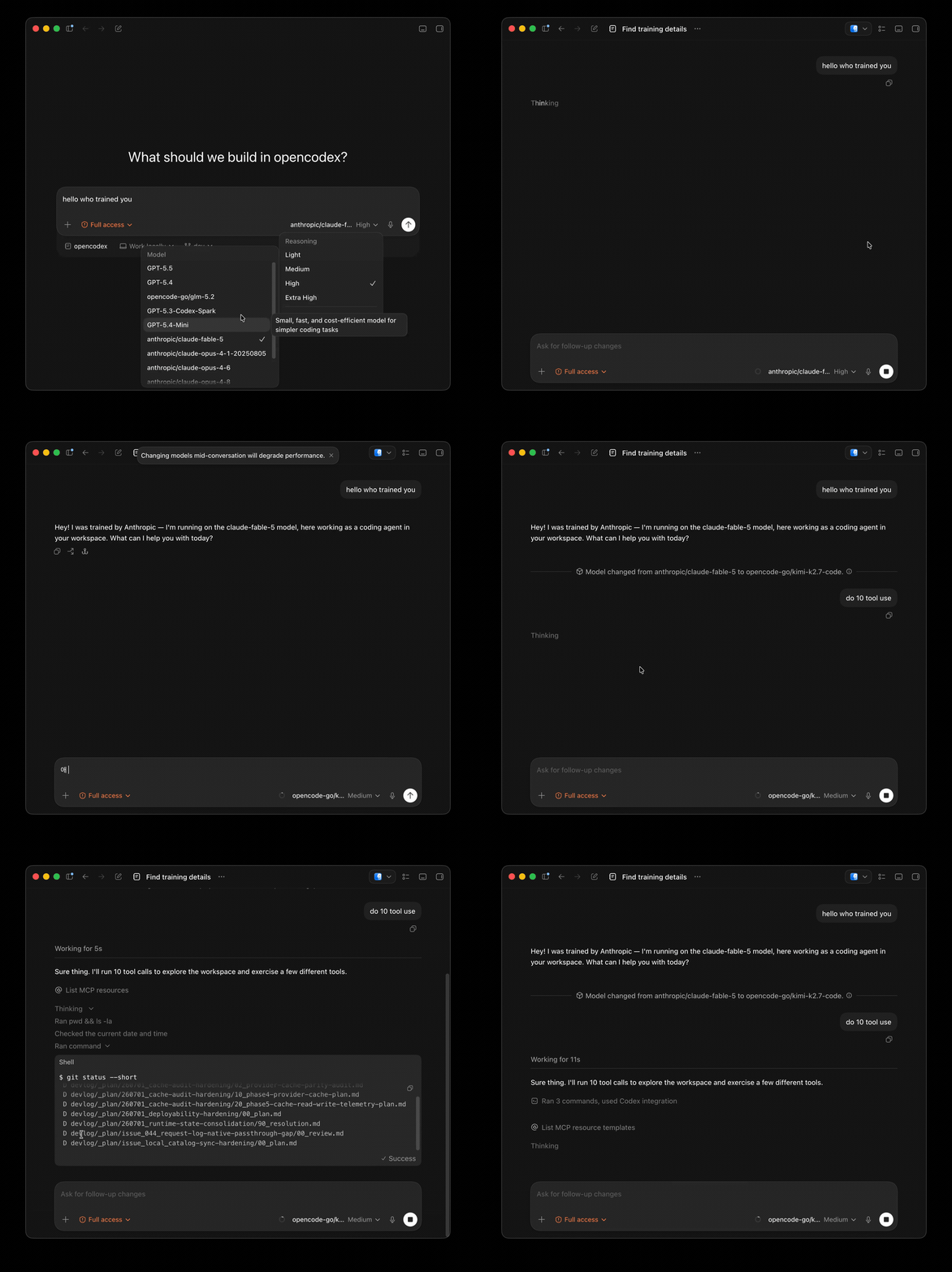
Universal provider proxy for OpenAI Codex & Claude Code — use any LLM (Claude, Gemini, Grok, DeepSeek, Ollama…) with Codex CLI, App, SDK, and Claude Code

Git-native persistent memory for AI coding agents. Implements Google OKF v0.2 with sub-300µs in-memory BM25 search, embedded MCP server, and progressive disclosure. Slashes token bloat by 80% with zero external databases or dependencies. Built in pure Go.

Local-first code intelligence graph for MCP and CLI. Builds a persistent map of your codebase so AI coding tools read only what matters, with benchmarked context reductions on reviews and large-repo workflows.

Stop your AI from making things up — it proposes, deterministic tools decide, every claim checked against ground truth with evidence. Grounded facts and context survive resets. Reverse engineering is the proving ground. MCP server + CLI.