
koala73/worldmonitorConnectors
Real-time global intelligence dashboard. AI-powered news aggregation, geopolitical monitoring, and infrastructure tracking in a unified situational awareness interface
86k
Penpot MCP connects Penpot to MCP clients so an agent can read design files, inspect object trees, export assets, and search components. It exposes server resources and tools, and the repository includes CLI utilities, a Python API client, and setup notes for Claude Desktop and Cursor.
Builders who want their agent to read and act on Penpot design files.
You can ask an agent to inspect, search, and export Penpot designs instead of doing that work by hand.
Runs a Model Context Protocol server that exposes Penpot data to agent clients.
Reads live project and file data from the Penpot API.
Includes tools like `list_projects`, `get_file`, `search_object`, and `get_object_tree`.
Can export Penpot objects as images and return rendered component resources.
Includes integration guidance and example config for Claude Desktop and Cursor.
Provides command-line tools such as `penpot-tree` and `penpot-validate` for local inspection.
pip install penpot-mcp
# Install directly with uvx (when published to PyPI)
uvx penpot-mcp

# For local development, use uvx with local path
uvx --from . penpot-mcp

# Or install in a project with uv
uv add penpot-mcp
PENPOT_API_URL=https://design.penpot.app/api
PENPOT_USERNAME=your_penpot_username
PENPOT_PASSWORD=your_penpot_password
PORT=5000
DEBUG=true
# Generate a tree visualization of a Penpot file
penpot-tree path/to/penpot_file.json

# Validate a Penpot file against the schema
penpot-validate path/to/penpot_file.json
# Start your MCP server in one terminal
python -m penpot_mcp.server.mcp_server

# In another terminal, use mcp-cli to monitor and interact with your server
python -m mcp.cli monitor python -m penpot_mcp.server.mcp_server

# Or connect to an already running server on a specific port
python -m mcp.cli monitor --port 5000
# Start your MCP server in one terminal
python -m penpot_mcp.server.mcp_server

# In another terminal, run the MCP Inspector (requires Node.js)
npx @modelcontextprotocol/inspector

AI-Powered Design Workflow Automation
Connect Claude AI and other LLMs to Penpot designs via Model Context Protocol



Penpot MCP is a revolutionary Model Context Protocol (MCP) server that bridges the gap between AI language models and Penpot, the open-source design and prototyping platform. This integration enables AI assistants like Claude (in both Claude Desktop and Cursor IDE) to understand, analyze, and interact with your design files programmatically.
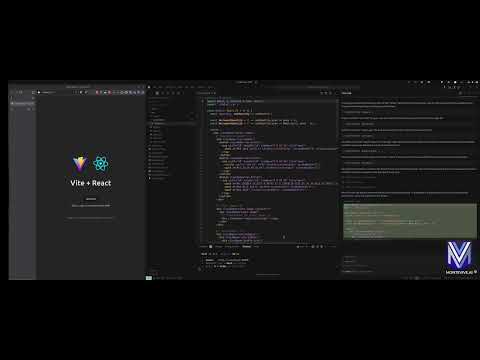
Check out our demo video to see Penpot MCP in action:
pip install penpot-mcp
# Install directly with uvx (when published to PyPI)
uvx penpot-mcp

# For local development, use uvx with local path
uvx --from . penpot-mcp

# Or install in a project with uv
uv add penpot-mcp
# Clone the repository
git clone https://github.com/montevive/penpot-mcp.git
cd penpot-mcp

# Using uv (recommended)
uv sync
uv run penpot-mcp

# Or using traditional pip
python -m venv .venv
source .venv/bin/activate  # On Windows: .venv\Scripts\activate
pip install -e .
Create a .env file based on env.example with your Penpot credentials:
PENPOT_API_URL=https://design.penpot.app/api
PENPOT_USERNAME=your_penpot_username
PENPOT_PASSWORD=your_penpot_password
PORT=5000
DEBUG=true
⚠️ CloudFlare Protection Notice: The Penpot cloud site (penpot.app) uses CloudFlare protection that may occasionally block API requests. If you encounter authentication errors or blocked requests:
- Open your web browser and navigate to https://design.penpot.app
- Log in to your Penpot account
- Complete any CloudFlare human verification challenges if prompted
- Once verified, the API requests should work normally for a period of time
# Using uvx (when published to PyPI)
uvx penpot-mcp

# Using uvx for local development
uvx --from . penpot-mcp

# Using uv in a project (recommended for local development)
uv run penpot-mcp

# Using the entry point (if installed)
penpot-mcp

# Or using the module directly
python -m penpot_mcp.server.mcp_server
To debug the MCP server, you can:
.env file by setting DEBUG=true# Test API connection with debug output
python -m penpot_mcp.api.penpot_api --debug list-projects
# Get details for a specific project
python -m penpot_mcp.api.penpot_api --debug get-project --id YOUR_PROJECT_ID
# List files in a project
python -m penpot_mcp.api.penpot_api --debug list-files --project-id YOUR_PROJECT_ID
# Get file details
python -m penpot_mcp.api.penpot_api --debug get-file --file-id YOUR_FILE_ID
The package includes utility command-line tools:
# Generate a tree visualization of a Penpot file
penpot-tree path/to/penpot_file.json

# Validate a Penpot file against the schema
penpot-validate path/to/penpot_file.json
# Start your MCP server in one terminal
python -m penpot_mcp.server.mcp_server

# In another terminal, use mcp-cli to monitor and interact with your server
python -m mcp.cli monitor python -m penpot_mcp.server.mcp_server

# Or connect to an already running server on a specific port
python -m mcp.cli monitor --port 5000
# Start your MCP server in one terminal
python -m penpot_mcp.server.mcp_server

# In another terminal, run the MCP Inspector (requires Node.js)
npx @modelcontextprotocol/inspector
# Run the example client
penpot-client
server://info - Server status and informationpenpot://schema - Penpot API schema as JSONpenpot://tree-schema - Penpot object tree schema as JSONrendered-component://{component_id} - Rendered component imagespenpot://cached-files - List of cached Penpot fileslist_projects - List all Penpot projectsget_project_files - Get files for a specific projectget_file - Retrieve a Penpot file by its ID and cache itexport_object - Export a Penpot object as an imageget_object_tree - Get the object tree structure for a Penpot objectsearch_object - Search for objects within a Penpot file by nameThe Penpot MCP server can be integrated with AI assistants using the Model Context Protocol. It supports both Claude Desktop and Cursor IDE for seamless design workflow automation.
For detailed Claude Desktop setup instructions, see CLAUDE_INTEGRATION.md.
Add the following configuration to your Claude Desktop config file (~/Library/Application Support/Claude/claude_desktop_config.json on macOS or %APPDATA%\Claude\claude_desktop_config.json on Windows):
{
  "mcpServers": {
    "penpot": {
      "command": "uvx",
      "args": ["penpot-mcp"],
      "env": {
        "PENPOT_API_URL": "https://design.penpot.app/api",
        "PENPOT_USERNAME": "your_penpot_username",
        "PENPOT_PASSWORD": "your_penpot_password"
      }
    }
  }
}
Cursor IDE supports MCP servers through its AI integration features. To configure Penpot MCP with Cursor:
Install the MCP server (if not already installed):
pip install penpot-mcp
Configure Cursor settings by adding the MCP server to your Cursor configuration. Open Cursor settings and add:
{
  "mcpServers": {
    "penpot": {
      "command": "uvx",
      "args": ["penpot-mcp"],
      "env": {
        "PENPOT_API_URL": "https://design.penpot.app/api",
        "PENPOT_USERNAME": "your_penpot_username",
        "PENPOT_PASSWORD": "your_penpot_password"
      }
    }
  }
}
Alternative: Use environment variables by creating a .env file in your project root:
PENPOT_API_URL=https://design.penpot.app/api
PENPOT_USERNAME=your_penpot_username
PENPOT_PASSWORD=your_penpot_password
Start the MCP server in your project:
# In your project directory
penpot-mcp
Use in Cursor: Once configured, you can interact with your Penpot designs directly in Cursor by asking questions like:
Both Claude Desktop and Cursor integration provide:
penpot_mcp/
├── api/              # Penpot API client
├── server/           # MCP server implementation
│   ├── mcp_server.py # Main MCP server
│   └── client.py     # Client implementation
├── tools/            # Utility tools
│   ├── cli/          # Command-line interfaces
│   └── penpot_tree.py # Penpot object tree visualization
├── resources/        # Resource files and schemas
└── utils/            # Helper utilities
The project uses pytest for testing:
# Using uv (recommended)
uv sync --extra dev
uv run pytest

# Run with coverage
uv run pytest --cov=penpot_mcp tests/

# Using traditional pip
pip install -e ".[dev]"
pytest
pytest --cov=penpot_mcp tests/
# Using uv (recommended)
uv sync --extra dev

# Set up pre-commit hooks
uv run pre-commit install

# Run linting
uv run python lint.py

# Auto-fix linting issues
uv run python lint.py --autofix

# Using traditional pip
pip install -r requirements-dev.txt
pre-commit install
./lint.py
./lint.py --autofix
Contributions are welcome! Please feel free to submit a Pull Request.
git checkout -b feature/amazing-feature)git commit -m 'Add some amazing feature')git push origin feature/amazing-feature)Please make sure your code follows the project's coding standards and includes appropriate tests.
This project is licensed under the MIT License - see the LICENSE file for details.
Sign in to join the discussion.
No comments yet. Be the first to say what this is good for.
Real-time global intelligence dashboard. AI-powered news aggregation, geopolitical monitoring, and infrastructure tracking in a unified situational awareness interface
High-performance code intelligence MCP server. Indexes codebases into a persistent knowledge graph — average repo in milliseconds. 158 languages, sub-ms queries, 99% fewer tokens. Single static binary, zero dependencies.
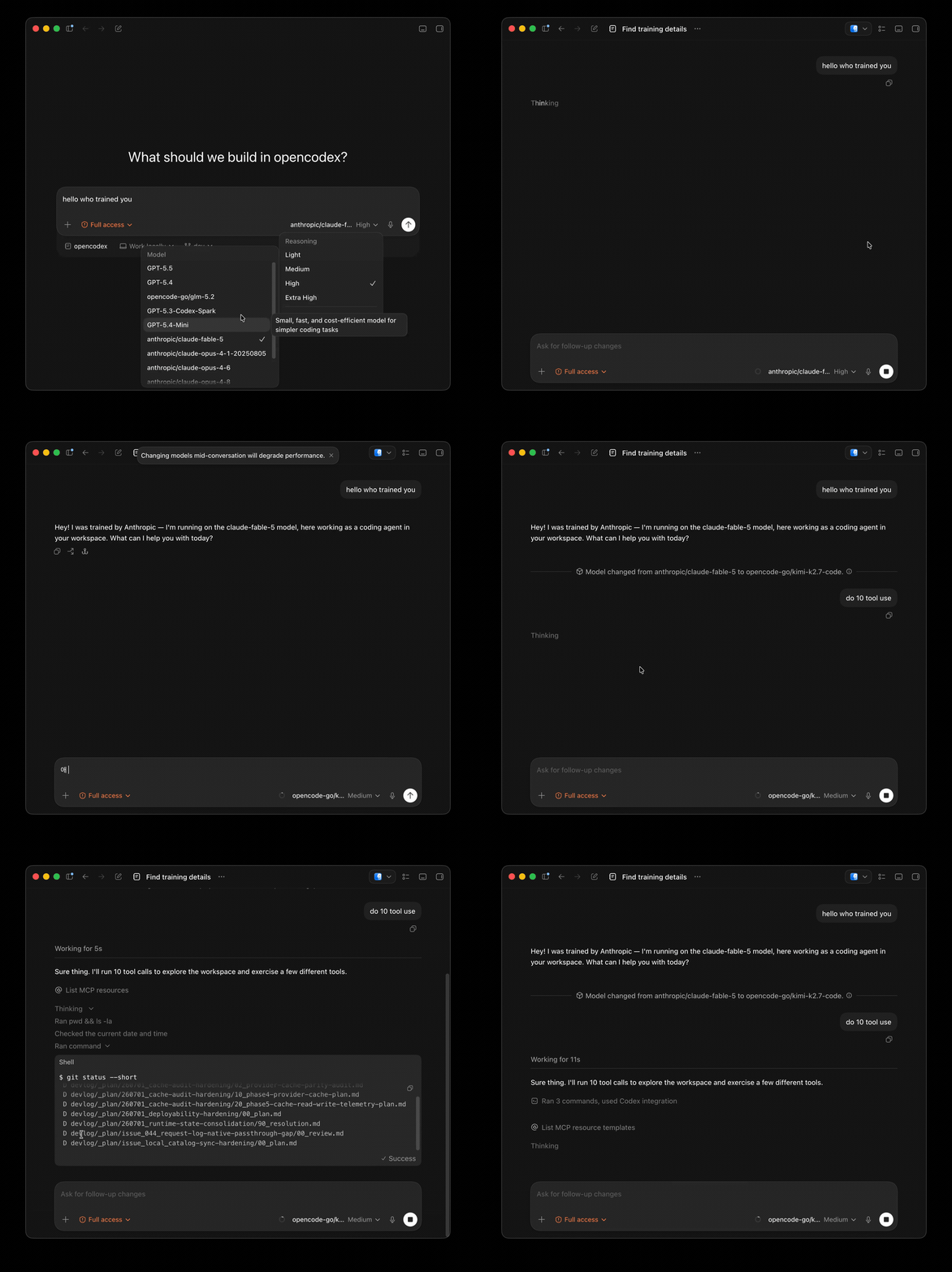
Universal provider proxy for OpenAI Codex & Claude Code — use any LLM (Claude, Gemini, Grok, DeepSeek, Ollama…) with Codex CLI, App, SDK, and Claude Code

Git-native persistent memory for AI coding agents. Implements Google OKF v0.2 with sub-300µs in-memory BM25 search, embedded MCP server, and progressive disclosure. Slashes token bloat by 80% with zero external databases or dependencies. Built in pure Go.

Local-first code intelligence graph for MCP and CLI. Builds a persistent map of your codebase so AI coding tools read only what matters, with benchmarked context reductions on reviews and large-repo workflows.

Stop your AI from making things up — it proposes, deterministic tools decide, every claim checked against ground truth with evidence. Grounded facts and context survive resets. Reverse engineering is the proving ground. MCP server + CLI.