
koala73/worldmonitorConnectors
Real-time global intelligence dashboard. AI-powered news aggregation, geopolitical monitoring, and infrastructure tracking in a unified situational awareness interface
86k
MCPJungle gives you one place to register, manage, and expose multiple MCP servers behind a single MCP endpoint. It handles discovery, tool groups, prompts, enable or disable controls, and shared access for local or team setups.
Builders who want Claude, Cursor, Codex, or Copilot to use many MCP servers through one managed gateway.
You can keep one MCP setup instead of repeating server configs across every agent client.
Routes multiple registered MCP servers through one streamable HTTP MCP endpoint at `/mcp`.
Lets you register, list, update, disable, enable, and deregister MCP servers from the CLI or API.
Pulls in tools, prompts, and resources from connected MCP servers and exposes them through the gateway.
Lets you publish only selected tools to a specific endpoint for a smaller client-facing surface.
Supports either short-lived connections or reused sessions for stdio servers with cold-start overhead.
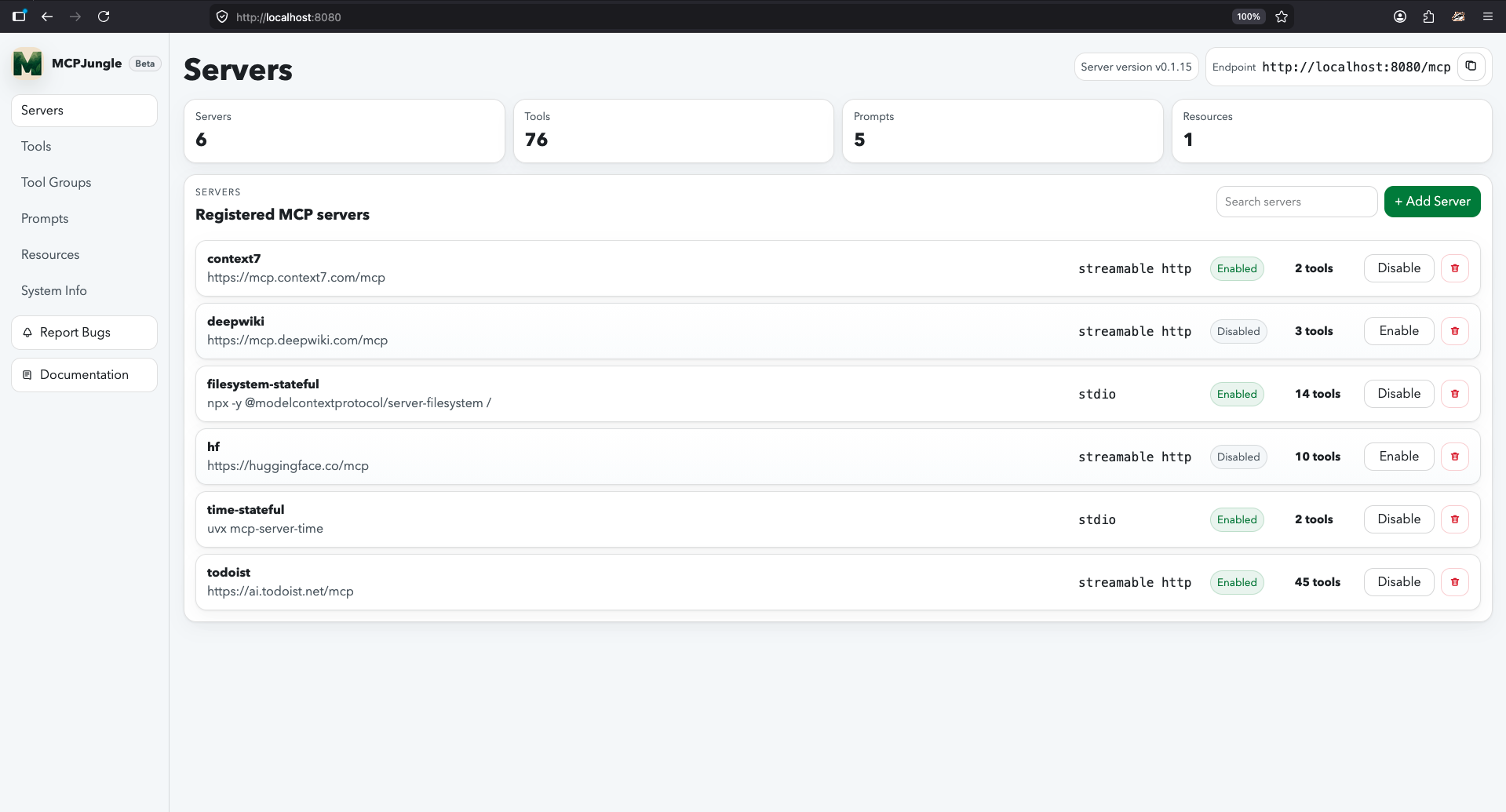
Includes a web dashboard, Docker Compose files, and Docker images for local or shared deployments.
curl -O https://raw.githubusercontent.com/mcpjungle/MCPJungle/refs/heads/main/docker-compose.yaml
docker compose up -d
brew install mcpjungle/mcpjungle/mcpjungle
mcpjungle register --name context7 --url https://mcp.context7.com/mcp
Use context7 to get the documentation for `/lodash/lodash`
brew install mcpjungle/mcpjungle/mcpjungle
mcpjungle version
Run all your MCP servers behind one endpoint



MCPJungle is a self-hosted MCP gateway for developers and teams who want to manage multiple MCP servers without scattered client configurations, duplicated setup, or inconsistent access control.
Use it locally to keep your personal MCP setup clean, or run it as shared infrastructure for a team with centralized discovery, access control, and observability.
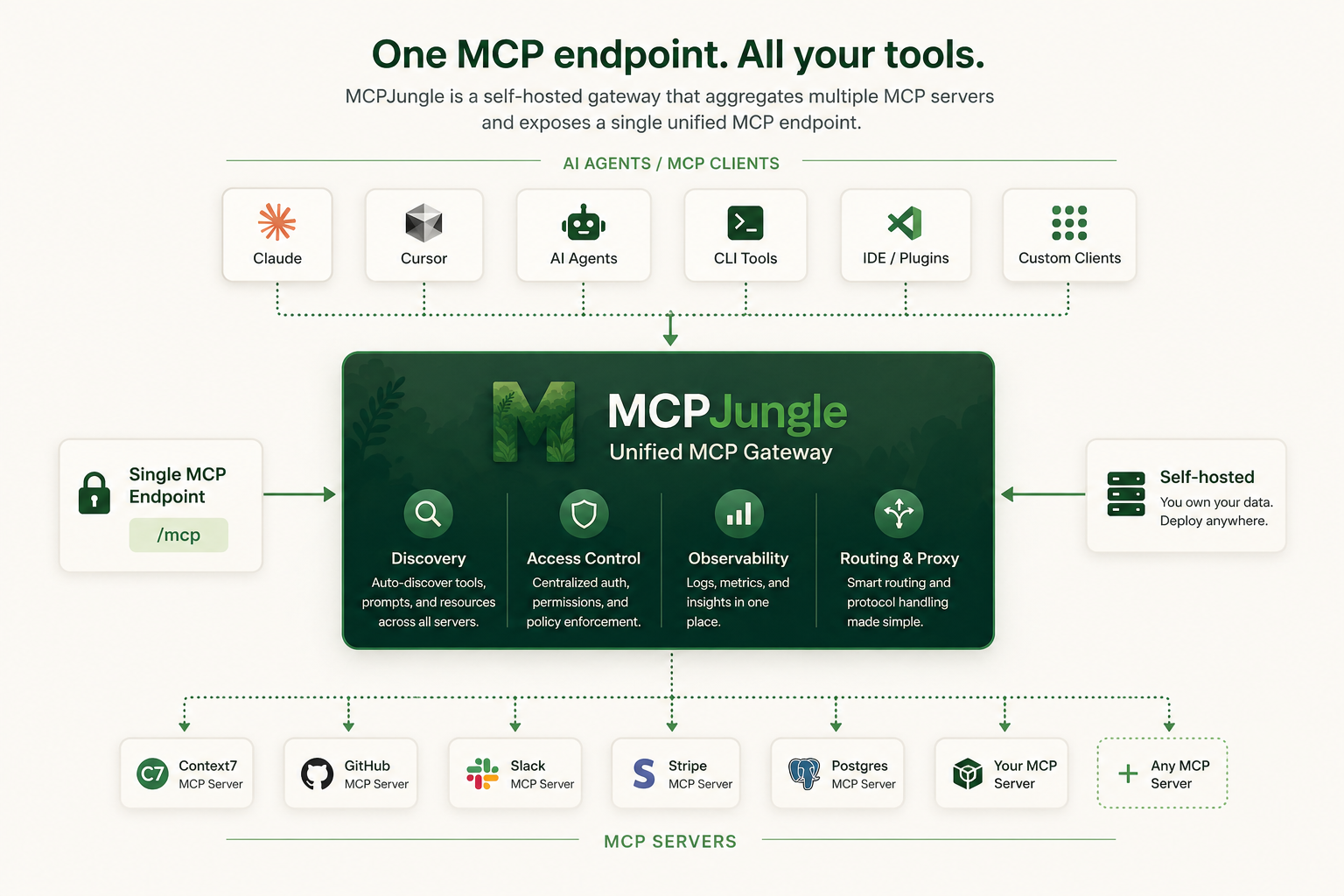
Instead of wiring every MCP server into every AI client, register your servers once in MCPJungle and let Claude, Cursor, Codex, or your own Agents connect to a single MCP endpoint.
MCP is powerful, but managing many MCP servers gets messy fast.
Without a gateway:
MCPJungle gives you a single control point:
Start with a local setup. Scale to a shared team gateway when you need it.
Mcpjungle documentation has a new home: https://docs.mcpjungle.com.
Please prefer the docs site over this README for the latest guides, reference, and operational details.
Your AI Clients can also access the docs using its MCP server https://docs.mcpjungle.com/mcp!
This quickstart guide will show you how to:
docker composeFetch the docker-compose.yaml and start the mcpjungle server:
curl -O https://raw.githubusercontent.com/mcpjungle/MCPJungle/refs/heads/main/docker-compose.yaml
docker compose up -d
This exposes mcpjungle's streamable http mcp server at http://localhost:8080/mcp by default.
mcpjungle CLI on your local machine either using brew or directly from the Releases Page.brew install mcpjungle/mcpjungle/mcpjungle
mcpjungle register --name context7 --url https://mcp.context7.com/mcp
You should see output similar to this:

In your Claude Desktop, add the configuration for mcpjungle MCP server:
{
  "mcpServers": {
    "mcpjungle": {
      "command": "npx",
      "args": [
        "mcp-remote",
        "http://localhost:8080/mcp",
        "--allow-http"
      ]
    }
  }
}
Once you have added the configuration, try asking claude something simple:
Use context7 to get the documentation for `/lodash/lodash`
Claude will then attempt to call the context7__get-library-docs tool via MCPJungle, which will return the documentation for the Lodash library.
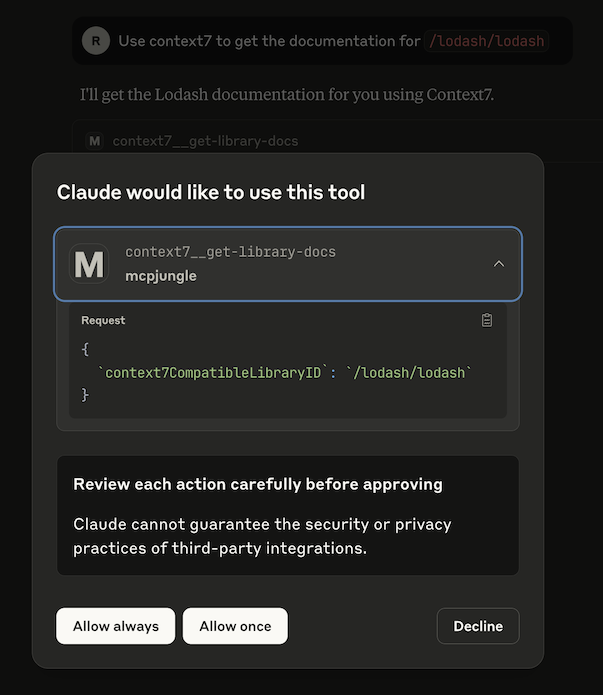
You now have a working MCP setup with a single unified endpoint!
Next, explore the complete documentation at docs.mcpjungle.com and the public roadmap.
MCPJungle is shipped as a stand-alone binary.
You can either download it from the Releases Page or use Homebrew to install it:
brew install mcpjungle/mcpjungle/mcpjungle
Verify your installation by running
mcpjungle version
[!IMPORTANT] On MacOS, you will have to use homebrew because the compiled binary is not Notarized yet.
MCPJungle provides a Docker image which is useful for running the registry server (more about it later).
docker pull ghcr.io/mcpjungle/mcpjungle
MCPJungle has a Client-Server architecture and the binary lets you run both the Server and the Client.
The MCPJungle server is responsible for managing all the MCP servers registered in it and providing a unified MCP gateway for AI Agents to discover and call tools provided by these registered servers.
The gateway itself runs over streamable http transport and is accessible at the /mcp endpoint.
For running the MCPJungle server locally, docker compose is the recommended way:
# docker-compose.yaml is optimized for individuals running mcpjungle on their local machines for personal use.
# mcpjungle will run in `development` mode by default.
curl -O https://raw.githubusercontent.com/mcpjungle/MCPJungle/refs/heads/main/docker-compose.yaml

docker compose up -d

# docker-compose.prod.yaml is optimized for orgs deploying mcpjungle on a remote server for multiple users.
# mcpjungle will run in `enterprise` mode by default, which enables enterprise features.
curl -O https://raw.githubusercontent.com/mcpjungle/MCPJungle/refs/heads/main/docker-compose.prod.yaml

docker compose -f docker-compose.prod.yaml up -d
[!NOTE] The
enterprisemode used to be calledproductionmode. The mode has now been renamed for clarity. Everything else remains the same.
This will start the MCPJungle server along with a persistent Postgres database container.
You can quickly verify that the server is running:
curl http://localhost:8080/health
If you plan on registering stdio-based MCP servers that rely on npx or uvx, use mcpjungle's stdio tagged docker image instead.
MCPJUNGLE_IMAGE_TAG=latest-stdio docker compose up -d
[!NOTE] If you're using
docker-compose.yaml, this is already the default image tag. You only need to specify the stdio image tag if you're usingdocker-compose.prod.yaml.
This image is significantly larger. But it is very convenient and recommended for running locally when you rely on stdio-based MCP servers.
For example, if you only want to register remote mcp servers like context7 and deepwiki, you can use the standard (minimal) image.
But if you also want to use stdio-based servers like filesystem, time, github, etc., you should use the stdio-tagged image instead.
[!NOTE] If your stdio servers rely on tools other than
npxoruvx, you will have to create a custom docker image that includes those dependencies along with the mcpjungle binary.
Production Deployment
The default MCPJungle Docker image is very lightweight - it only contains a minimal base image and the mcpjungle binary.
It is therefore suitable and recommended for production deployments.
For the database, we recommend you deploy a separate Postgres DB cluster and supply its endpoint to mcpjungle (see Database section below).
You can see the definitions of the standard Docker image and the stdio Docker image.
You can also run the server directly on your host machine using the binary:
mcpjungle start
This starts the main registry server and MCP gateway, accessible on port 8080 by default.
It is important that the mcpjungle server shuts down gracefully to ensure proper cleanup.
The recommended way to stop the server process is to send a SIGTERM signal to it.
The mcpjungle server relies on a database and by default, creates a SQLite DB file mcpjungle.db in the current working directory.
This is okay when you're just testing things out locally.
If you do not provide PostgreSQL configuration or a custom SQLite path, mcpjungle uses ./mcpjungle.db.
You can optionally set a custom file path for the SQLite DB file:
mcpjungle start --sqlite-db-path ./.mcpjungle.db

# or
export SQLITE_DB_PATH=/path/to/.mcpjungle.db
mcpjungle start
NOTE: Deleting that SQLite file removes all registered server data and other MCPJungle state stored in it.
For more serious deployments, mcpjungle also supports Postgresql. You can supply the DSN to connect to it:
# You can supply the database DSN as an env var
export DATABASE_URL=postgres://admin:root@localhost:5432/mcpjungle_db

#run as container
docker run ghcr.io/mcpjungle/mcpjungle:latest

# or run directly
mcpjungle start
You can also supply postgres-specific env vars or files if you don't prefer using the DSN:
# host is mandatory if you're using postgres-specific env vars
export POSTGRES_HOST=localhost
export POSTGRES_PORT=5432

export POSTGRES_USER=admin
export POSTGRES_USER_FILE=/path/to/user-file

export POSTGRES_PASSWORD=secret
export POSTGRES_PASSWORD_FILE=/path/to/password-file

export POSTGRES_DB=mcpjungle_db
export POSTGRES_DB_FILE=/path/to/db-file

mcpjungle start
Once the server is up, you can use the mcpjungle CLI to interact with it.
MCPJungle currently supports MCP servers using stdio and Streamable HTTP Transports.
[!NOTE] Support for SSE (server-sent events) also exists but is currently not mature.
Let's see how to register them in mcpjungle.
Let's say you're already running a streamable http MCP server locally at http://127.0.0.1:8000/mcp which provides basic math tools like add, subtract, etc.
You can register this MCP server with MCPJungle:
mcpjungle register --name calculator --description "Provides some basic math tools" --url http://127.0.0.1:8000/mcp
If you used docker compose to run the server, and you're not on Linux, you will have to use host.docker.internal instead of your local loopback address.
mcpjungle register --name calculator --description "Provides some basic math tools" --url http://host.docker.internal:8000/mcp
The registry will now start tracking this MCP server and load its tools.

You can also provide a configuration file to register the MCP server:
cat ./calculator.json
{
  "name": "calculator",
  "transport": "streamable_http",
  "description": "Provides some basic math tools",
  "url": "http://127.0.0.1:8000/mcp"
}

mcpjungle register -c ./calculator.json
All tools provided by this server are now accessible via MCPJungle:
mcpjungle list tools

# Check tool usage
mcpjungle usage calculator__multiply

# Call a tool
mcpjungle invoke calculator__multiply --input '{"a": 100, "b": 50}'

[!NOTE] A tool in MCPJungle must be referred to by its canonical name which follows the pattern
<mcp-server-name>__<tool-name>. Server name and tool name are separated by a double underscore__.eg- If you register a MCP server
githubwhich provides a tool calledgit_commit, you can invoke it in MCPJungle using the namegithub__git_commit.Your MCP client must also use this canonical name to call the tool via MCPJungle.
The config file format for registering a Streamable HTTP-based MCP server is:
{
  "name": "<name of your mcp server>",
  "transport": "streamable_http",
  "description": "<description>",
  "url": "<url of the mcp server>",
  "bearer_token": "<optional bearer token for authentication>",
  "headers": {
    "<custom http header>": "<value>"
  }
}
Here's an example configuration file (let's call it filesystem.json) for a MCP server that uses the STDIO transport:
{
  "name": "filesystem",
  "transport": "stdio",
  "description": "filesystem mcp server",
  "command": "npx",
  "args": ["-y", "@modelcontextprotocol/server-filesystem", "."]
}
You can register this MCP server in MCPJungle by providing the configuration file:
# Save the JSON configuration to a file (e.g., filesystem.json)
mcpjungle register -c ./filesystem.json
The config file format for registering a STDIO-based MCP server is:
{
  "name": "<name of your mcp server>",
  "transport": "stdio",
  "description": "<description>",
  "command": "<command to run the mcp server, eg- 'npx', 'uvx'>",
  "args": ["arguments", "to", "pass", "to", "the", "command"],
  "env": {
    "KEY": "value"
  }
}
You can also watch a quick video on How to register a STDIO-based MCP server.
[!TIP] If your STDIO server fails or throws errors for some reason, check the mcpjungle server's logs to view its
stderroutput.
When you use a JSON config file to register a mcp server or create other entities like tol groups, the CLI can resolve environment variable placeholders in string values before sending the request to the server.
${VAR_NAME} are resolved.prefix-${VAR_NAME}-suffix.Example MCP server config:
{
  "name": "affine-main",
  "transport": "streamable_http",
  "description": "AFFiNE workspace MCP server",
  "url": "https://app.affine.pro/api/workspaces/${AFFINE_WORKSPACE_ID}/mcp",
  "bearer_token": "${AFFINE_API_TOKEN}",
  "headers": {
    "X-Workspace": "${AFFINE_WORKSPACE_ID}"
  }
}
Example STDIO config:
{
  "name": "my-stdio-server",
  "transport": "stdio",
  "command": "uvx",
  "args": ["my-server", "--workspace", "${WORKSPACE_ID}"],
  "env": {
    "API_TOKEN": "${API_TOKEN}"
  }
}
Caveat ⚠️
When running mcpjungle inside Docker, you need some extra configuration to run the filesystem mcp server.
By default, mcpjungle inside container does not have access to your host filesystem.
So you must:
The docker-compose.yaml provided by mcpjungle mounts the current working directory as /host in the container.
So you can use the following configuration for the filesystem mcp server:
{
  "name": "filesystem",
  "transport": "stdio",
  "command": "npx",
  "args": ["-y", "@modelcontextprotocol/server-filesystem", "/host"]
}
Then, the mcp has access to /host, ie, the current working directory on your host machine.
See DEVELOPMENT.md for more details.
If your MCPJungle server is running in a remote Docker container or Kubernetes cluster, you can also execute the mcpjungle binary directly inside the container:
docker exec -it <container_name> /mcpjungle
kubectl -n <namespace> exec -it po/<pod_name> -- /mcpjungle
[!NOTE] The standard image does not include a shell. Run
/mcpjungledirectly viadocker execorkubectl exec.
This is useful for running CLI commands from the same environment where the server is running.
You can remove a MCP server from mcpjungle.
mcpjungle deregister calculator
mcpjungle deregister filesystem
Once removed, this mcp server and its tools are no longer available to you or your MCP clients.
By default, the CLI connects to the mcpjungle server at http://127.0.0.1:8000.
If your server is running on a different host or port (e.g., a remote deployment), you can configure the registry URL in two ways:
Option 1: Use the --registry flag
mcpjungle --registry http://my-server:9000 list tools
Option 2: Set it in the config file
Create or edit ~/.mcpjungle.conf:
registry_url: http://my-server:9000
This avoids having to pass the --registry flag on every command.
By default, MCPJungle always creates a new connection with the upstream MCP server when a tool is called.
When the tool call is complete, the connection is closed.
This keeps the system clean and avoids memory leaks.
But sometimes this can cause a latency overhead. For eg- a new process is spawned every time you call a tool of a STDIO-based mcp server. If the server takes several seconds to start up, this slows down the tool call and the overall interaction.
To solve this, MCPJungle also supports stateful connections.
You can set the session_mode to stateful (default is stateless) in you MCP server configuration:
{
  "name": "filesystem",
  "transport": "stdio",
  "command": "npx",
  "args": ["-y", "@modelcontextprotocol/server-filesystem", "."],
  "session_mode": "stateful"
}
mcpjungle will create a new connection with this mcp server the first time you call one of its tools.
This connection is not closed when the tool call is complete. Subsequent tool calls to this server reuse the same connection, avoiding the cold-start overhead.
The connection is only closed when:
SESSION_IDLE_TIMEOUT_SEC env var to configure this globally in mcpjungle server (default value is -1, which means no timeout).When possible, it is recommended that you use stateless connections (default setting).
Assuming that MCPJungle is running on http://localhost:8080, use the following configurations to connect to it:
{
  "mcpServers": {
    "mcpjungle": {
      "command": "npx",
      "args": [
        "mcp-remote",
        "http://localhost:8080/mcp",
        "--allow-http"
      ]
    }
  }
}
{
  "mcpServers": {
    "mcpjungle": {
      "url": "http://localhost:8080/mcp"
    }
  }
}
You can watch a quick video on How to connect Cursor to MCPJungle.
Follow Copilot's doc on configuraing a MCP server manually.
Your mcp.json config file should look like this after adding mcpjungle to it:
{
  "servers": {
    "mcpjungle": {
      "url": "http://localhost:8080/mcp"
    }
  }
}
[!NOTE] You may have to click on
Startfor Copilot to actually start interacting with mcpjungle.
You can disable and re-enable a specific tool or all the tools provided by an MCP Server.
If a tool is disabled, it is not available via the MCPJungle Proxy or any of the Tool Groups, so no MCP clients can view or call it.
You can disable and enable Prompts as well.
# disable the `get-library-docs` tool provided by the `context7` MCP server
mcpjungle disable tool context7__get-library-docs

# re-enable the tool
mcpjungle enable tool context7__get-library-docs

# disable all tools in context7
mcpjungle disable tool context7

# disable the whole `context7` MCP server (disables all tools & prompts)
mcpjungle disable server context7

# re-enable `context7`
mcpjungle enable server context7

# disable a prompt
mcpjungle disable prompt "huggingface_Model Details"

# disable all prompts in context7
mcpjungle disable prompt context7
A disabled tool is still accessible via mcpjungle's HTTP API, so humans can still manage it from the CLI (or any other HTTP client).
[!NOTE] When a new server is registered in MCPJungle, all its tools & prompts are enabled by default.
Mcpjungle supports Prompts.
When you register a new MCP server, if it provides prompts, they're registered in mcpjungle too.
Here are some examples of how you can interact with Prompts using the CLI:
# list all prompts provided by the huggingface mcp
$ mcpjungle list prompts --server huggingface

# Retrieve the "Model Details" prompt, supply custom arguments
$ mcpjungle get prompt "huggingface__Model Details" --arg model_id="openai/gpt-oss-120b"
As you add more MCP servers to MCPJungle, the number of tools available through the Gateway can grow significantly.
If your MCP client is exposed to hundreds of tools through the gateway MCP, its performance may degrade.
MCPJungle allows you to expose only a subset of all available tools to your MCP clients using Tool Groups.
You can create a new group and only include specific tools that you wish to expose.
Once a group is created, mcpjungle returns a unique endpoint for it.
You can then configure your MCP client to use this group-specific endpoint instead of the main gateway endpoint.
You can create a new tool group by providing a JSON configuration fil
Sign in to join the discussion.
No comments yet. Be the first to say what this is good for.
Real-time global intelligence dashboard. AI-powered news aggregation, geopolitical monitoring, and infrastructure tracking in a unified situational awareness interface
High-performance code intelligence MCP server. Indexes codebases into a persistent knowledge graph — average repo in milliseconds. 158 languages, sub-ms queries, 99% fewer tokens. Single static binary, zero dependencies.
Universal provider proxy for OpenAI Codex & Claude Code — use any LLM (Claude, Gemini, Grok, DeepSeek, Ollama…) with Codex CLI, App, SDK, and Claude Code

Git-native persistent memory for AI coding agents. Implements Google OKF v0.2 with sub-300µs in-memory BM25 search, embedded MCP server, and progressive disclosure. Slashes token bloat by 80% with zero external databases or dependencies. Built in pure Go.

Local-first code intelligence graph for MCP and CLI. Builds a persistent map of your codebase so AI coding tools read only what matters, with benchmarked context reductions on reviews and large-repo workflows.

Stop your AI from making things up — it proposes, deterministic tools decide, every claim checked against ground truth with evidence. Grounded facts and context survive resets. Reverse engineering is the proving ground. MCP server + CLI.