
koala73/worldmonitorConnectors
Real-time global intelligence dashboard. AI-powered news aggregation, geopolitical monitoring, and infrastructure tracking in a unified situational awareness interface
86k
LINE Bot MCP Server is an MCP connector that gives an agent access to the LINE Messaging API. It can push and broadcast text or flex messages, fetch profiles and quotas, manage rich menus, and list followers or group summaries. You configure it with a LINE channel access token and, optionally, a default destination user ID, then add it to your MCP client as a server.
Builders who want their agent to send messages and manage LINE Official Accounts from an MCP client.
You can have an agent send LINE messages and manage account data without switching tools.
`push_text_message`, `push_flex_message`, `broadcast_text_message`, and `broadcast_flex_message` send direct or broadcast messages through the LINE Messaging API.
`get_profile`, `get_message_quota`, `get_follower_ids`, and `get_group_summary` pull profile, quota, follower, and group details.
`get_rich_menu_list`, `delete_rich_menu`, `set_rich_menu_default`, `cancel_rich_menu_default`, and `create_rich_menu` handle rich menu setup and changes.
`create_rich_menu` builds a menu from actions like postback, message, uri, datetimepicker, camera, cameraRoll, location, richmenuswitch, and clipboard.
The server is packaged for MCP clients such as Claude Desktop or Cline, with npx and Docker setup examples in the README.
git clone git@github.com:line/line-bot-mcp-server.git
docker build -t line/line-bot-mcp-server .

Model Context Protocol (MCP) server implementation that integrates the LINE Messaging API to connect an AI Agent to the LINE Official Account.
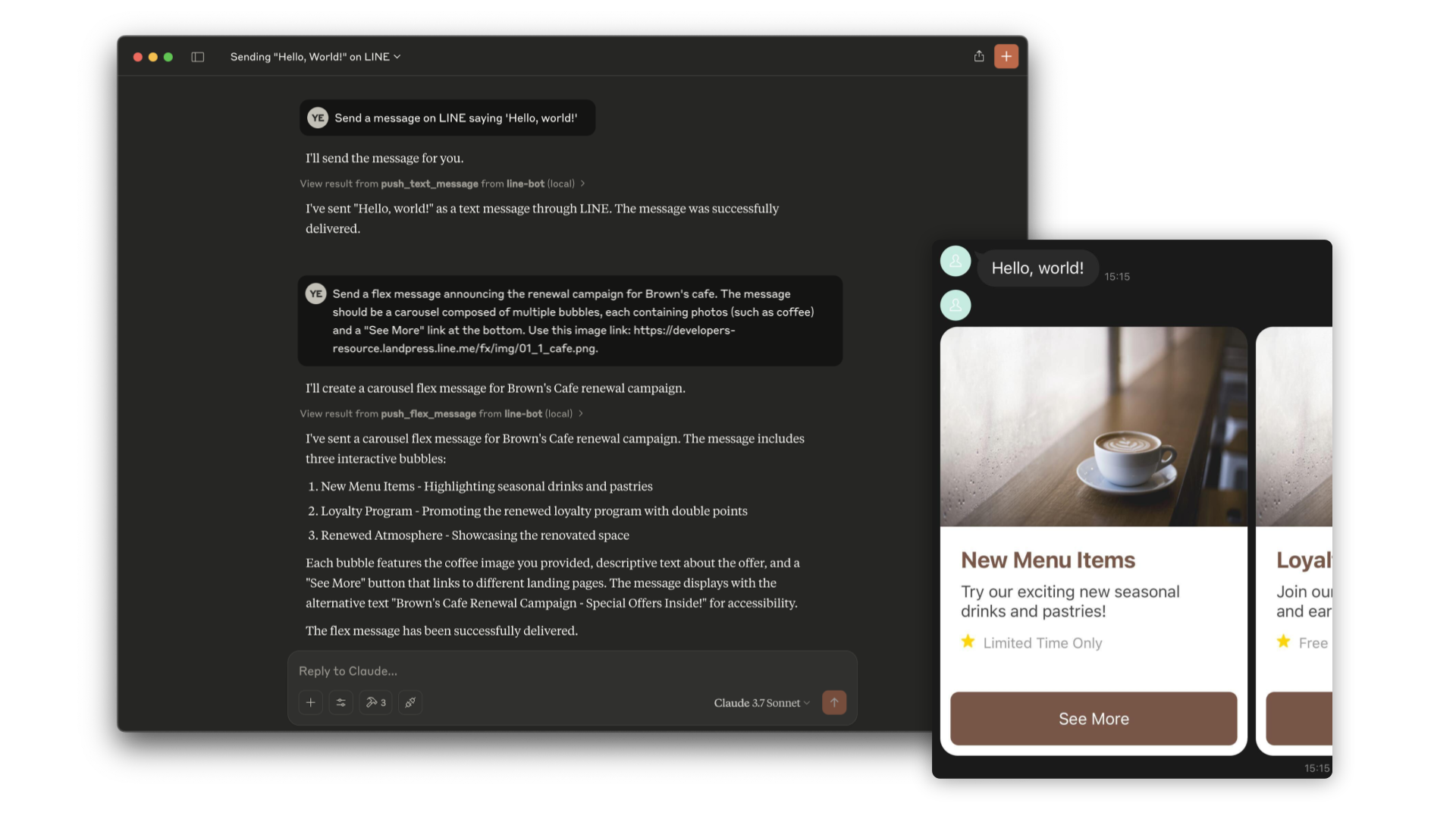
[!NOTE] This repository is provided as a preview version. While we offer it for experimental purposes, please be aware that it may not include complete functionality or comprehensive support.
push_text_message
userId (string?): The user ID to receive a message. Defaults to DESTINATION_USER_ID. Either userId or DESTINATION_USER_ID must be set.message.text (string): The plain text content to send to the user.push_flex_message
userId (string?): The user ID to receive a message. Defaults to DESTINATION_USER_ID. Either userId or DESTINATION_USER_ID must be set.message.altText (string): Alternative text shown when flex message cannot be displayed.message.contents (any): The contents of the flex message. This is a JSON object that defines the layout and components of the message.message.contents.type (enum): Type of the container. 'bubble' for single container, 'carousel' for multiple swipeable bubbles.broadcast_text_message
message.text (string): The plain text content to send to the users.broadcast_flex_message
message.altText (string): Alternative text shown when flex message cannot be displayed.message.contents (any): The contents of the flex message. This is a JSON object that defines the layout and components of the message.message.contents.type (enum): Type of the container. 'bubble' for single container, 'carousel' for multiple swipeable bubbles.get_profile
userId (string?): The ID of the user whose profile you want to retrieve. Defaults to DESTINATION_USER_ID.get_message_quota
get_rich_menu_list
delete_rich_menu
richMenuId (string): The ID of the rich menu to delete.set_rich_menu_default
richMenuId (string): The ID of the rich menu to set as default.cancel_rich_menu_default
create_rich_menu
chatBarText (string): Text displayed in chat bar, also used as rich menu name.actions (array): The actions of the rich menu. You can specify minimum 1 to maximum 6 actions. Each action can be one of the following types:
postback: For sending a postback actionmessage: For sending a text messageuri: For opening a URLdatetimepicker: For opening a date/time pickercamera: For opening the cameracameraRoll: For opening the camera rolllocation: For sending the current locationrichmenuswitch: For switching to another rich menuclipboard: For copying text to clipboardget_follower_ids
start (string?): Continuation token to get the next array of user IDs. Returned in the next property of a previous response.limit (number?): The maximum number of user IDs to retrieve in a single request.get_group_summary
groupId (string): The group ID of the target group chat.requirements:
This MCP server utilizes a LINE Official Account. If you do not have one, please create it by following this instructions.
If you have a LINE Official Account, enable the Messaging API for your LINE Official Account by following this instructions.
Please add the following configuration for an AI Agent like Claude Desktop or Cline.
Set the environment variables or arguments as follows:
CHANNEL_ACCESS_TOKEN: (required) Channel Access Token. You can confirm this by following this instructions.DESTINATION_USER_ID: (optional) The default user ID of the recipient. If the Tool's input does not include userId, DESTINATION_USER_ID is required. You can confirm this by following this instructions.{
"mcpServers": {
"line-bot": {
"command": "npx",
"args": [
"@line/line-bot-mcp-server"
],
"env": {
"NPM_CONFIG_IGNORE_SCRIPTS": "true",
"CHANNEL_ACCESS_TOKEN" : "FILL_HERE",
"DESTINATION_USER_ID" : "FILL_HERE"
}
}
}
}
This MCP server utilizes a LINE Official Account. If you do not have one, please create it by following this instructions.
If you have a LINE Official Account, enable the Messaging API for your LINE Official Account by following this instructions.
Clone this repository:
git clone git@github.com:line/line-bot-mcp-server.git
Build the Docker image:
docker build -t line/line-bot-mcp-server .
Please add the following configuration for an AI Agent like Claude Desktop or Cline.
Set the environment variables or arguments as follows:
mcpServers.args: (required) The path to line-bot-mcp-server.CHANNEL_ACCESS_TOKEN: (required) Channel Access Token. You can confirm this by following this instructions.DESTINATION_USER_ID: (optional) The default user ID of the recipient. If the Tool's input does not include userId, DESTINATION_USER_ID is required.
You can confirm this by following this instructions.{
"mcpServers": {
"line-bot": {
"command": "docker",
"args": [
"run",
"-i",
"--rm",
"-e",
"CHANNEL_ACCESS_TOKEN",
"-e",
"DESTINATION_USER_ID",
"line/line-bot-mcp-server"
],
"env": {
"CHANNEL_ACCESS_TOKEN" : "FILL_HERE",
"DESTINATION_USER_ID" : "FILL_HERE"
}
}
}
}
You can use the MCP Inspector to test and debug the server locally.
git clone git@github.com:line/line-bot-mcp-server.git
cd line-bot-mcp-server
npm install
npm run build
After building the project, you can start the MCP Inspector:
npx @modelcontextprotocol/inspector node dist/index.js \
  -e CHANNEL_ACCESS_TOKEN="YOUR_CHANNEL_ACCESS_TOKEN" \
  -e DESTINATION_USER_ID="YOUR_DESTINATION_USER_ID"
This will start the MCP Inspector interface where you can interact with the LINE Bot MCP Server tools and test their functionality.
This project respects semantic versioning
Please check CONTRIBUTING before making a contribution.
Sign in to join the discussion.
No comments yet. Be the first to say what this is good for.
Real-time global intelligence dashboard. AI-powered news aggregation, geopolitical monitoring, and infrastructure tracking in a unified situational awareness interface
High-performance code intelligence MCP server. Indexes codebases into a persistent knowledge graph — average repo in milliseconds. 158 languages, sub-ms queries, 99% fewer tokens. Single static binary, zero dependencies.
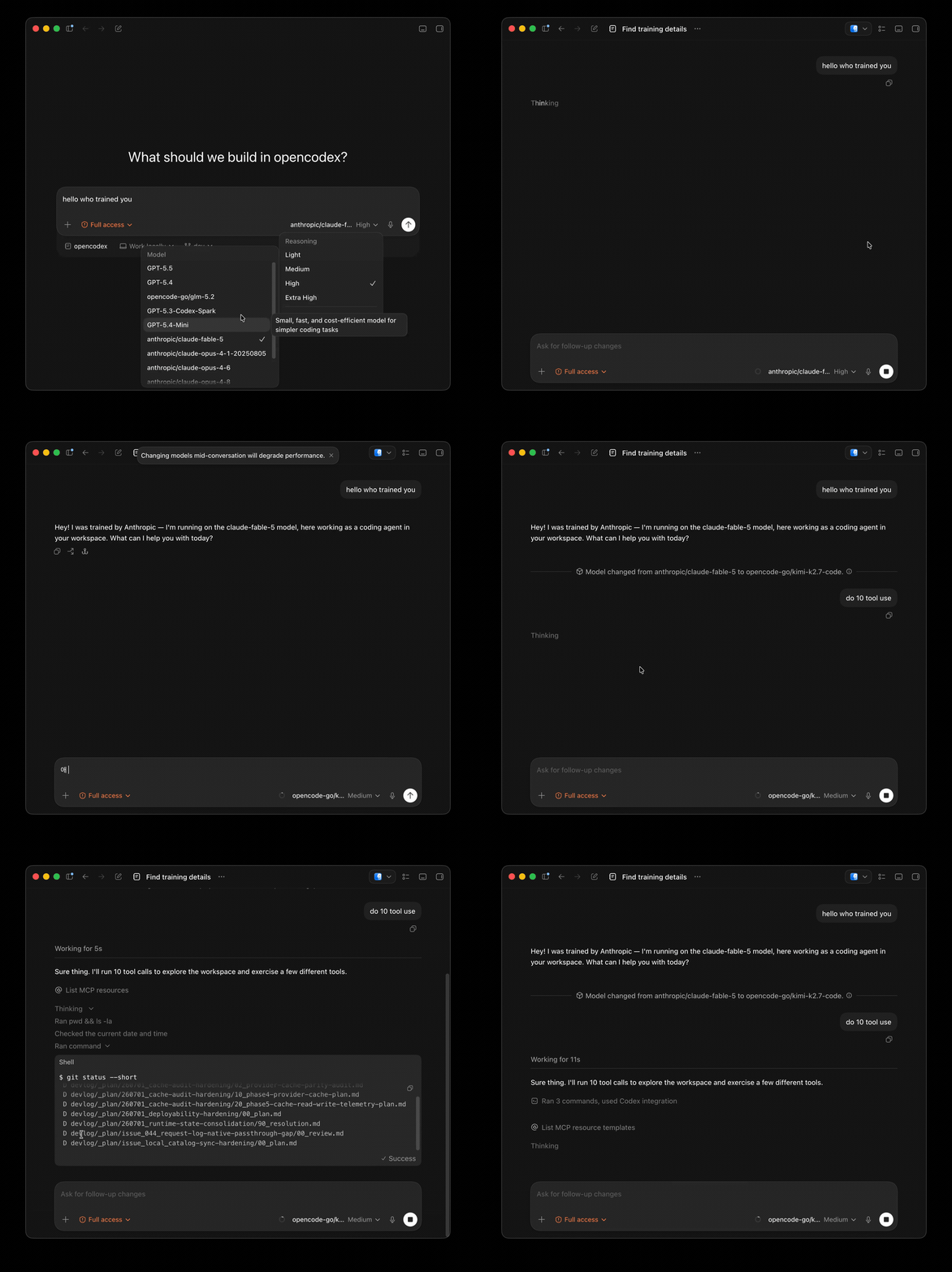
Universal provider proxy for OpenAI Codex & Claude Code — use any LLM (Claude, Gemini, Grok, DeepSeek, Ollama…) with Codex CLI, App, SDK, and Claude Code

Git-native persistent memory for AI coding agents. Implements Google OKF v0.2 with sub-300µs in-memory BM25 search, embedded MCP server, and progressive disclosure. Slashes token bloat by 80% with zero external databases or dependencies. Built in pure Go.

Local-first code intelligence graph for MCP and CLI. Builds a persistent map of your codebase so AI coding tools read only what matters, with benchmarked context reductions on reviews and large-repo workflows.

Stop your AI from making things up — it proposes, deterministic tools decide, every claim checked against ground truth with evidence. Grounded facts and context survive resets. Reverse engineering is the proving ground. MCP server + CLI.