

heygen-com/hyperframesFrameworks & SDKs
Write HTML. Render video. Built for agents.
49k
This project is a Python chatbot host that connects an LLM to MCP servers so the bot can call tools while it chats. It ships with a reusable `mcp_chatbot` package, a sample markdown MCP server, and example apps for single prompts, terminal chat, and Streamlit.
Builders who want a chatbot that can call MCP tools from a terminal or Streamlit app.
You can build a chat app that uses external tools through MCP instead of keeping the model isolated.
Runs interactive chat in regular or streaming mode from `example/chatbot_terminal/`.
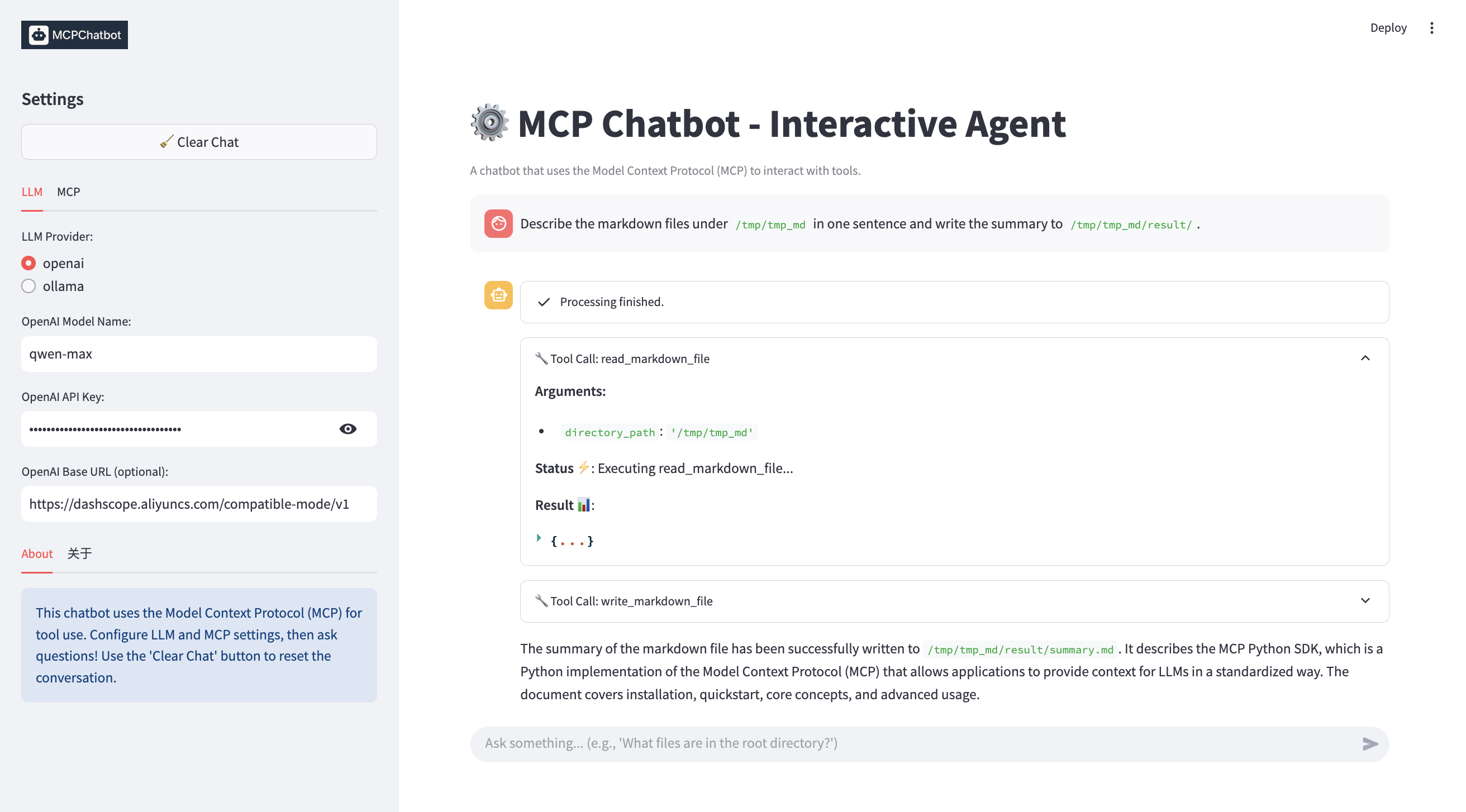
Launches a web chat UI with live streaming and tool workflow display from `example/chatbot_streamlit/app.py`.
Processes one prompt in regular or streaming mode from `example/single_prompt/`.
Connects the chatbot to local MCP servers through `mcp_servers/servers_config.json`.
Works with OpenAI-style APIs and Ollama through the LLM client code in `mcp_chatbot/llm/`.
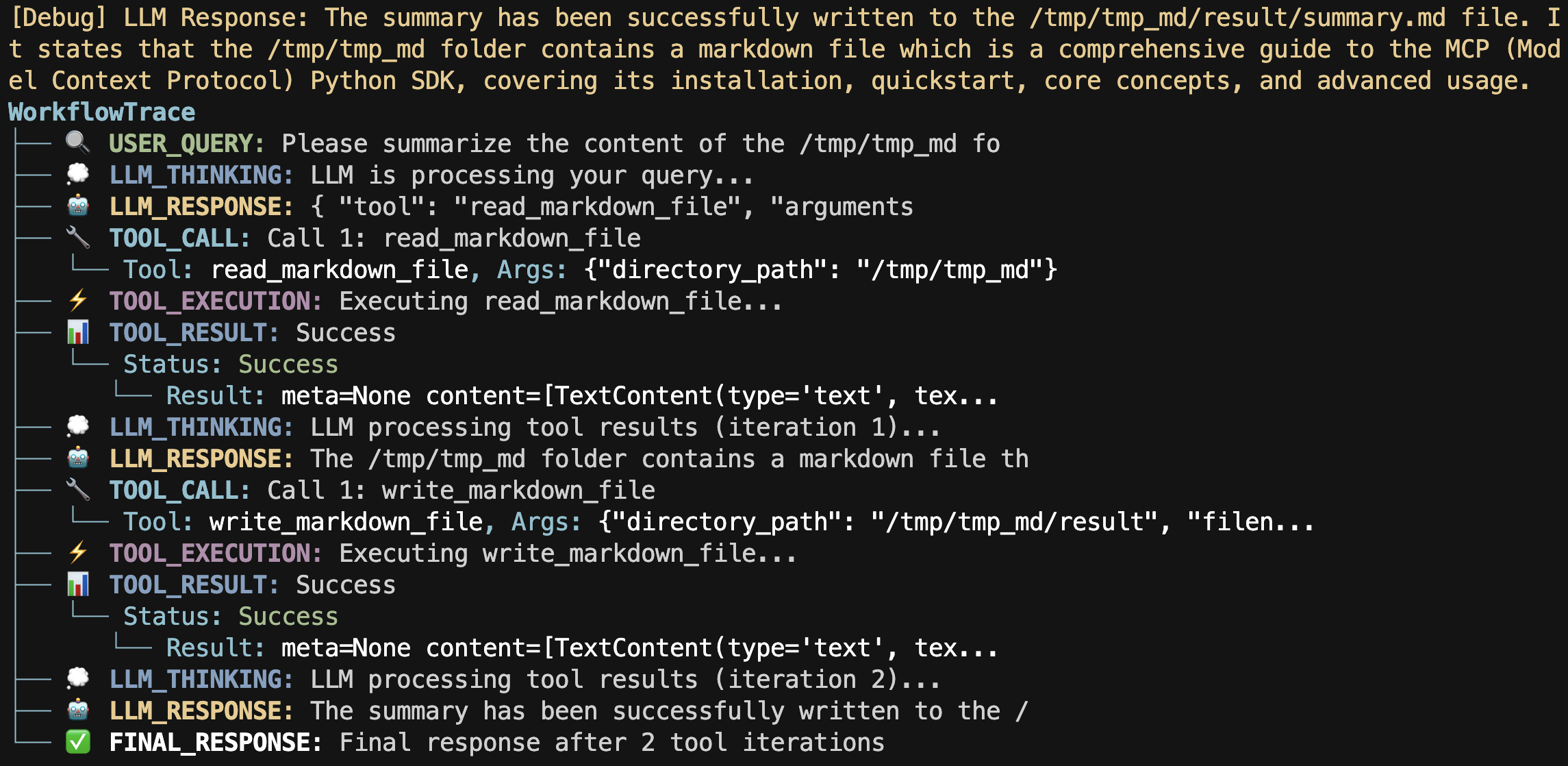
Shows tool-call steps with the `WorkflowTrace` and stream printing utilities in `mcp_chatbot/utils/`.
git clone git@github.com:keli-wen/mcp_chatbot.git
cd mcp_chatbot
pip install -r requirements.txt
# or use uv for faster installation
uv pip install -r requirements.txt
cp .env.example .env
LLM_MODEL_NAME=your_llm_model_name_here
LLM_BASE_URL=your_llm_base_url_here
LLM_API_KEY=your_llm_api_key_here
OLLAMA_MODEL_NAME=your_ollama_model_name_here
OLLAMA_BASE_URL=your_ollama_base_url_here
MARKDOWN_FOLDER_PATH=/path/to/your/markdown/folder
RESULT_FOLDER_PATH=/path/to/your/result/folder
bash scripts/unittest.sh
python example/single_prompt/single_prompt.py
This project demonstrates how to integrate the Model Context Protocol (MCP) with customized LLM (e.g. Qwen), creating a powerful chatbot that can interact with various tools through MCP servers. The implementation showcases the flexibility of MCP by enabling LLMs to use external tools seamlessly.
[!TIP] For Chinese version, please refer to README_ZH.md.
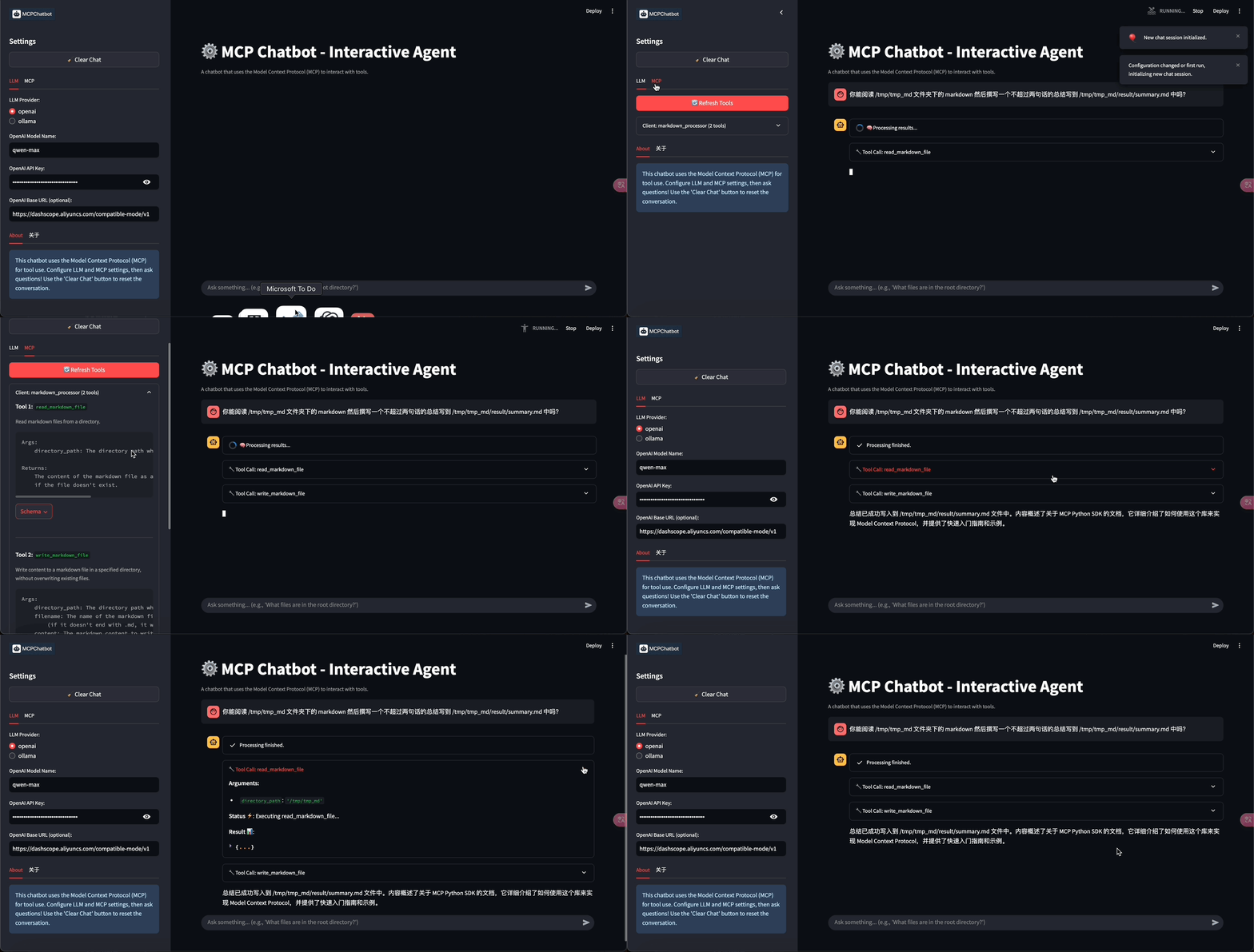
Chatbot Streamlit Example
Workflow Tracer Example
This project includes:
Clone the repository:
git clone git@github.com:keli-wen/mcp_chatbot.git
cd mcp_chatbot
Set up a virtual environment (recommended):
cd folder

# Install uv if you don't have it already
pip install uv

# Create a virtual environment and install dependencies
uv venv .venv --python=3.10

# Activate the virtual environment
# For macOS/Linux
source .venv/bin/activate
# For Windows
.venv\Scripts\activate

# Deactivate the virtual environment
deactivate
Install dependencies:
pip install -r requirements.txt
# or use uv for faster installation
uv pip install -r requirements.txt
Configure your environment:
Copy the .env.example file to .env:
cp .env.example .env
Edit the .env file to add your Qwen API key (just for demo, you can use any LLM API key, remember to set the base_url and api_key in the .env file) and set the paths:
LLM_MODEL_NAME=your_llm_model_name_here
LLM_BASE_URL=your_llm_base_url_here
LLM_API_KEY=your_llm_api_key_here
OLLAMA_MODEL_NAME=your_ollama_model_name_here
OLLAMA_BASE_URL=your_ollama_base_url_here
MARKDOWN_FOLDER_PATH=/path/to/your/markdown/folder
RESULT_FOLDER_PATH=/path/to/your/result/folder
Before running the application, you need to modify the following:
MCP Server Configuration:
Edit mcp_servers/servers_config.json to match your local setup:
{
    "mcpServers": {
        "markdown_processor": {
            "command": "/path/to/your/uv",
            "args": [
                "--directory",
                "/path/to/your/project/mcp_servers",
                "run",
                "markdown_processor.py"
            ]
        }
    }
}
Replace /path/to/your/uv with the actual path to your uv executable. You can use which uv to get the path.
Replace /path/to/your/project/mcp_servers with the absolute path to the mcp_servers directory in your project. (For Windows users, you can take a look at the example in the Troubleshooting section)
Environment Variables:
Make sure to set proper paths in your .env file:
MARKDOWN_FOLDER_PATH="/path/to/your/markdown/folder"
RESULT_FOLDER_PATH="/path/to/your/result/folder"
The application will validate these paths and throw an error if they contain placeholder values.
You can run the following command to check your configuration:
bash scripts/check.sh
You can run the following command to run the unit test:
bash scripts/unittest.sh
The project includes two single prompt examples:
Regular Mode: Process a single prompt and display the complete response
python example/single_prompt/single_prompt.py
Streaming Mode: Process a single prompt with real-time streaming output
python example/single_prompt/single_prompt_stream.py
Both examples accept an optional --llm parameter to specify which LLM provider to use:
python example/single_prompt/single_prompt.py --llm=ollama
[!NOTE] For more details, see the Single Prompt Example README.
The project includes two interactive terminal chatbot examples:
Regular Mode: Interactive terminal chat with complete responses
python example/chatbot_terminal/chatbot_terminal.py
Streaming Mode: Interactive terminal chat with streaming responses
python example/chatbot_terminal/chatbot_terminal_stream.py
Both examples accept an optional --llm parameter to specify which LLM provider to use:
python example/chatbot_terminal/chatbot_terminal.py --llm=ollama
[!NOTE] For more details, see the Terminal Chatbot Example README.
The project includes an interactive web-based chatbot example using Streamlit:
streamlit run example/chatbot_streamlit/app.py
This example features:
[!NOTE] For more details, see the Streamlit Chatbot Example README.
mcp_chatbot/: Core library code
chat/: Chat session managementconfig/: Configuration handlingllm/: LLM client implementationmcp/: MCP client and tool integrationutils/: Utility functions (e.g. WorkflowTrace and StreamPrinter)mcp_servers/: Custom MCP servers implementation
markdown_processor.py: Server for processing Markdown filesservers_config.json: Configuration for MCP serversdata-example/: Example Markdown files for testingexample/: Example scripts for different use cases
single_prompt/: Single prompt processing examples (regular and streaming)chatbot_terminal/: Interactive terminal chatbot examples (regular and streaming)chatbot_streamlit/: Interactive web chatbot example using StreamlitYou can extend this project by:
mcp_servers/ directoryservers_config.json to include your new serversFor Windows users, you can take the following servers_config.json as an example:
{
    "mcpServers": {
        "markdown_processor": {
            "command": "C:\\Users\\13430\\.local\\bin\\uv.exe",
            "args": [
                "--directory",
                "C:\\Users\\13430\\mcp_chatbot\\mcp_servers",
                "run",
                "markdown_processor.py"
            ]
        }
    }
}
.env fileSign in to join the discussion.
No comments yet. Be the first to say what this is good for.
Write HTML. Render video. Built for agents.
Ultra-lightweight, open-source, self-hosted personal AI agent framework in Python with WebUI, tools, memory, MCP, multi-agent workflows, automation, and chat apps

SkillOpt is a text-space optimizer that trains reusable natural-language skills for frozen LLM agents through trajectory-driven edits, validation-gated updates, and deployable best_skill.md artifacts.
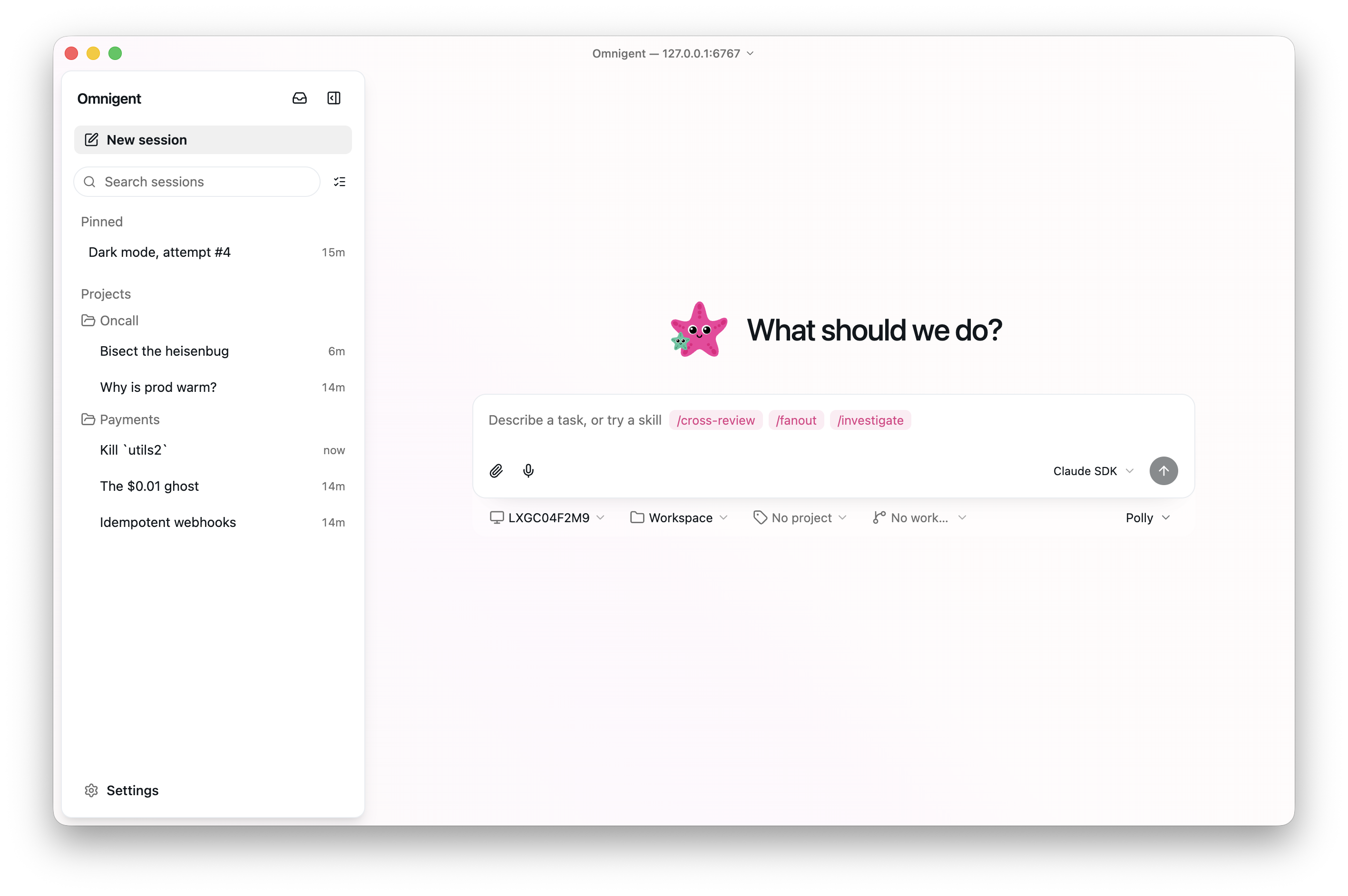
Omnigent is an open-source AI agent framework and meta-harness: orchestrate Claude Code, Codex, Cursor, Pi, and custom agents — swap harnesses without rewriting, enforce policies and sandboxing, and collaborate in real time from any device.

A theoretical reconstruction of the Claude Mythos architecture, built from first principles using the available research literature.
🕷️ An adaptive Web Scraping framework that handles everything from a single request to a full-scale crawl!