Claude Overlay





Talk to Claude Code without ever leaving the app you're in — and let it actually see your screen.
Windows 10 / 11 only (for now) · runs on your existing Claude subscription — no API key

Claude Overlay is a frameless, always-on-top chat window that floats over
everything you do. Ask a question, and Claude looks at your real
screen — every monitor — to answer. No copy-pasting error messages, no
describing what you're staring at, no alt-tabbing to a browser. And because it
runs the full Claude Code agent
under the hood, it doesn't just chat — it can read, edit, and run things for you,
right where you work. Point it at the slide deck, document, or spreadsheet you have
open and it can change the file you're looking at — you never have to tell it
where the file lives or even alt-tab away.
Best of all, it costs nothing extra: it drives your own claude CLI login,
so it uses your existing Claude subscription — no API key, no metered billing.
⭐ If a screen-aware Claude that floats over your work sounds useful, star the repo — it helps other people find it.
✨ Why you'll want it
- 👁️ It sees what you see. Auto-captures each monitor on every message and
labels primary vs. secondary — just ask "what's wrong here?" and it looks.
- 🪟 Never breaks your flow. Always-on-top and frameless; it collapses to a
tiny draggable orb when you're not using it (with a real Windows taskbar
button to click it back), and drops a ✓ on the orb when a reply finishes
while it's tucked away — so you know a task is done without expanding it.
- 🏷️ Name each overlay; run several at once. Click the title to name an
overlay for the task it's on — the name rides under the orb when collapsed, so a
row of orbs (one per task) stays tellable apart at a glance.
- 🧠 A real agent that acts, not a chatbot. Full Claude Code (Opus 4.8) — it
edits files, runs commands, and can even reach into the app on your screen (say,
fix the wording on your open slide, or build a model in your open Excel), not just
answer questions.
- 🔁 Conversations survive restarts. Relaunch the overlay (say, after an update)
and it offers a one-click Resume last conversation — and if the connection to
the CLI drops mid-session, it reconnects into the same conversation instead of
losing your context.
- 💸 No API key, no extra cost. Runs on your existing Claude subscription.
- 🖼️ Screenshots and pasted images. It grabs your screen automatically on every
message, or paste any image with Ctrl+V to ask about it. If your screen hasn't
changed since the last message, the duplicate isn't re-sent (Claude is told to keep
using the one it already has) — follow-up questions answer measurably faster.
- ⚡ Live, polished UI. Responses stream token-by-token with clean tool-call
chips, an in-place model switcher, and a context-usage meter.
- 🎨 Looks the part, crisp anywhere. Styled after the Claude desktop app,
DPI-aware on HiDPI displays, resizable from any edge, with live Ctrl +/– zoom.
- 🔒 Local & private. Runs entirely on your machine against your own login.
Where a floating overlay wins
The CLI and the desktop app are perfect when you're already in a terminal or a chat
window. The overlay earns its place by floating over whatever you're doing, seeing
it, and acting on it — so it shines exactly where those can't:
- ✍️ Edit what's right in front of you. Don't just ask about the open
document — ask it to change it. Fix a typo on the current slide, tighten a
paragraph in your draft, fill a cell, or reword a heading. Because it's a full
Claude Code agent with a shell, it can drive the app you already have open (e.g.
via PowerShell/COM automation) to edit the file you're looking at — no file
path needed. It works this out at run time rather than from a built-in
integration, so it's not infallible: sanity-check important documents first
(see the Security note near the end of this README).
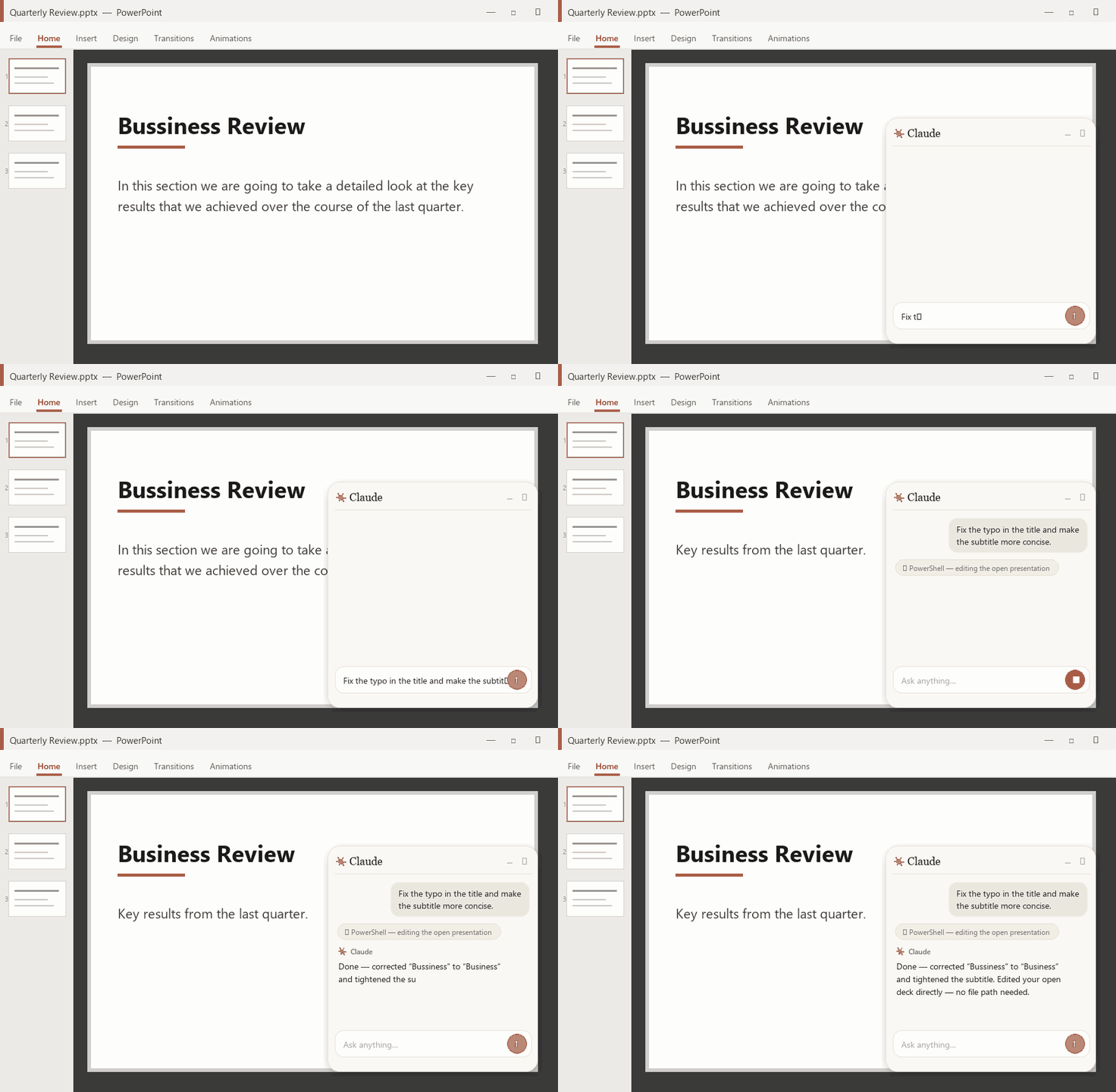
Ask it to fix the open slide — it edits the deck you already have open, no file path given.
- 📊 Build, not just edit. Ask for a spreadsheet and it builds the real thing in your
open Excel — sourced assumptions, live formulas, a top-down calculation, even a
low/base/high sensitivity, laid out like a banker's model. One sentence in the overlay,
a working model in the sheet.

Ask in the overlay; it drives Excel to build the model — assumptions, formulas, and a sensitivity.
- 🖥️ Mid-presentation. Stay in full-screen slideshow. Summon the overlay to
fact-check a number, translate a term, or field an audience question on the spot —
then dismiss it without ever leaving the deck.
- 🌐 Reading in another language. On a foreign-language page, PDF, or slide, ask
it to translate or explain what's on screen, in place — no copy-pasting into a
separate translator tab.
- 📄 Skimming something long. "TL;DR this", "what does it say about X?" — about the
article, whitepaper, or PDF you're looking at, without selecting or pasting a word.
- 🧩 Any GUI with no terminal. A cryptic error dialog, a settings panel, a BI
dashboard, a spreadsheet formula — point your screen at it and ask. It works over
apps that have no command line and nothing to copy.
- 🖥️🖥️ Across monitors. It captures every screen, so ask it to reconcile the spec
on one monitor against the figure or table on the other.
- 🎥 On a call or screen-share. A discreet, always-on-top helper to look things up
about what's being shown — without alt-tabbing away from the meeting.
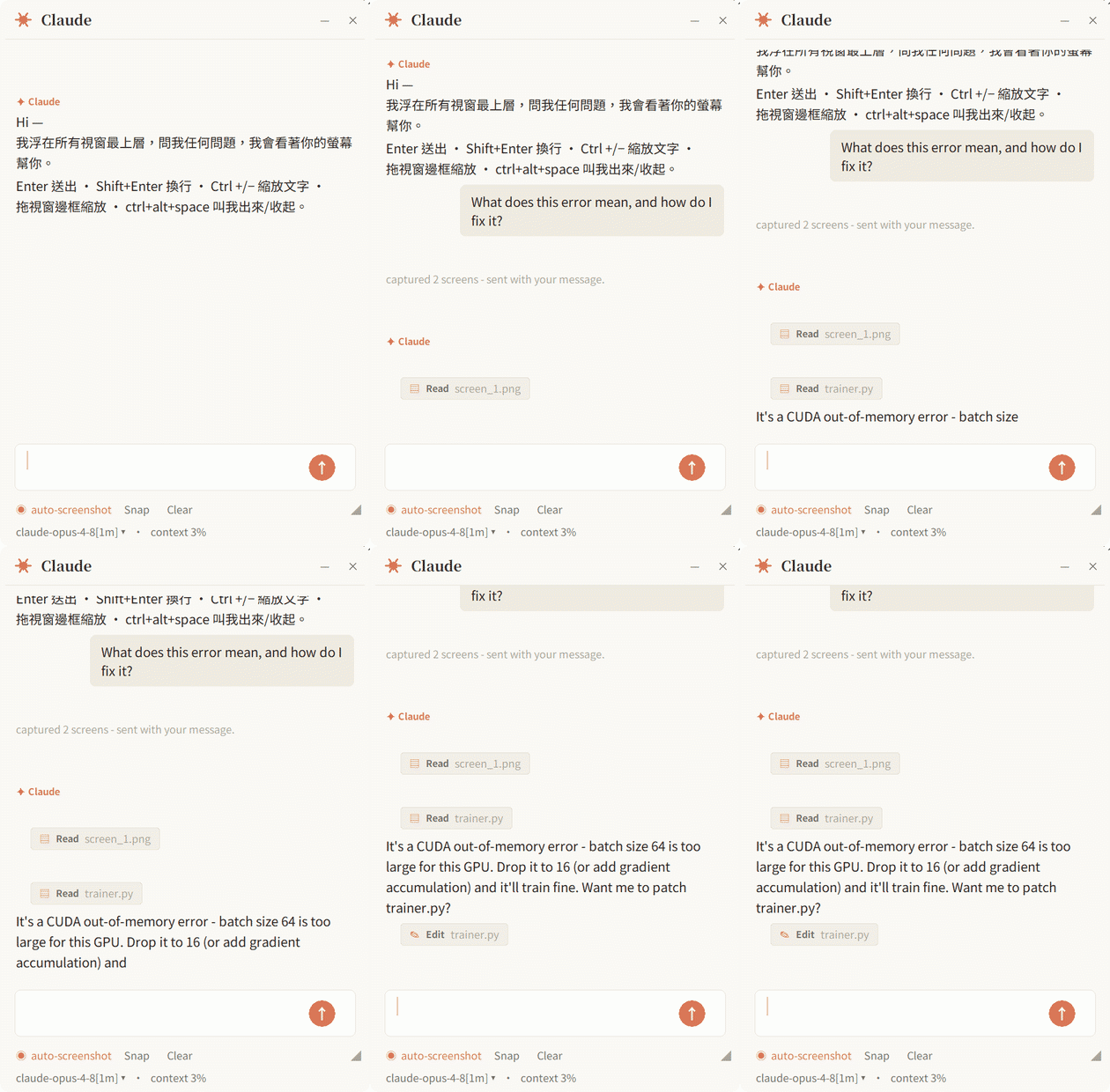
Not using it? It collapses to an orb that floats out of the way — click to bring it back.
How it works
Overlay (Tkinter UI) → claude-agent-sdk → spawns the `claude` CLI → Anthropic
▲ screenshots (Pillow ImageGrab, one image per monitor)
- UI — Tkinter (ships with Python; no extra GUI runtime).
- Brain —
claude-agent-sdk spawns your installed claude CLI as a subprocess
and talks to it. It is not a direct API client, so the CLI is required.
- Eyes — Pillow
ImageGrab snapshots each monitor separately; the prompt
labels which is the primary vs secondary screen, and Claude reads each
with its Read tool. The window hides itself during capture.
Prerequisites
You need three things. The included setup.cmd handles #2 and #3 for you — it
auto-installs the Claude Code CLI if it's missing and installs the Python packages.
1. Windows 10 / 11
The app uses Win32 APIs (DPI awareness, rounded corners, multi-monitor capture),
so it currently runs on Windows only.
2. Claude Code CLI — installed and logged in
The overlay has no brain of its own; it drives the claude command line.
Easiest: just run setup.cmd (below) — it installs the CLI for you with the
official native installer if you don't already have it. To install it yourself:
Log in with your own Claude account (Pro/Max subscription — no API key needed):
run claude auth login (in PowerShell or CMD — not Git Bash) and follow the browser prompt once.
Verify — this must print a version number:
claude --version
If it says "command not found", the CLI isn't installed / on PATH yet.
3. Python 3.10+
Install from https://www.python.org/downloads/ and tick
"Add python.exe to PATH" in the installer.
Verify:
python --version
Install
Pick whichever you like — all three end with the overlay ready to run.
🖱️ One double-click — setup.cmd (recommended)
Get the repo, then double-click setup.cmd. It checks Python,
auto-installs the claude CLI if it's missing (and offers to log you in), and
installs the Python packages — so even a fresh machine is one double-click from ready.
git clone https://github.com/shengyanlin/claude-overlay.git
(or download the ZIP from the green Code button and unzip it.)
⚡ Let Claude install it (if you already have the CLI)
It's an agent — so it can set itself up. With the claude CLI already installed
(see Prerequisites), run this from
wherever you want it to live:
claude "Set up Claude Overlay for me: clone https://github.com/shengyanlin/claude-overlay, make sure Python 3.10+ is installed (install it if missing), ensure pip is present (python -m ensurepip --upgrade), then run python -m pip install -r requirements.txt, then launch it with pythonw. Tell me when it's running."
Claude will ask before each step.
🛠️ By hand
git clone https://github.com/shengyanlin/claude-overlay.git
cd claude-overlay
python -m ensurepip --upgrade          # only needed if pip is missing; harmless otherwise
python -m pip install -r requirements.txt
This installs only the Python packages (claude-agent-sdk, pillow, keyboard) —
you still need the claude CLI installed and logged in (see Prerequisites). Use
python -m pip (not a bare pip): it works even when Python's Scripts\ folder
isn't on PATH, and ensurepip bootstraps pip if your Python install shipped without it.
Update
The overlay shows its version in the bottom status line (e.g. v1.7.2) and checks
GitHub for a newer release on startup — when one exists you'll see a 🔔 note and a ⬆
next to the version. To upgrade:
🖱️ One click — the button in the chat (recommended)
On a git clone install, the 🔔 notice comes with an ⬆ Update overlay to vX.Y.Z
button. Clicking it runs update.cmd for you in a console window, so you can watch the
pull, the package refresh and the check that the new code still starts. You don't have to
close the overlay first, and that's the last thing you have to do: when the update lands,
the console closes itself and the overlay restarts into the new code on its own — the
fresh window offers to resume the conversation you were in.
If the update fails, nothing restarts. The console stays open on the error (that's where
the fix is written), and the button turns into ⚠ Update failed — click to retry.
(Installed from the ZIP? There's no clone to pull into, so the notice gives you the
instructions below instead of a button.)
🖱️ One double-click — update.cmd
Double-click update.cmd. It pulls the latest release, refreshes the Python packages,
and — if you already have a Desktop shortcut — refreshes its icon to match the current version.
It pulls main from upstream if your clone has that remote and from origin otherwise, so
a fork gets the release rather than its own stale copy. It updates only a clean clone
sitting on main: on another branch, or with uncommitted changes, it says so and stops
instead of merging a release into work in progress.
🛠️ By hand
cd claude-overlay
git pull
(Installed via ZIP instead of git clone? Re-download the latest ZIP from the green
Code button and unzip all of it over the folder, replacing every file. The
overlay is a folder of modules, not a single script — replacing only claude_overlay.py
leaves it unable to start. Then double-click Diagnose.cmd to confirm it loads.)
Then restart the overlay. It's a long-running process and does not reload
while running — close it and re-open Start Claude Overlay.cmd for the update to
take effect. Your conversation isn't lost: the relaunch offers a one-click
↺ Resume last conversation, and Claude picks up right where you left off.
(On a managed/enterprise machine, updating is what fixes the older
versions that could hang on the first tool call.)
Updated by hand (git pull) and the Desktop icon still looks old? Re-run
Create Desktop Shortcut.cmd once — the shortcut is a machine-specific file that
git pull can't refresh (update.cmd does this for you).
Run
- Make sure
claude --version works and you've logged in (claude auth login).
- Start it (any of):
- Double-click
Start Claude Overlay.cmd — launches with no console window.
pythonw claude_overlay.py — no console.python claude_overlay.py — keeps a console open for logs (good for debugging).
- The window appears. Type and hit Enter — it auto-captures your screen each
message, so you can ask about whatever's in front of you right away.
- Not using it? Hit – to collapse it to a small floating orb, and click the orb
to expand it again.
Put it on your Desktop (optional)
Double-click Create Desktop Shortcut.cmd to drop a Claude Overlay shortcut
— with the orb icon — on your Desktop, so you can launch it like any other app.
Don't just drag Start Claude Overlay.cmd to your Desktop — it's a portable
launcher that must stay next to claude_overlay.py. The shortcut points back to it
in place, which is why it keeps working.
It doesn't open / it vanishes
The overlay runs under pythonw, which has no console — so if it fails to start there
is nothing to read. It tells you anyway:
- A dialog appears naming what broke and the one command that fixes it.
- The details are saved to
%LOCALAPPDATA%\claude-overlay\crash.log.
- Double-click
Diagnose.cmd for a full report — which Python is running it, which
packages are installed, whether the app loads — copied to your clipboard, ready to
paste into a bug report. It's the fastest way to get help from someone who isn't at
your machine.
The usual causes, all of which Diagnose.cmd names outright:
| What happened | Fix |
|---|
A pip install was interrupted (flaky network, proxy) and left a package uninstalled | Re-run setup.cmd |
| Two Pythons — packages installed into the one that isn't launching the app | Use the exact pip command Diagnose.cmd prints |
claude-agent-sdk older than the app | Run update.cmd — it installs the pinned version from requirements.txt |
A ZIP "update" that replaced only claude_overlay.py | Unzip all files over the folder |
On v1.15.1 and v1.15.2 specifically: if double-clicking the launcher opens a console
window saying no Python was found — on a machine where the overlay used to work — that is
a launcher bug, not your install. v1.15.1 checked the wrong file; v1.15.2 only looked at
PATH, so it also walled machines whose Python is where setup.cmd puts it
(%LOCALAPPDATA%\Programs\Python\) without PATH ever catching up. Update to
v1.15.3 or later (update.cmd, or git pull). If you can't launch anything at all,
the fix needs no Python: re-download the latest ZIP and replace
Start Claude Overlay.cmd.
That screen now tells you which of two different problems you have. If every path it lists
sits under \WindowsApps\ and it finds nothing off PATH, this PC genuinely has no
Python — those \WindowsApps\ entries are Windows placeholders that only print
"Python was not found…" when run. Double-click setup.cmd: it installs Python for
you, per-user, no admin needed. (update.cmd offers to run it for you too, so on a machine
with no Python you can double-click either one and it gets sorted.)
Locked-down work laptop? (403, or an installer that won't run)
If setup.cmd can't install Python and the reason it prints is an HTTP 403 — or the
installer downloads and then silently refuses to run — that's your employer's proxy or
endpoint-security software, not a bug here. setup.cmd already tries three routes (winget →
python.org → uv, whose CPython build isn't blocked by the
signature rules that stop the others), and it prints what each one reported so you have
something specific to send IT.
When all three are refused, offline/README.md has two routes that
need no working download at all — pre-stage one .zip from any machine that can reach
GitHub, or just drop any Python 3.10+ folder into %LOCALAPPDATA%\Programs\Python\ (every
script here scans that folder and uses whatever runs, no matter how it got there).
Controls
| Action | How |
|---|
| Send message | Enter (or click the ↑ button) |
| New line | Shift+Enter |
| Stop a running reply | click Stop (the ↑ becomes ■ while busy) |
| Paste an image | Ctrl+V (click 📎 to clear) |
| Toggle auto-screenshot | ◉ / ○ Auto-shot (orange = on) |
| Settings menu | click ⚙ — Window-only, Shareable, Read-only (✓ = on); the gear turns orange while Read-only is on |
| • Capture only the active window | ⚙ → Window-only (window only; off = every monitor) |
| • Show / hide in screen shares | ⚙ → Shareable (visible to Teams/Zoom/OBS; off = private, the default) |
| • Lock Claude read-only | ⚙ → Read-only ("plan" mode: looks and answers, changes nothing; off = the configured PERMISSION_MODE) |
| Switch model | click the statusline (model ▾) — the list shows the model families your login can actually pick, read from the CLI's own record of them, so it can't offer you a model that would silently fall back to another one |
| See how much allowance is left | two arcs around the ✻ mark — the inner one is the 5-hour window, the outer one is weekly. Both are drawn, always: the 5-hour window is the one that ends the session you're in, and it spends most of its life sitting below the weekly number, so showing only whichever is furthest along would hide it for exactly as long as it matters. Filled in from your account the moment the overlay opens, so it's there before you send anything, and refreshed every minute while it sits idle; amber as you approach a limit, red once it's gone. It speaks up once per transition, and a message refused for allowance is put back in the box rather than lost |
| See the exact numbers | hover the ✻ mark — a small panel drops under it with both allowance windows, their reset times, and the context headroom in turns (extrapolated from what recent ones cost). No unlabelled gauge explains itself; this is how you ask it |
| Retry when the allowance returns | a refused message offers ⏱ Send it automatically at <time> — opt-in, one click, and it stands down the moment you type something else, send by hand, or Clear |
| See how much context is left | the statusline's context 72% — always there, and it never reflows: the allowance moved to the mark, so nothing competes with it for the slot. A note at 70% and again at 85% says when compacting is worth it |
| Zoom text in / out | Ctrl + / Ctrl − (or Ctrl + mouse-wheel); Ctrl 0 resets |
| New conversation | Clear |
| Compact the conversation (free up context) | Compact — summarizes older turns, keeps going |
| Copy a reply | click ⧉ Copy under the message |
| Name this overlay | click the title (Claude) — handy with several open |
| Collapse to a Claude orb | –, or double-click the title bar |
| Expand from the orb | click the orb (drag it to move) |
| Quit | ✕ |
| Move | drag the title bar |
| Resize | drag any edge or corner (or the ◢ grip) |
Configuration
All settings live as constants at the top of config.py — but you don't have to edit
the file. Put personal values in a small per-machine config.json instead, so your
setup survives every update with no git pull conflicts:
%LOCALAPPDATA%\claude-overlay\config.json
(the same folder that already remembers your toggles). List only the settings you want
to change, using the constant names below — for example:
{
  "PERMISSION_MODE": "plan",
  "THEME": "dark",
  "WORKING_DIR": "C:\\Users\\you\\Documents"
}
Overridable: WORKING_DIR, MODEL, MODEL_MENU_FILTER, EFFORT, PERMISSION_MODE,
SKILLS, STRICT_MCP_CONFIG, CLI_UPDATE_CHECK, AUTO_SCREENSHOT_DEFAULT, SHOT_SCOPE,
SHOT_FORMAT, SHOT_JPEG_QUALITY, SHOT_DEDUPE_BITS, HIDE_SCREENSHOT_TOOL, THEME,
SHOW_IN_SCREEN_SHARE_DEFAULT, TASKBAR_BUTTON, HOTKEY, WINDOW_ALPHA,
CORNER_RADIUS, ORB_SIZE, FONT_SANS / FONT_SERIF / FONT_MONO.
Precedence, weakest to strongest: the constants in config.py < config.json < an
explicitly set CLAUDE_OVERLAY_* env var — and the remembered ⚙-toggle state
(Window-only / Read-only) still wins over all three, exactly as it does over the
constants: SHOT_SCOPE and PERMISSION_MODE from the file only seed the first launch.
A typo'd key or wrong-typed value is skipped (never fatal) and called out in-chat at
startup, so a mistake can't silently launch a misconfigured session. To keep the file
somewhere else, point the CLAUDE_OVERLAY_CONFIG env var at it.
The settings themselves:
MODEL — defaults to "opus", a family alias for the latest Opus, so a future
Opus release is adopted automatically. Use "opus[1m]" for the 1M-context variant, or
"fable" / "sonnet" / "haiku" — every alias tracks the newest model of its family,
and the in-app switcher lists the ones your login can pick (the statusline shows the
concrete version each alias resolved to, e.g. claude-opus-4-8). Don't use None: the
Agent SDK resolves None to an older model, not the CLI's interactive default.MODEL_MENU_FILTER — true by default: the model switcher hides families your account
isn't entitled to, which it reads from the same record the CLI builds its own /model
picker from (modelAccessCache in ~/.claude.json). Without this the menu offered
every family to everyone, and choosing one you don't have looks like nothing happened —
the CLI does not error on an unentitled --model, it quietly runs your d