
JuliusBrussee/
caveman

🪨 why use many token when few token do trick — Claude Code skill that cuts 65% of tokens by talking like caveman
105k
1 add
This repo adds a screenshot bridge between Windows and WSL2. It watches for screenshots from tools like Win+Shift+S, Win+PrintScreen, and Snipping Tool, saves them under `~/.screenshots/`, and copies the resulting path to the clipboard.
Builders who take screenshots in Windows and want to paste WSL2 file paths into Claude Code or VS Code.
You can share screenshots in Claude Code by pasting the file path instead of saving and copying it by hand.
Saves captured screenshots into `~/.screenshots/` inside WSL2.
Copies the saved file path so you can paste it directly into Claude Code or VS Code.
Provides start, check, and stop commands for the screenshot monitor.
Supports screenshots taken with Win+Shift+S, Win+PrintScreen, and Snipping Tool.
gh repo clone jddev273/windows-to-wsl2-screenshots
cd windows-to-wsl2-screenshots
source screenshot-functions.sh
check-screenshot-monitor
# Start the automation
start-screenshot-monitor

# Check if running
check-screenshot-status

# Stop when done
stop-screenshot-monitor
🚀 Auto-save Windows screenshots to WSL2 and paste paths directly into Claude Code, VS Code, or any application that uses WSL2
⭐ Star this repo if it helps you!
This tool was created to solve the annoying workflow of taking screenshots in Windows and getting them into Claude Code in WSL2. It automatically saves your screenshots and copies the file path to your clipboard so you can just Ctrl+V into Claude Code, VS Code, or any application that needs file paths.
~/.screenshots/ in WSL2Perfect for Claude Code workflows, VS Code documentation, or any development scenario where you need to quickly share screenshots.
gh repo clone jddev273/windows-to-wsl2-screenshots
cd windows-to-wsl2-screenshots
source screenshot-functions.sh
check-screenshot-monitor
# Start the automation
start-screenshot-monitor

# Check if running
check-screenshot-status

# Stop when done
stop-screenshot-monitor
Now just take screenshots and paste paths directly into Claude Code, VS Code, or any application thae uses WSL2!
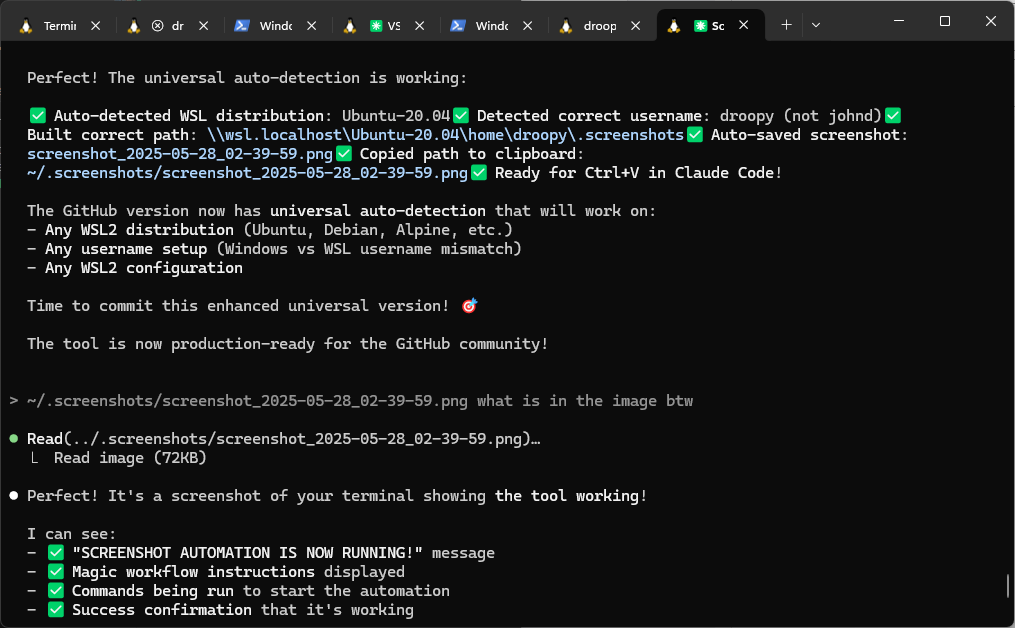
The tool automatically detects screenshots, saves them, and copies the path to your clipboard - ready for instant pasting into Claude Code, VS Code, or any application that uses WSL2!
Clipboard not working?
Monitor not starting?
# Check the log
cat ~/.screenshots/monitor.log
Created by Johann Döwa | Made with ❤️ for the Claude Code community
Sign in to join the discussion.
No comments yet. Be the first to say what this is good for.
🪨 why use many token when few token do trick — Claude Code skill that cuts 65% of tokens by talking like caveman

The best-benchmarked open-source AI memory system. And it's free.

Orca is the ADE for working with a fleet of parallel agents. Run any coding agent with your own subscription. Available on desktop, mobile and remote runtime.
A cross-platform desktop All-in-One assistant for Claude Code, Codex, OpenCode, OpenClaw, Grok Build & Hermes Agent. Only official website: ccswitch.io

Never stop coding. Free MIT AI gateway: one endpoint, 352 providers (150+ free), 1200+ models Kimi, Claude, GPT, Gemini, GLM, DeepSeek, MiniMax. Works with Claude Code, Codex, Cursor, OpenCode, Cline & Copilot. Quota-aware auto-fallback, RTK+Caveman compression saves 15-95% tokens, MCP/A2A, Desktop/PWA. Built by 550+ contributors

Compress tool outputs, logs, files, and RAG chunks before they reach the LLM. 20% fewer tokens for coding agents, 60-95% fewer tokens for JSON, same answers. Library, proxy, MCP server.