

DietrichGebert/ponytailPlugins
Makes your AI agent think like the laziest senior dev in the room. The best code is the code you never wrote.
138k
1 add
SpecKit Companion puts spec-driven development into VS Code so you can manage specs, inline reviews, workflow steps, and living capability docs in one place. It connects to terminal and editor agents, while keeping the spec files and context on disk in your repo.
Builders who want their AI agent workflow for specs, reviews, and living docs visible in VS Code.
You can steer an AI-driven spec workflow without losing track of what was changed, reviewed, or shipped.
Renders specs as structured pages with requirements, scenarios, tasks, and diagrams instead of raw markdown.
Lets you comment on spec lines like a pull request, persist the comments, and send them back to the agent for edits.
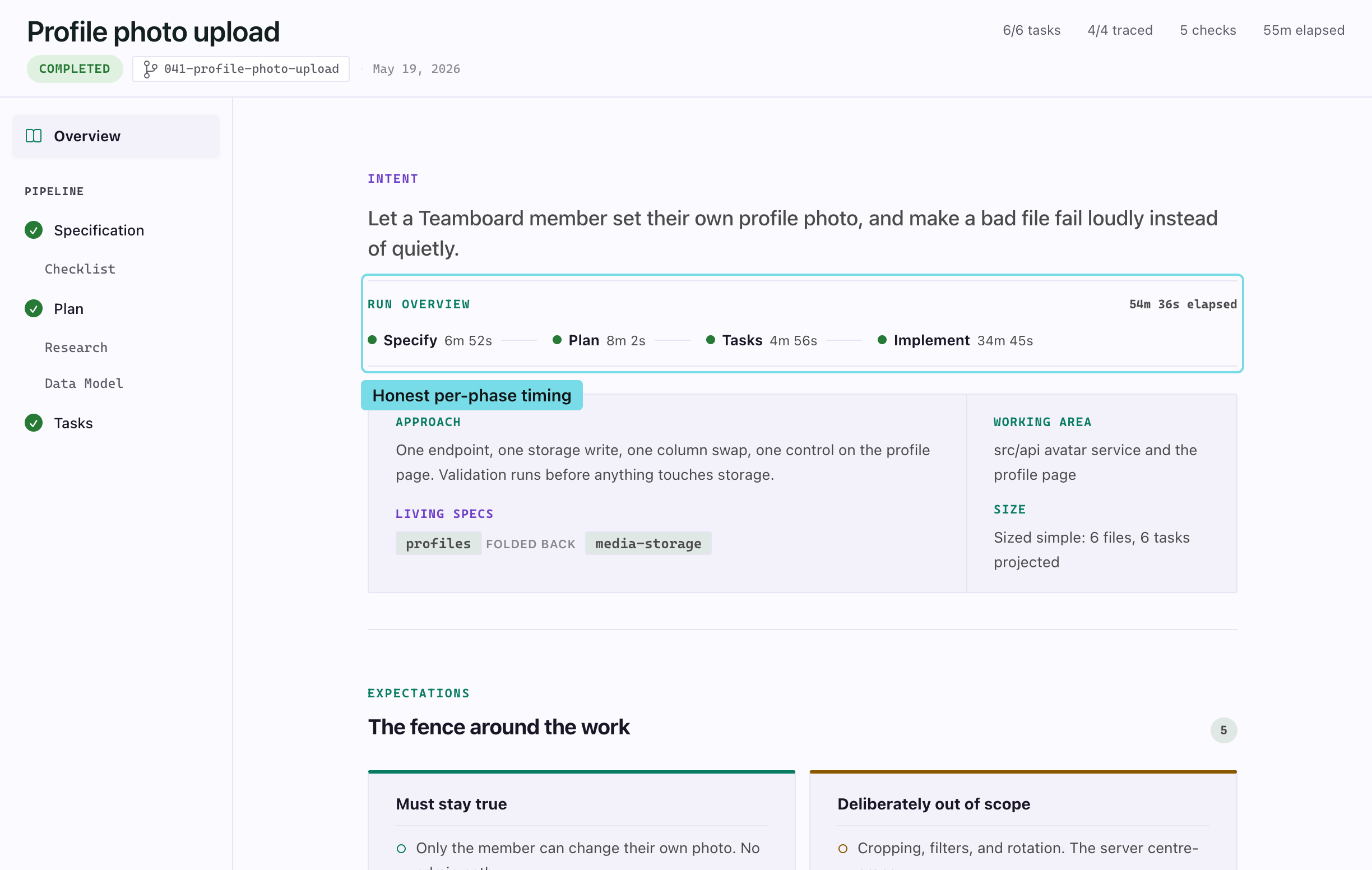
Shows pipeline phases, live task progress, and per-phase timing as a run moves forward.
Keeps durable capability specs in sync with the code and shows drift and coverage in the sidebar.
Lets you inspect and reshape the workflow in `.specify/companion.yml`, including phases, nodes, hooks, and custom steps.
Dispatches to Claude Code, GitHub Copilot, Gemini, Codex, and other supported AI tools.



See it running · Docs · Getting started · Changelog
The site shows each feature as a short clip of the real thing — the Overview a finished run leaves behind, inline review, living specs — rather than describing it.
One workspace for the whole life of a spec, not just the review. SpecKit Companion is a spec workspace inside VS Code for developers running AI agents through spec-driven development. See where every feature stands at a glance, read specs as real documents, review and correct them the way you review pull requests, watch runs move live, keep a record of what the AI actually did, and keep living specs that stay true after the code ships. Its own pipeline writes specs 60 to 68% leaner with the same correctness (the measured numbers) — and a vague requirement still dies here before it becomes 200 lines of wrong implementation.
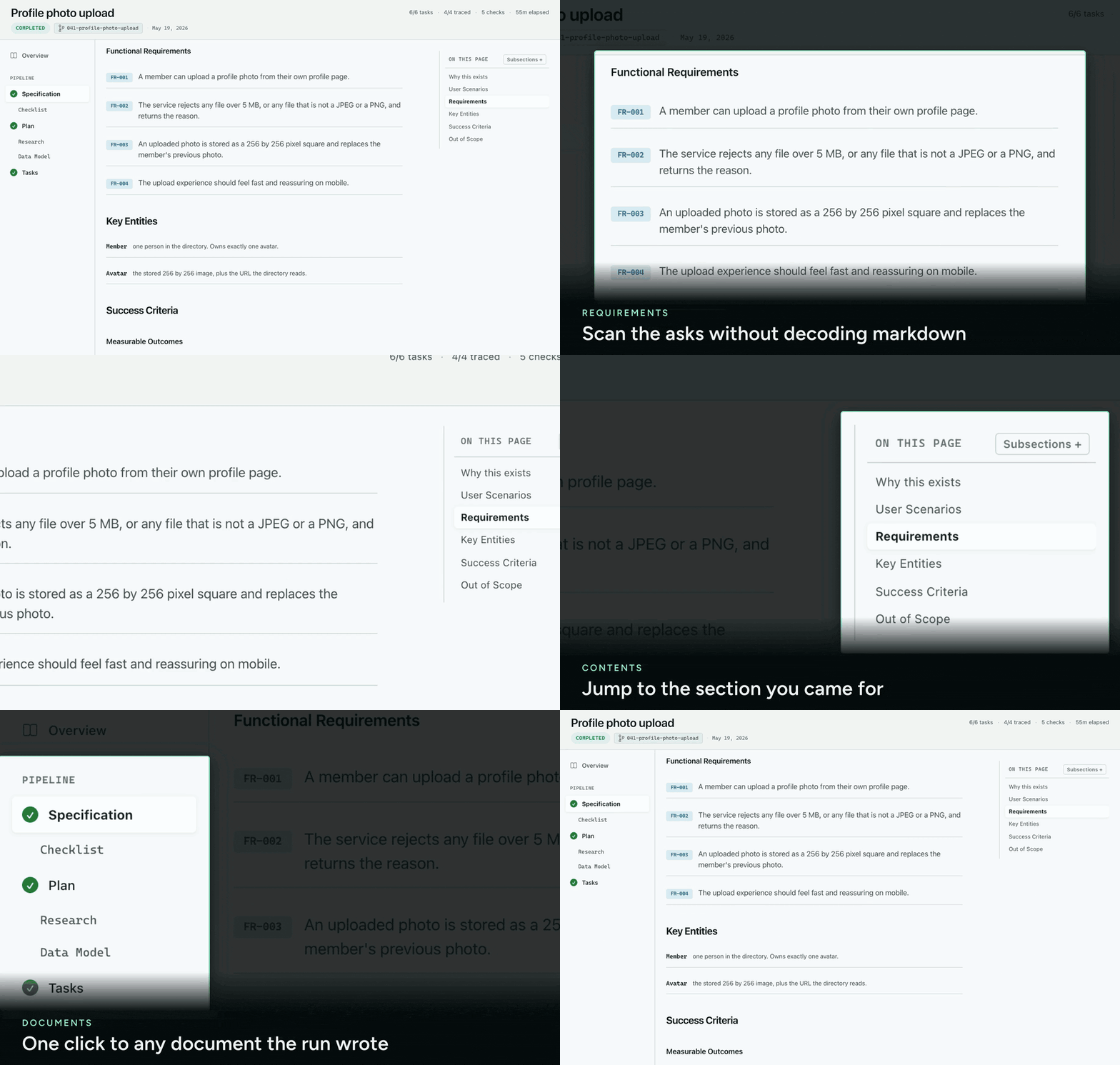
Specs render as rich, structured pages, not walls of markdown: requirements as labeled rows, acceptance scenarios as clean Given/When/Then sentences, tasks grouped under their phases, and mermaid diagrams inline with zoom. A quiet footer advances the spec one click at a time, and it never advances ahead of a running step. The markdown stays in your repo, never on a server.
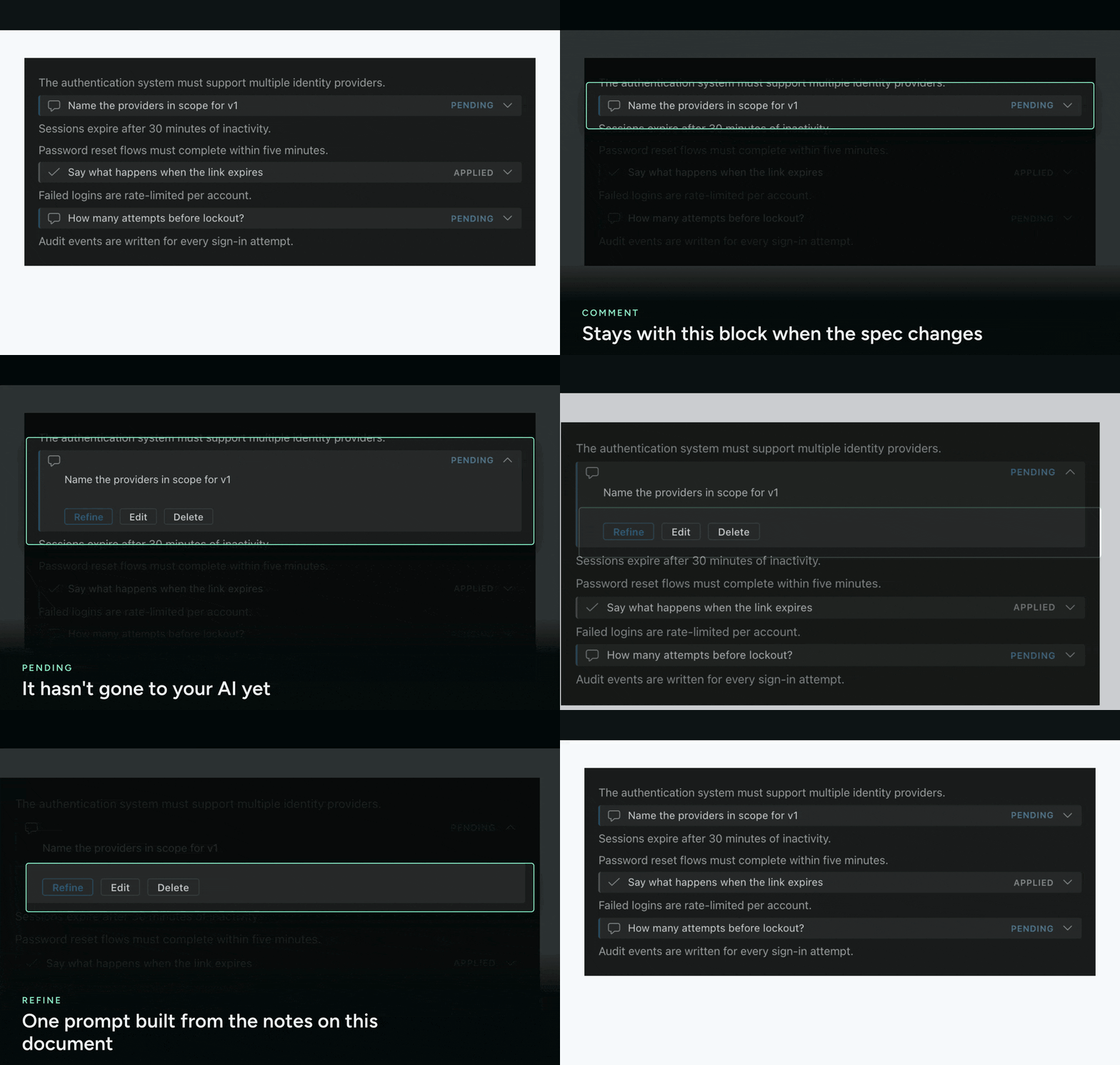
Comment on specific lines of a spec, exactly like a pull request review. Comments persist the moment you add them, survive closing the tab, and are committable, so a half-finished review picks up next session or on another machine. Click Refine and the pending comments are dispatched to your AI for an in-place edit of the source.
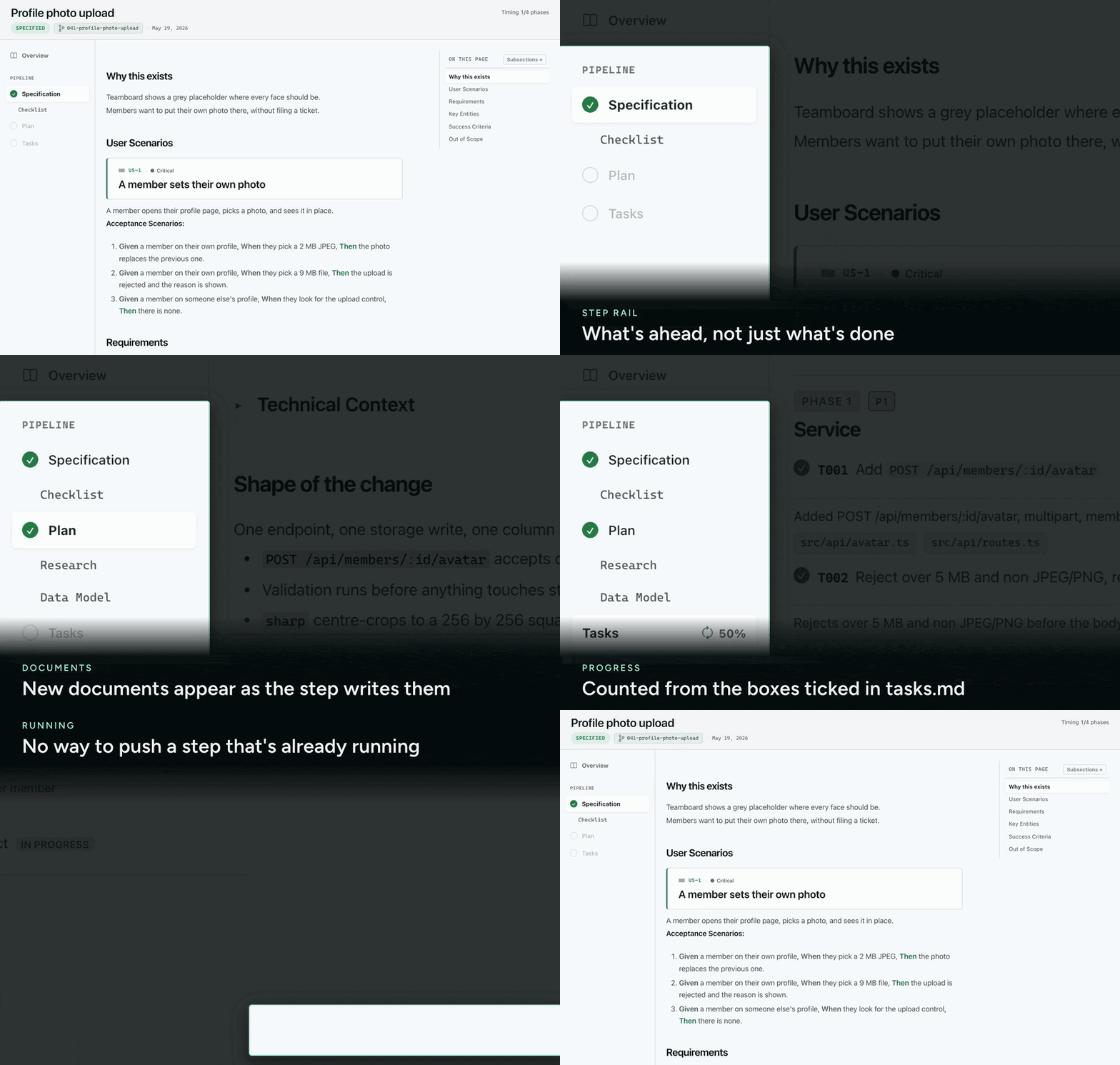
A run is not a black box you check on afterwards. The pipeline rail unlocks phase by phase, one button always offers the next step, tasks tick over live while implement runs, and the actions stay locked until the step settles — then the Overview shows exactly how long each phase took.
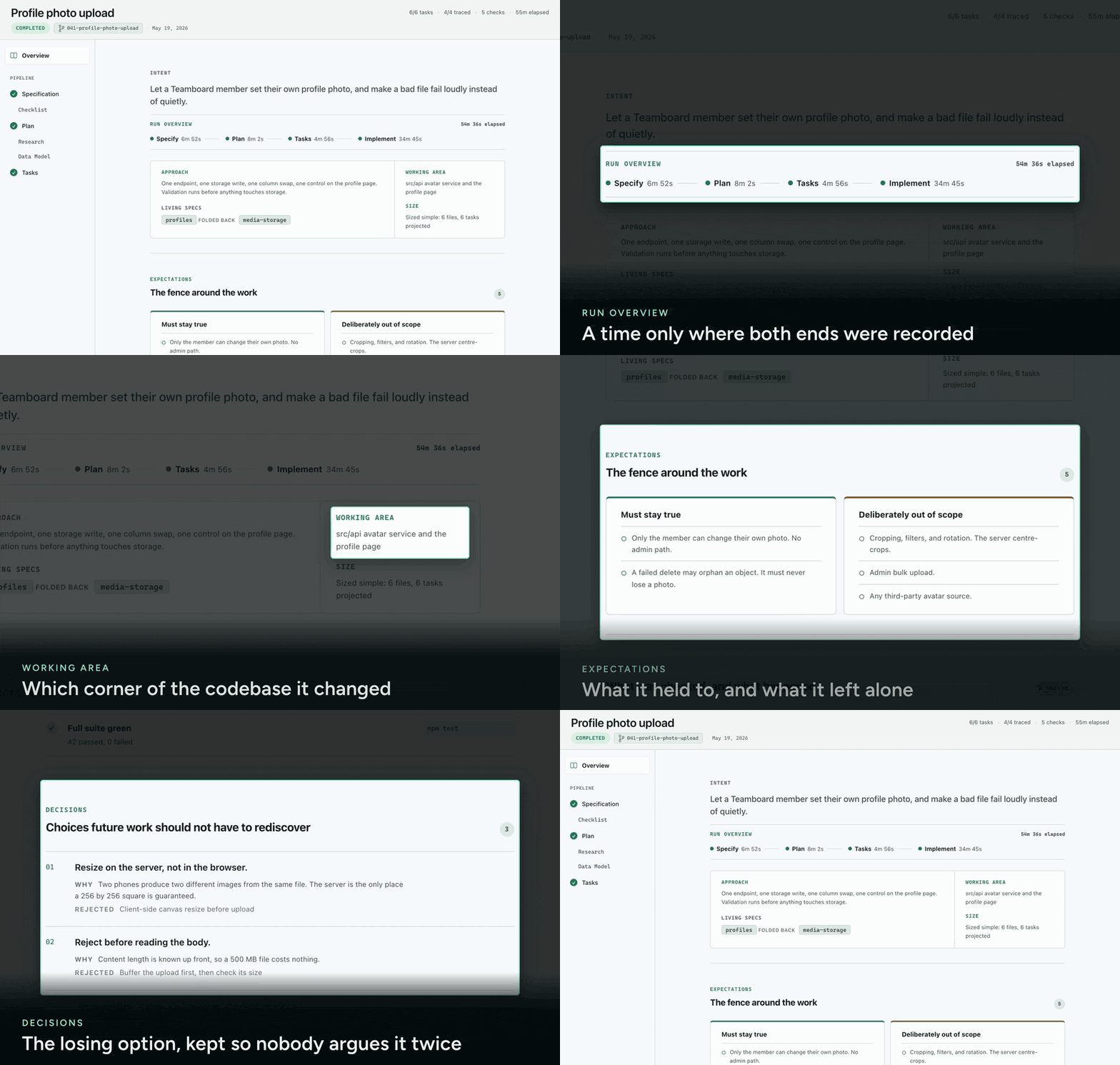
A spec with recorded activity opens on its Overview: why the spec exists, its constraints, the decisions made (with rejected alternatives), what was verified, and a requirement-to-test traceability table. It is the dossier a future session, a reviewer, or a teammate reads instead of re-asking you.
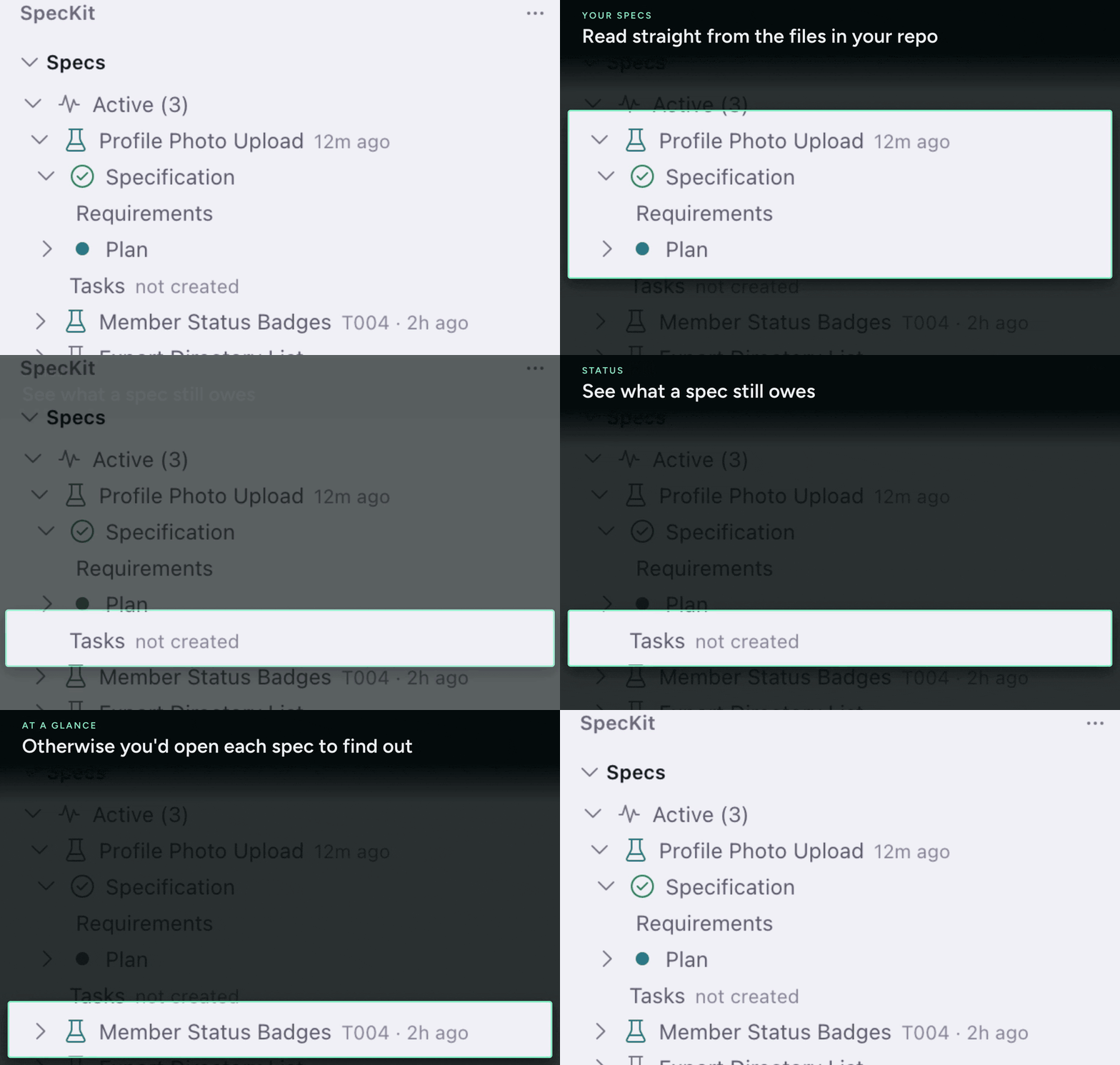
Specs grouped by lifecycle with live status per document, resume-where-you-left-off on hover, filter and sort, multi-select bulk actions, and views for living capability specs and AI steering documents. A workspace with hundreds of finished specs opens to a short, readable list.
Choose stock Spec Kit or the leaner SpecKit Companion workflow in a single setting, and every step of the run dispatches that choice. The Companion pipeline writes specs roughly 60 to 68% smaller, produces zero throwaway side files, and right-sizes itself: a small change skips the ceremony, a large one keeps the full specify, plan, tasks, implement flow. In our benchmark, correctness was a tie; the difference is ceremony, not outcomes. Details and the measured numbers: Workflow choice.

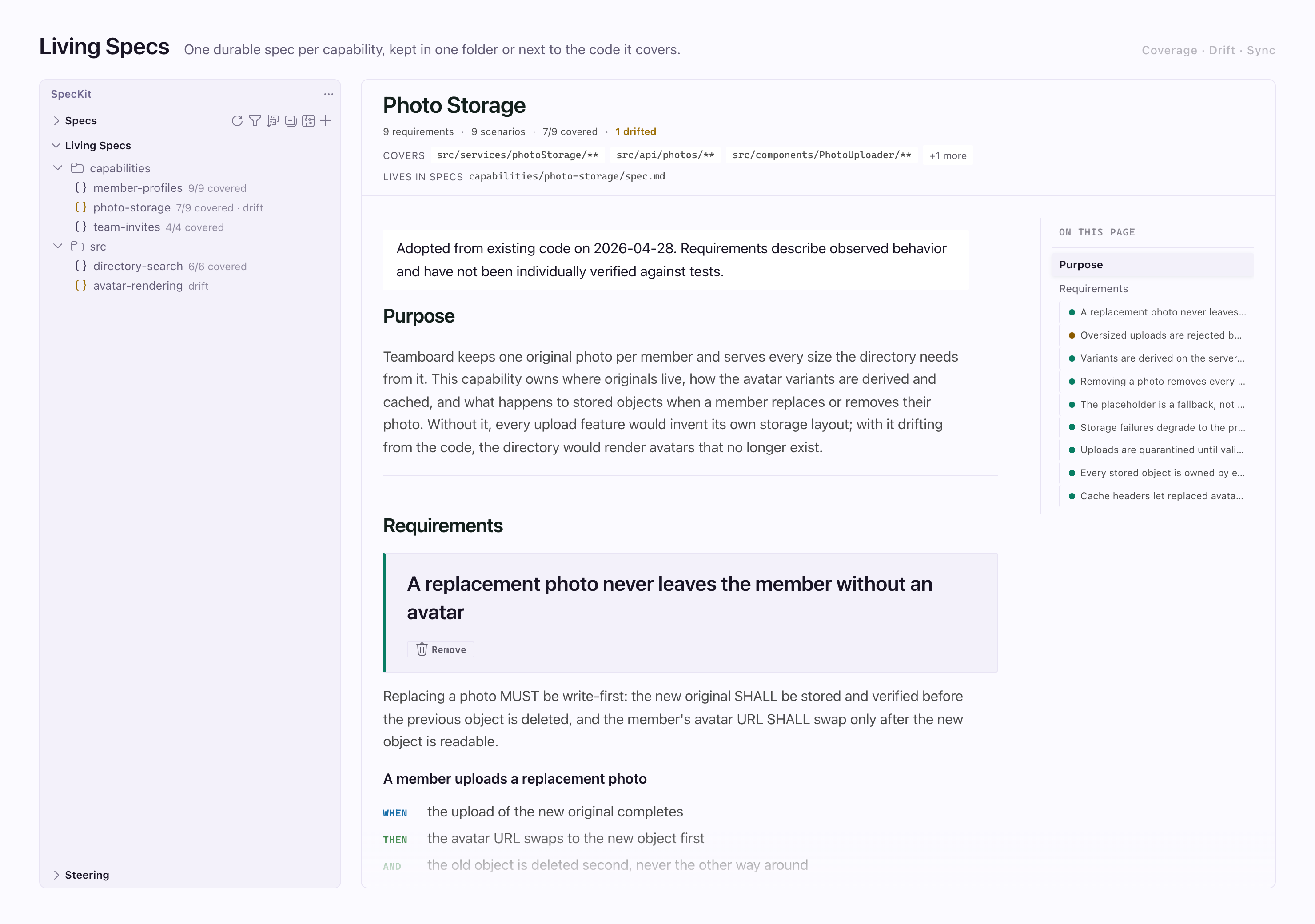
Feature specs describe one change and then go quiet. Living specs are durable: one per capability (checkout, auth, billing), loaded into the AI's context when a feature touches that area, and folded back up to date when the feature ships. Keep them together in a central capabilities/ folder, or colocated, each spec right next to the feature it covers, with one reversible command to move between the two. Either way the sidebar shows per-capability test coverage and flags drift the moment the code moves on, and one sync pass updates every affected spec from your current changes. Open any source file and the status bar says how many living specs describe it, one click away from the exact requirement. Opt-in, append-only, and never a failed run. Living specs
.vsix, destructive actions need confirmation or offer undo, and Reduce Motion is honored. Viewer reference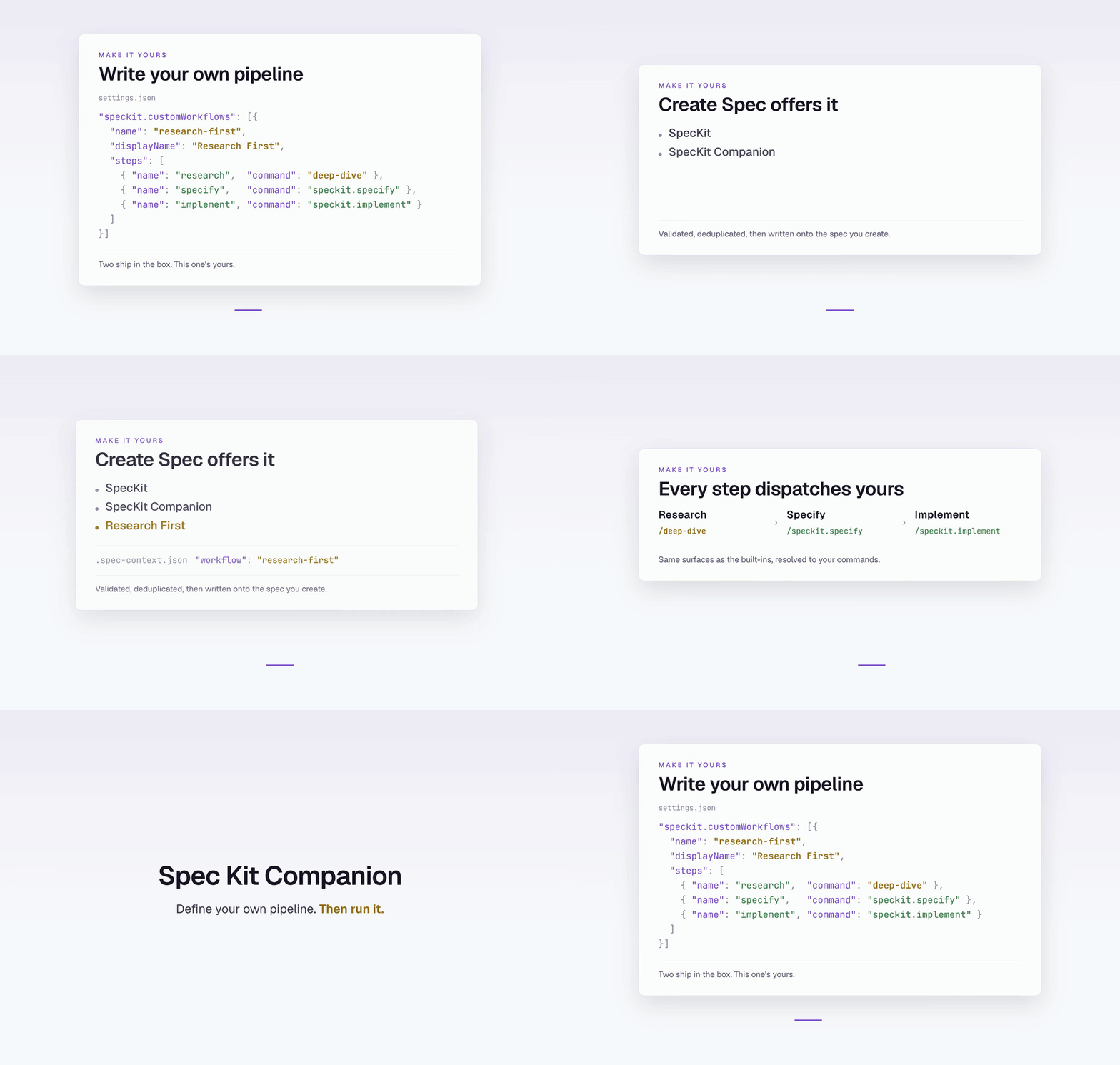

The Companion pipeline is assembled: steps hold phases, phases hold nodes, and a project can rearrange them, attach its own work at any boundary, reshape a document template, or change where the size verdict routes — all from .specify/companion.yml.
Open it from the circuit icon at the top of the Specs sidebar, or from the palette. The steps are columns in run order, with auto in the tail of the row because it runs the others rather than taking a turn among them. Inside each step: its phases, the nodes in them, and the hooks attached, one line each under the words before and after, grouped under the mark of whoever registered them — yours, or an installed extension's. Full guide: Pipeline builder.
One colour means yours. Hooks, nodes you rewrote and template sections you replaced all carry the same mark, and nothing else does, so what your project changed is answerable at a glance. Click a node to read its instructions right there, with what it writes, what it needs, and whether it can be moved.
Several ways of working. A workflow is a whole named configuration in .specify/companion/workflows/. Switch between them from the header and everything swaps at once — node order, hooks, templates, routing — so a one-line fix and a client deliverable can run different pipelines out of the same repository. Nodes and fragments are shared across all of them. Two entries are always there: As shipped is Companion with nothing changed, the thing to compare against, and This project is whatever your own companion.yml says. While the shipped one is in force your configuration is parked rather than deleted — the board draws your hooks where they would attach, dashed and struck through and labelled parked, and one click puts them back.
Start from something. A new workflow offers what to begin with as cards: what you run today, or one of two whole configurations Companion ships. Classic spec-kit puts the stock document shapes back — prioritized P1/P2/P3 user stories, the full Technical Context block. Brownfield is for changing a system that already exists: the spec says only what changes, the task list is attacked before it runs, and a person opens the thing before it counts as done. Whichever you pick is copied in and yours to change from there.
Add a step of your own. Add step in the header gives the run a turn it did not have, and the + in the gap between two lanes puts one in that place — a review pass after implement, an audit you launch when you want it. Say where it goes and what it writes; the panel writes a step that already runs and opens the one node there is to edit. It gets its own /speckit.companion.<name> command and everything a shipped step has.
Every phase says what it can do. One + on each phase rule opens the lot: add a hook, add a node, rename the phase, split it, merge it into its neighbour. Nothing waits for a hover, and a row that cannot run here is shown greyed with the reason, so a control you never needed still teaches you it exists.
Every write says what it did. A line at the foot of the panel names the change, offers Undo where there is one, and reminds you that a change is not in the pipeline until Build writes it. Build and Preview answer in the header too, rather than taking the editor to say they worked.
Rearrange it. Drag a node onto another to move it — within its phase, or into a different one — or use Move up and Move down, which sit on the row of its panel that says it can move. A node free to move shows a grip; one held in place by something that reads it says held and names what is holding it, so nothing looks draggable and then refuses. The new order is saved to companion.yml with the rest of the file untouched.
Attach your own work. Every phase carries a + holding Add hook, which asks where it runs and what it is — a skill you already have, an instruction, a shell command, or one of your own nodes. Reach for the skill first: a skill you have written already holds the instructions, so the pipeline points at it instead of keeping a copy that drifts.
Rewrite a node in your own words. Click a node, press Edit, and save: that write is what copies it to .specify/companion/nodes/<step>/<node>.md, so making it yours and doing the thing you came to do are one action. Build, and your version is what your assistant reads; the node is marked yours until Use the shipped node hands it back, with an undo in the status line. Nothing under speckit-extension/ is touched, so an upgrade never overwrites your copy — and never silently reverts it either.
Build from the same panel, or from the palette:
| Command | What it does |
|---|---|
| Open Pipeline Builder | Draw the pipeline your configuration resolves to |
| Preview Pipeline Build | Show what a build would change, writing nothing |
| Build Pipeline from companion.yml | Apply the configuration |
When companion.yml is newer than the commands built from it, the panel's header says so — otherwise the file says one thing while your assistant reads another, and nothing about a run looks wrong. Requires the spec-kit extension, which holds the pipeline sources.
Everything lives in plain files in your repo: the spec markdown plus a .spec-context.json per spec. The viewer and your terminal are two front-ends over the same files, so a step driven from either surface shows up in the other, and there is no extension-owned database to migrate away from. The extension dispatches command text to the AI you configure and reads what lands on disk; your prompts and specs never pass through anyone's server. How the pieces fit: Getting started.
That's it: the viewer, review comments, and sidebar work on their own. To also get the lean Companion pipeline, live progress capture, and the Resume button, add the companion Spec Kit extension: the sidebar offers a one-click install when it's missing. The two halves are versioned separately and the spec-kit one never updates itself, so when the commands in your project fall behind the version this extension expects, a status-bar warning, the panel banner, and a one-time notification say so and offer the same one-click update.
Prefer to be walked through it? VS Code opens a Get Started with SpecKit Companion walkthrough after install, and Help → Get Started reopens it any time. It runs the same three steps above, plus a one-click sample spec you can read before writing one of your own.
Dispatches to Claude Code, GitHub Copilot, Gemini, Codex, and more, in a terminal or in your editor's chat panel. Full compatibility matrix: Supported AI providers.
.spec-context.json schema: the on-disk state fileThe extension sends anonymous, PII-free usage telemetry (provider choice, phase dispatched, lifecycle counts; never prompt content, paths, or names). Two switches gate it, and if either is off nothing is sent: speckit.telemetry and VS Code's global telemetry level. Full disclosure: Telemetry.
SpecKit Companion is free and open source. If it saves you time, you can support its development through GitHub Sponsors. You'll also find a "Sponsor" button on the Marketplace listing and a "Support this project" link in the Specs sidebar.
This project started from the amazing work at https://github.com/notdp/kiro-for-cc
MIT License
Sign in to join the discussion.
No comments yet. Be the first to say what this is good for.
Makes your AI agent think like the laziest senior dev in the room. The best code is the code you never wrote.
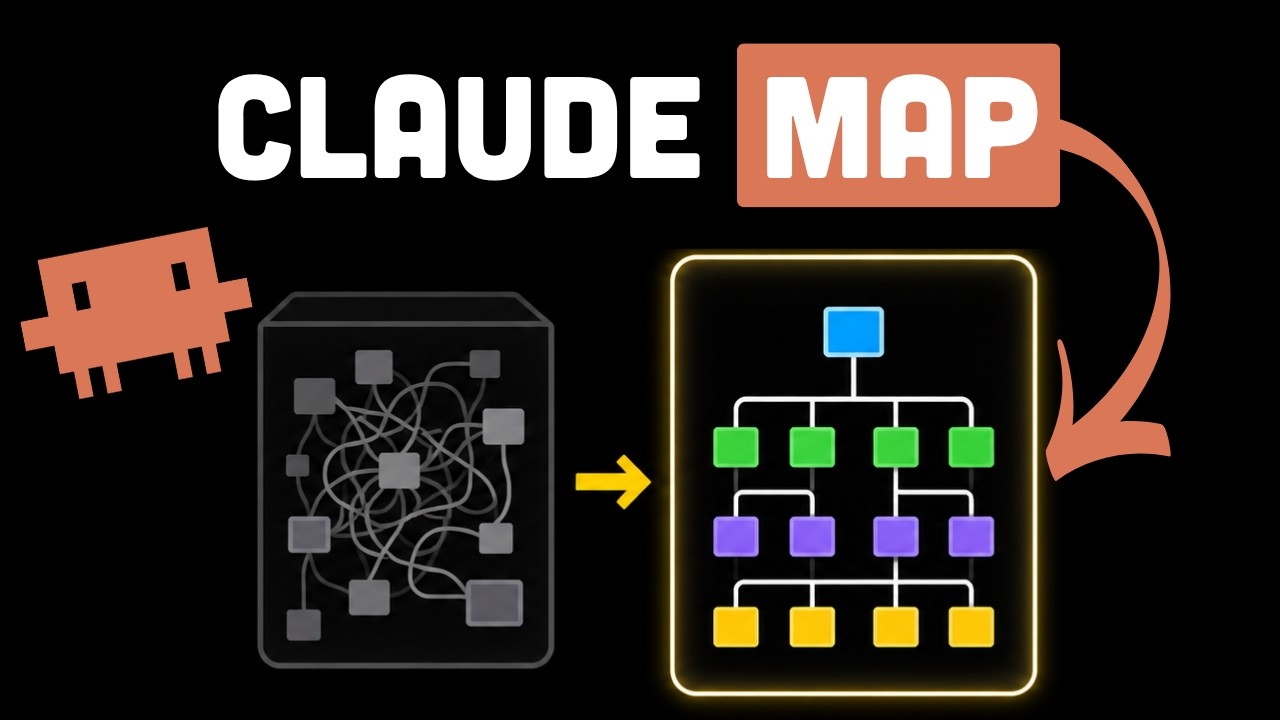
Graphs that teach > graphs that impress. Turn any code into an interactive knowledge graph you can explore, search, and ask questions about. Works with Claude Code, Codex, Cursor, Copilot, Gemini CLI, and more.

OmO: Just type "mass ulw" keyword with your prompt. Now you are the master of graph engineering.
Persistent Context Across Sessions for Every Agent – Captures everything your agent does during sessions, compresses it with AI, and injects relevant context back into future sessions. Works with Claude Code, OpenClaw, Codex, Gemini, Hermes, Copilot, OpenCode + More
Opinionated Oxlint rules for rejecting low-evidence TypeScript and JavaScript patterns
Teams-first Multi-agent orchestration for Claude Code