
JuliusBrussee/
caveman

🪨 why use many token when few token do trick — Claude Code skill that cuts 65% of tokens by talking like caveman
105k
1 add
Claude Code Karma reads local Claude Code session files from `~/.claude/` and serves them in a browser dashboard. The backend indexes session data in SQLite and the frontend visualizes timelines, tool calls, agents, hooks, skills, plugins, tickets, and live session state. It stays local and can also raise the terminal window for a live session.
Builders who use Claude Code and want a local view of sessions, usage, and live activity.
You can review and monitor Claude Code work in one place instead of digging through session files.
Lists Claude Code sessions with search, project filters, and live session badges.
Shows prompts, tool calls, thinking blocks, responses, file activity, and session stats in chronological views.
Tracks usage of built-in, custom, and plugin-provided agents, skills, hooks, and plugins with detail pages and analytics.
Shows tool usage, including built-in tools and MCP integrations, with call counts and session coverage.
Uses Claude Code hooks to watch sessions in real time and lets you focus the active terminal window.
Links sessions to Linear, Jira, or GitHub Issues and shows ticket history across projects.
Installs a macOS app or Windows shortcut that starts the servers and opens the dashboard.
python3 scripts/install_karma_app.py           # macOS: /Applications/Karma.app
                                               # Windows: a Desktop shortcut
python3 scripts/install_karma_app.py --dock    # macOS: also pin it to the Dock
python3 scripts/install_karma_app.py --uninstallpython3 scripts/install_karma_app.py --autostart # on python3 scripts/install_karma_app.py --no-autostart # off
~/.claude/projects/ → FastAPI (port 8020) → SvelteKit (port 5180) your data parses & serves visualizes it

Your Claude Code sessions deserve more than a terminal.
A local-first, open-source dashboard that turns your ~/.claude/ data into a visual story — sessions, timelines, costs, and live activity, all on your machine.



If you use Claude Code, you already have a goldmine of data sitting in ~/.claude/ — every session, every tool call, every token. But it's all buried in JSONL files you'll never read.
Warning: Claude Code only keeps session data for about 30 days. Older JSONL files in
~/.claude/projects/are automatically cleaned up. Since Karma reads directly from those files, deleted sessions will disappear from the dashboard too.
Claude Code Karma reads that local data and gives you a proper dashboard. No cloud. No accounts. No telemetry. Just your data, on your machine.
It works with both Claude Code CLI and Claude Desktop (Claude Code mode) sessions — any session that writes to ~/.claude/ shows up automatically.
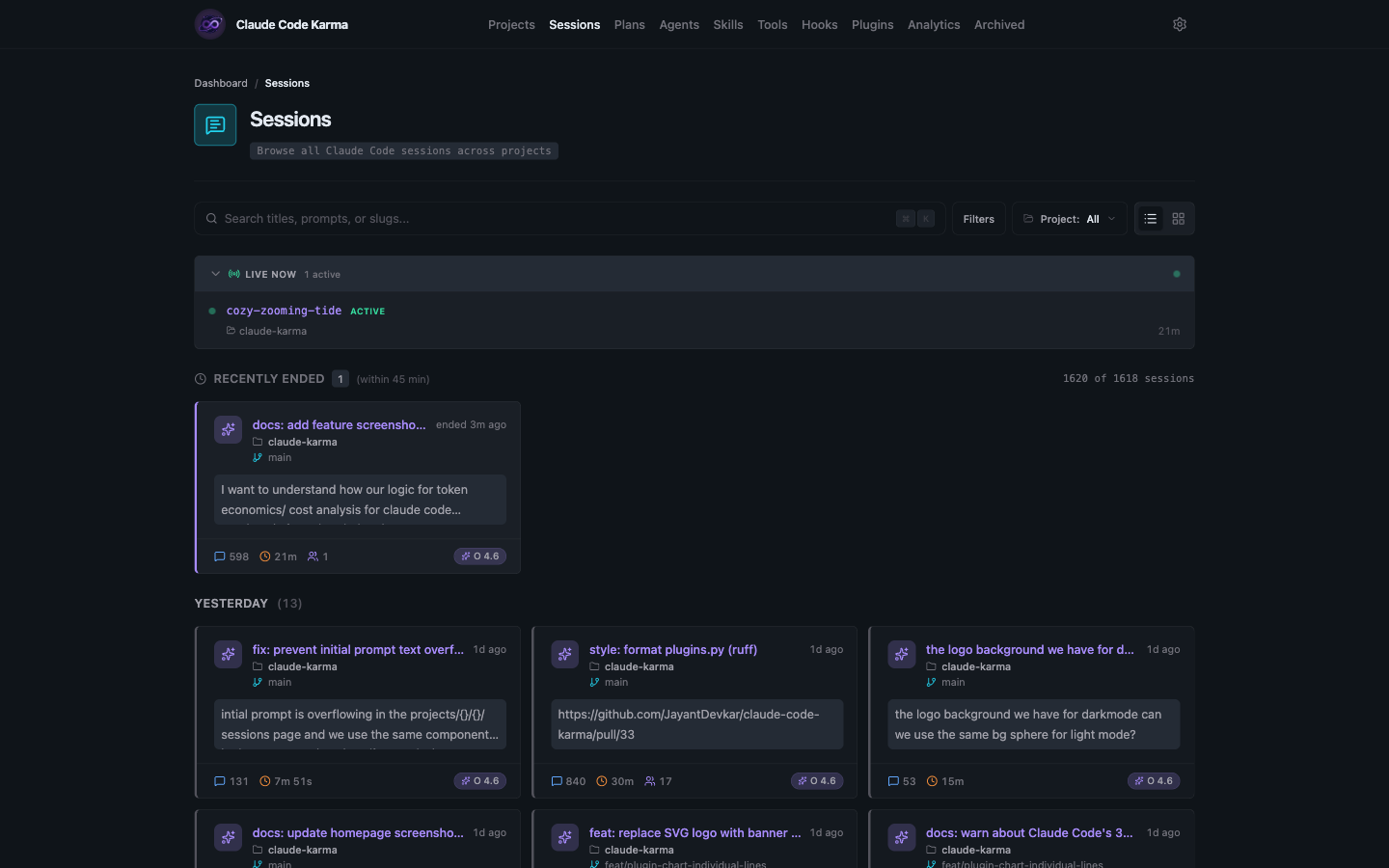
Browse all your Claude Code sessions in one place. Search by title, prompt, or slug. Filter by project. See live sessions at the top with real-time status badges — and a >_ button that raises the terminal window a live session is running in.
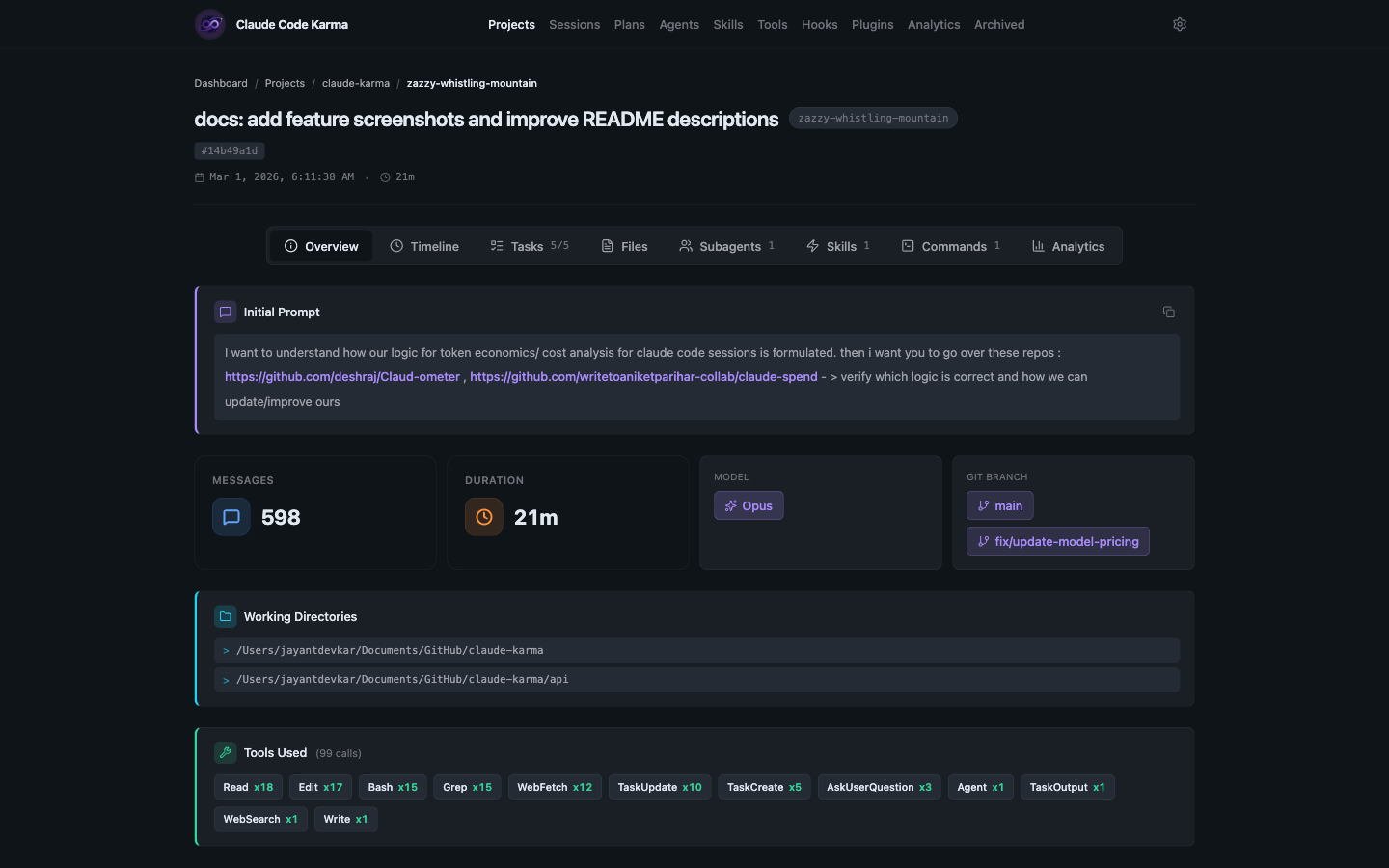
Dive into any session to see exactly what happened — every prompt, tool call, thinking block, and response laid out chronologically. The overview tab shows key stats like message count, duration, model used, and which tools were called.
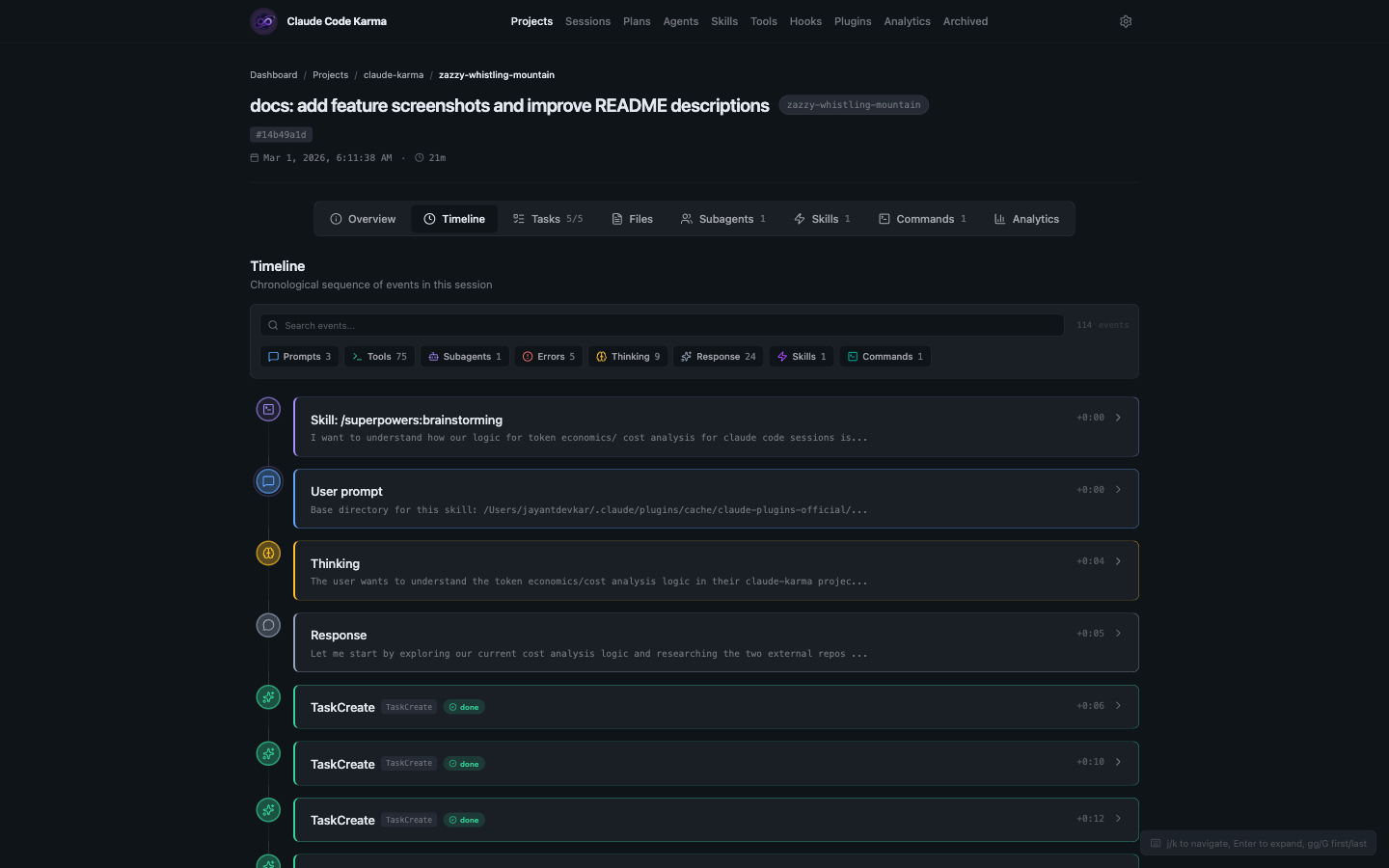
Each session page has dedicated tabs that break down different aspects of what happened during the session.
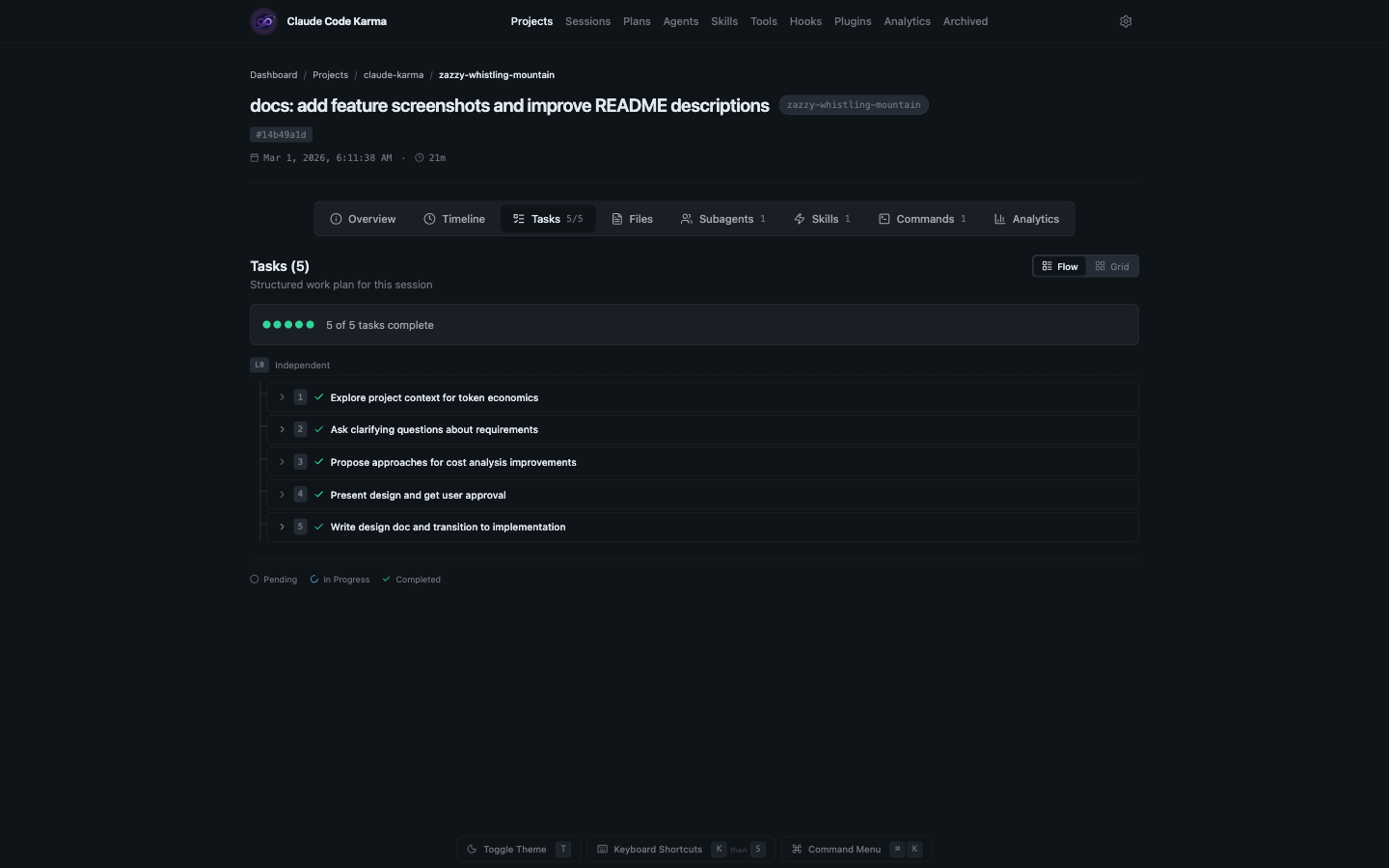
Tasks — See all tasks Claude created and completed during the session, displayed in a flow view with status tracking.
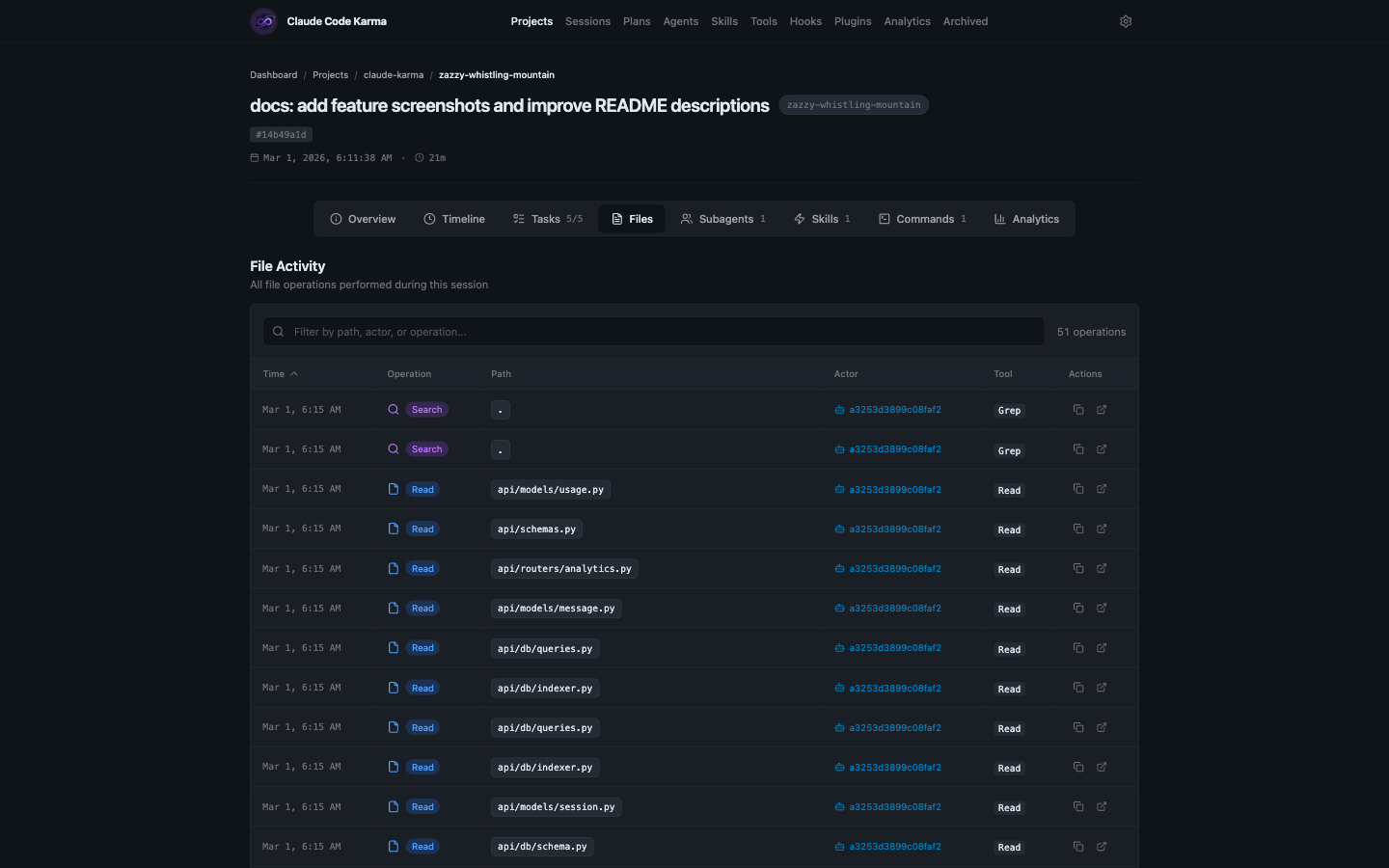
Files — Every file operation in a sortable table — reads, writes, edits — with timestamps, actors, and the tools that made each change.
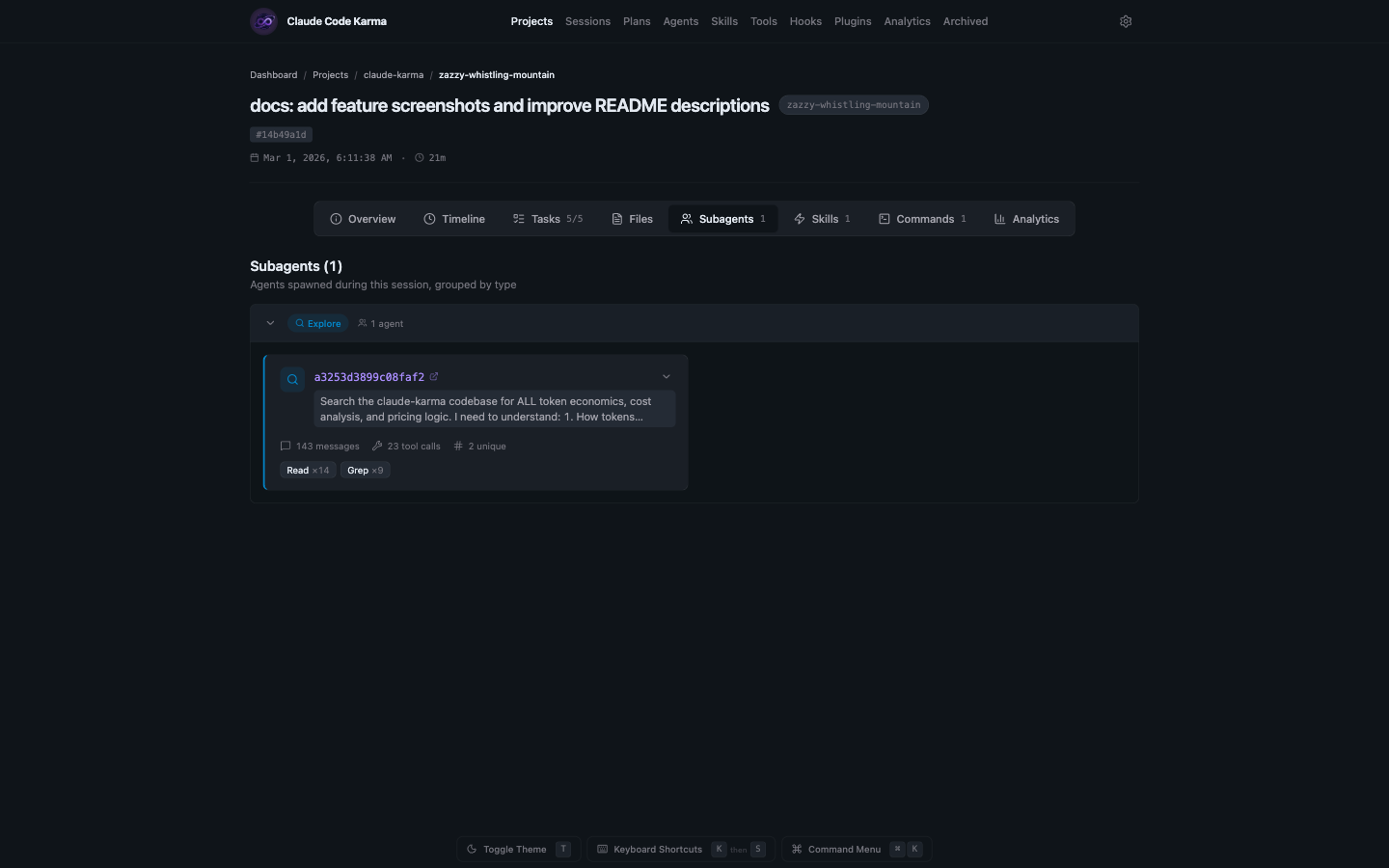
Subagents — Agents spawned during the session, grouped by type. Expand each to see message counts, tool calls, and what they were asked to do.
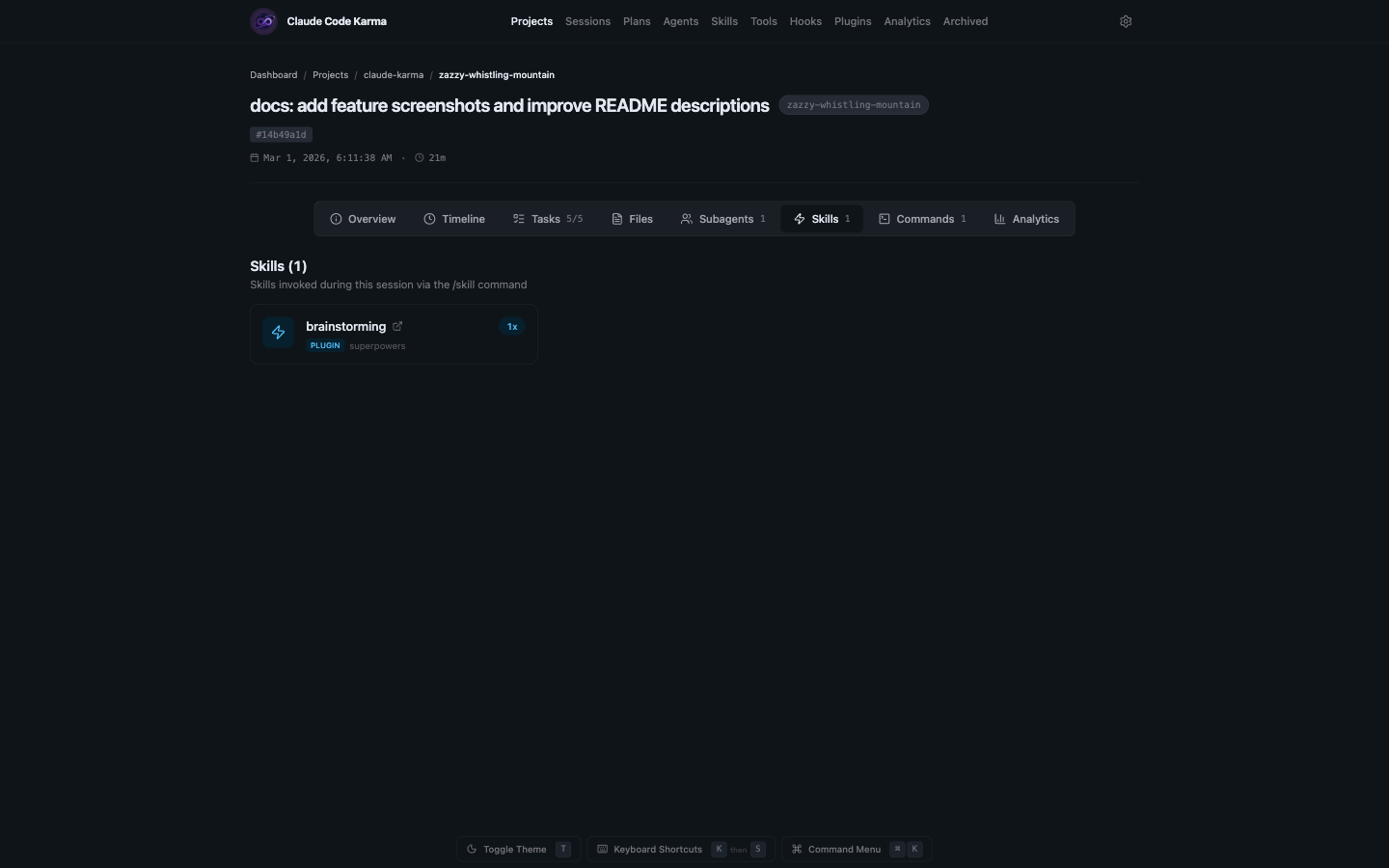
Skills — Skills invoked via /skill commands during the session, with their source plugin and invocation count.
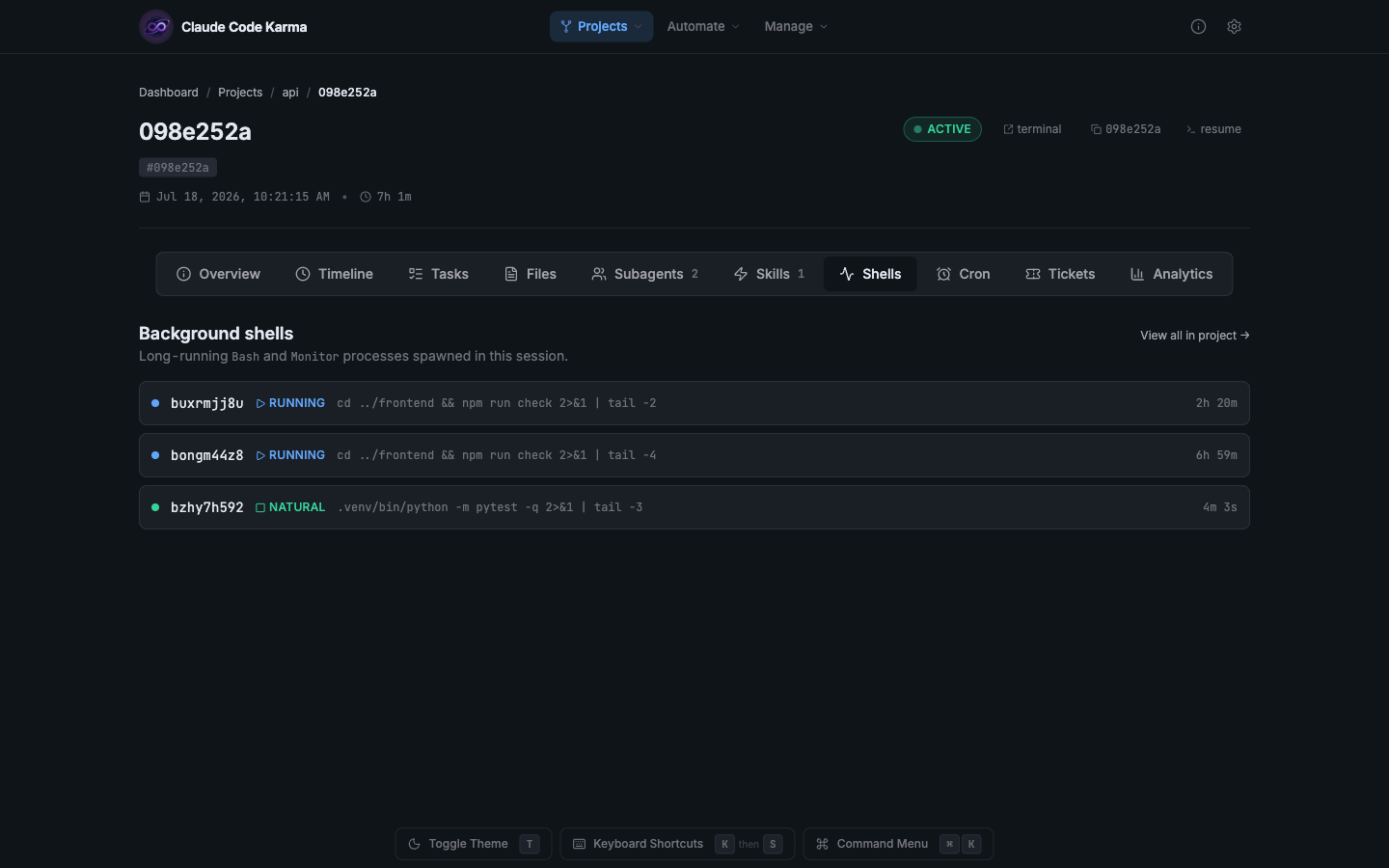
Shells — Long-running background shells spawned during the session, with live status, the command each one ran, and runtime.
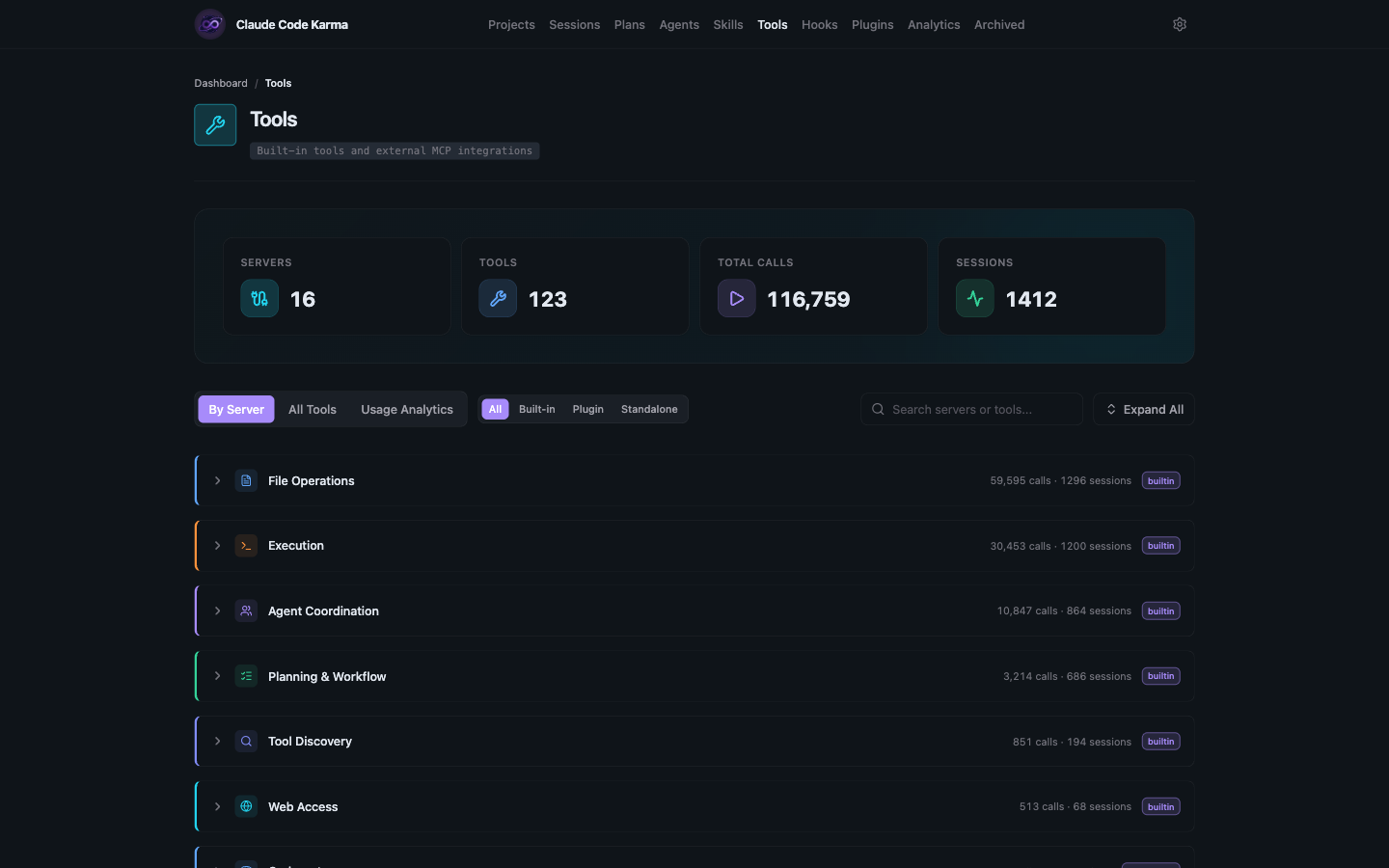
Analytics — Per-session cost breakdown, token usage, cache hit rates, tool distribution with a donut chart, and a ranked list of every tool used.
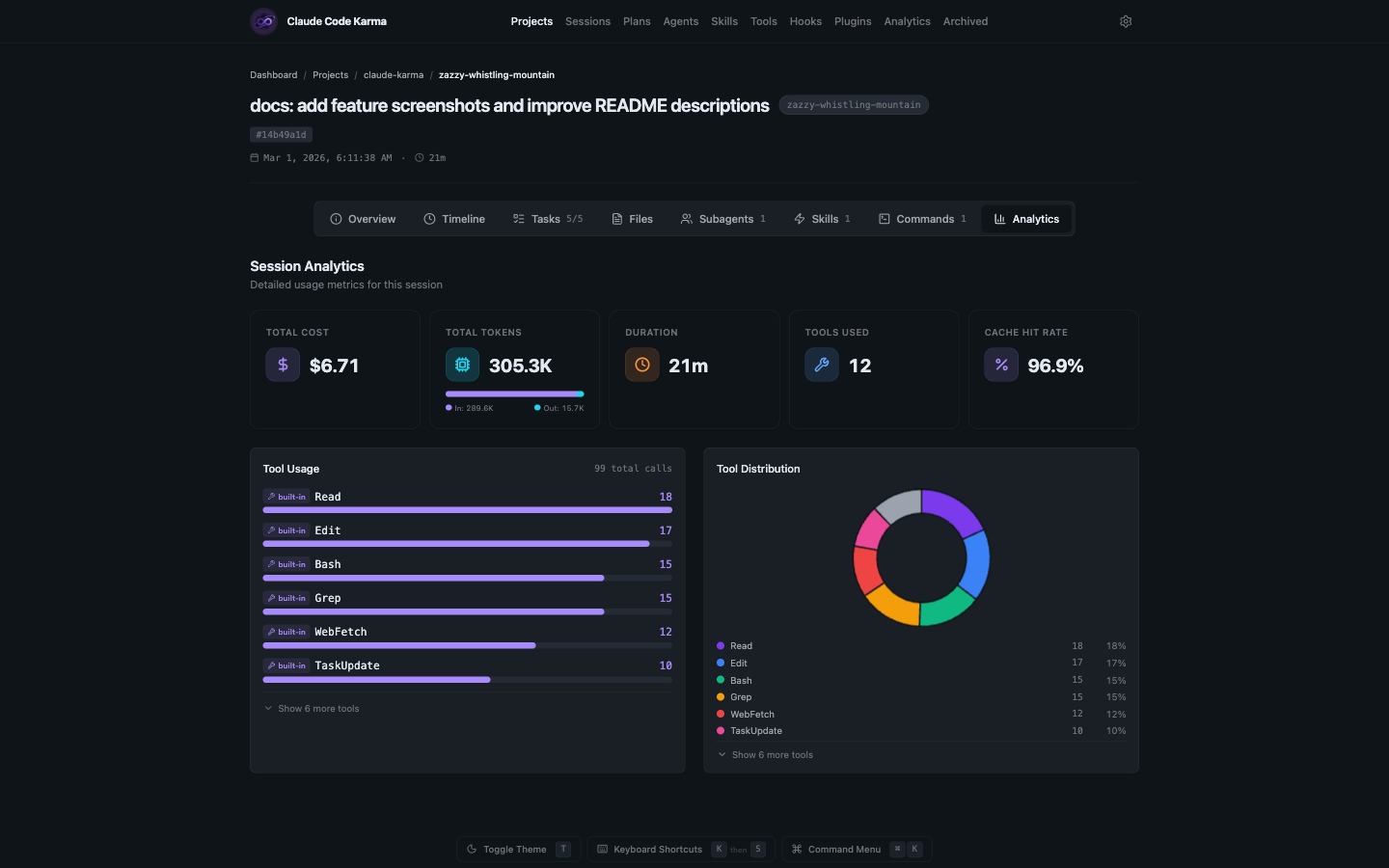
See all your Claude Code workspaces organized by git repository. Each project card shows session count and when it was last active. Expand git repos to see individual project directories inside them.
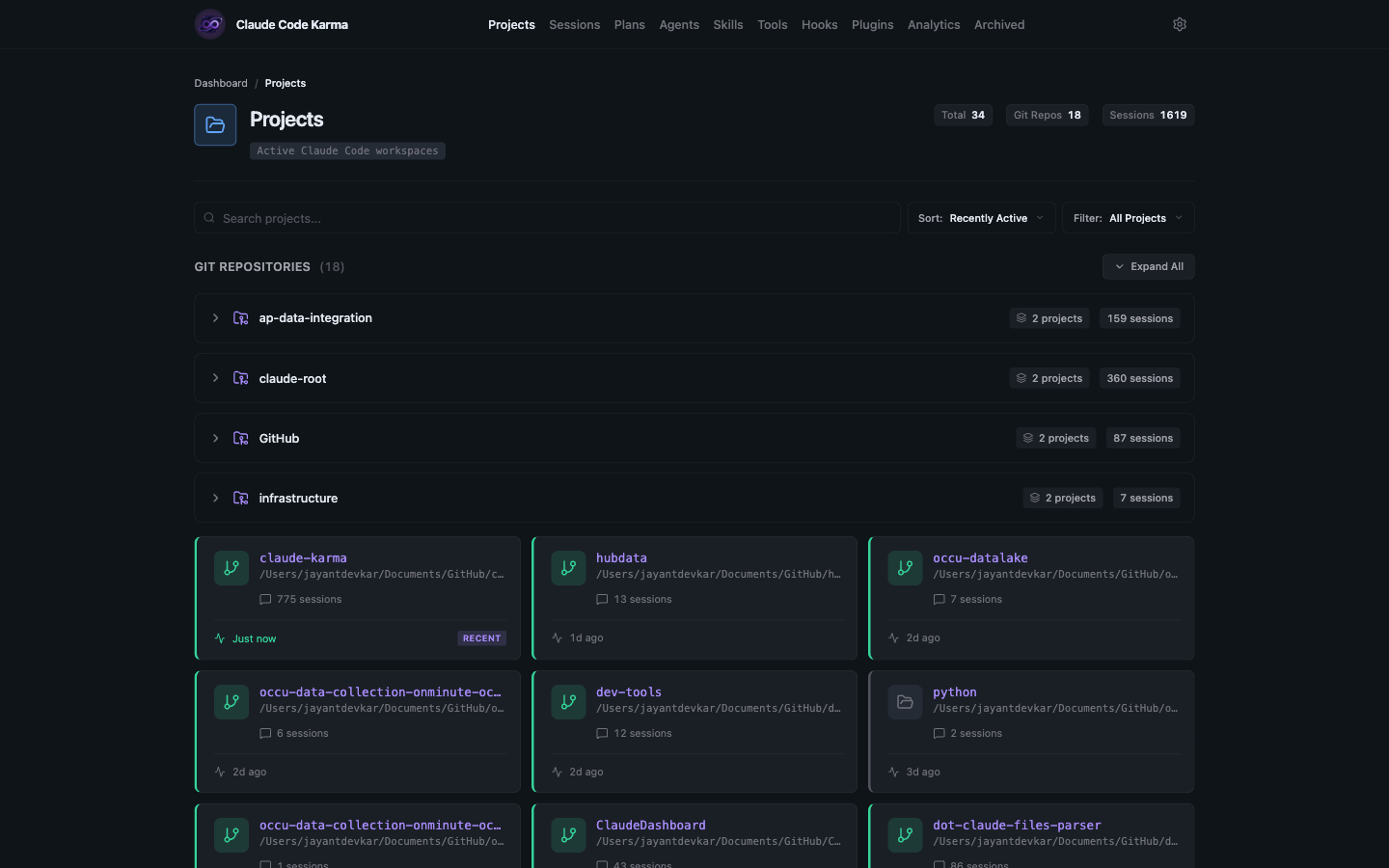
Track your token usage, costs, velocity trends, cache hit rates, and coding rhythm across all projects. See which models you use most and how your usage patterns change over time.
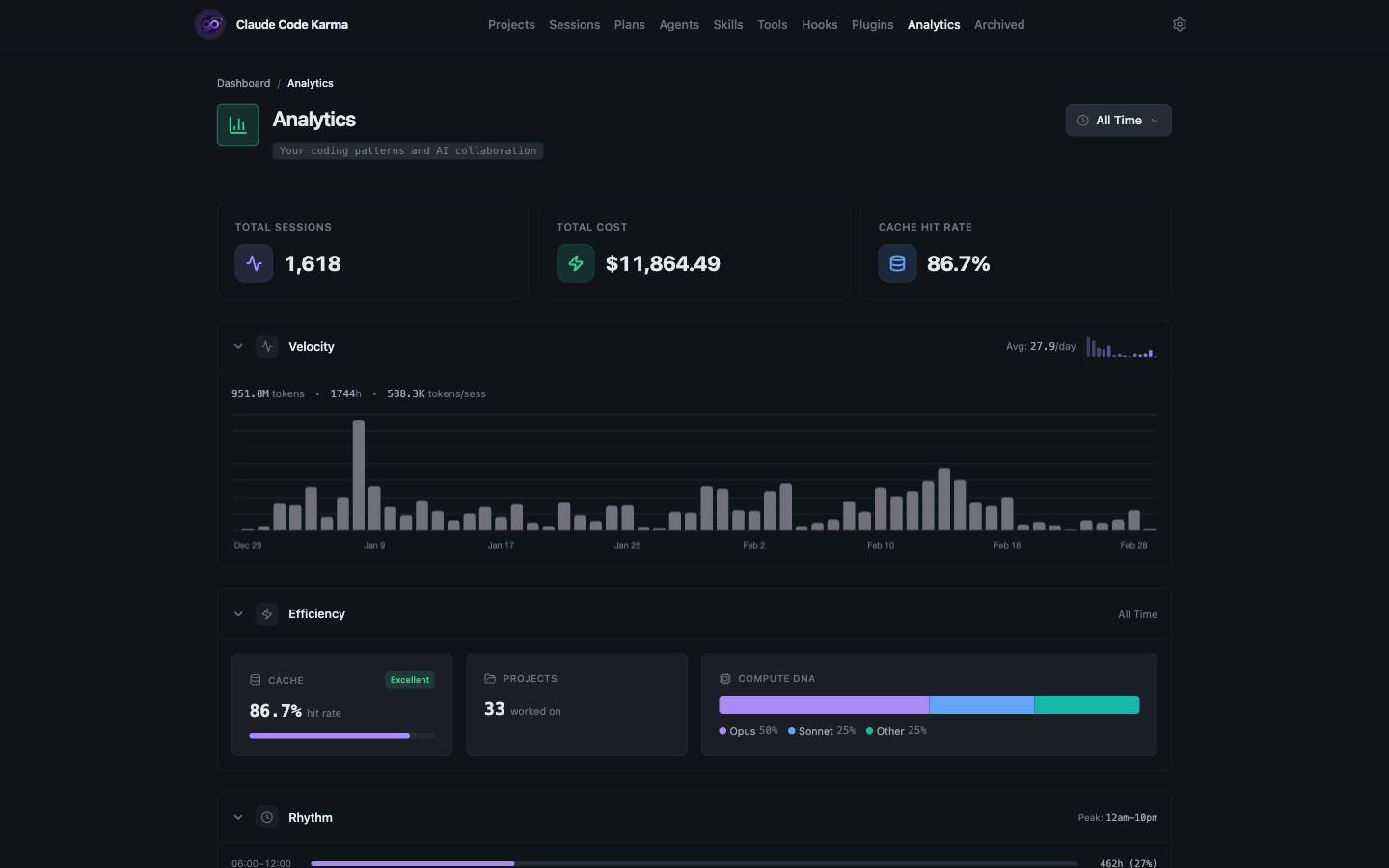
See every tool Claude Code uses — built-in ones like Read, Edit, and Bash, plus any MCP integrations you've added (the MCP page in the nav). Grouped by server with call counts and session coverage. Switch to the Usage Analytics tab for activity trends and top tools over time.
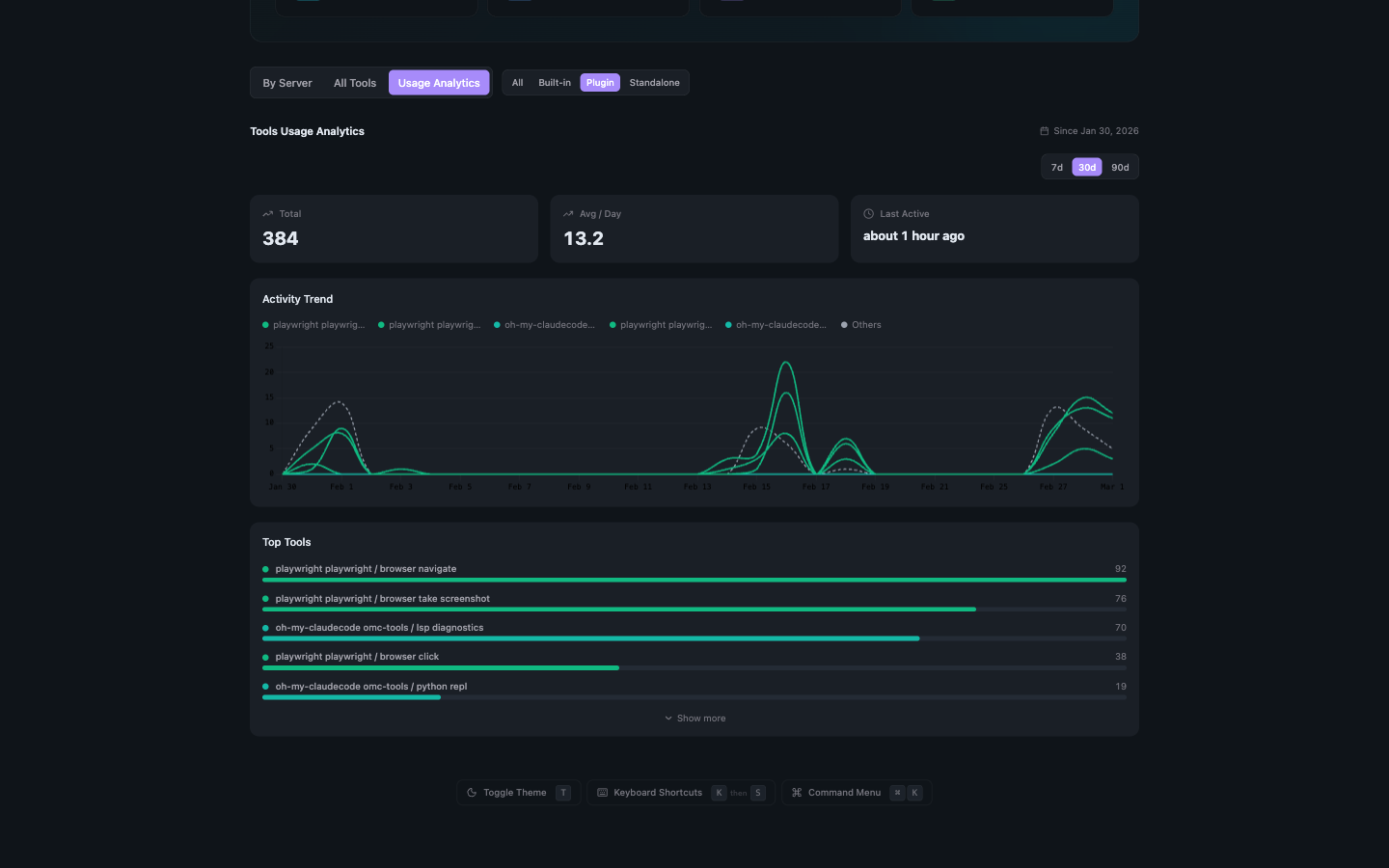
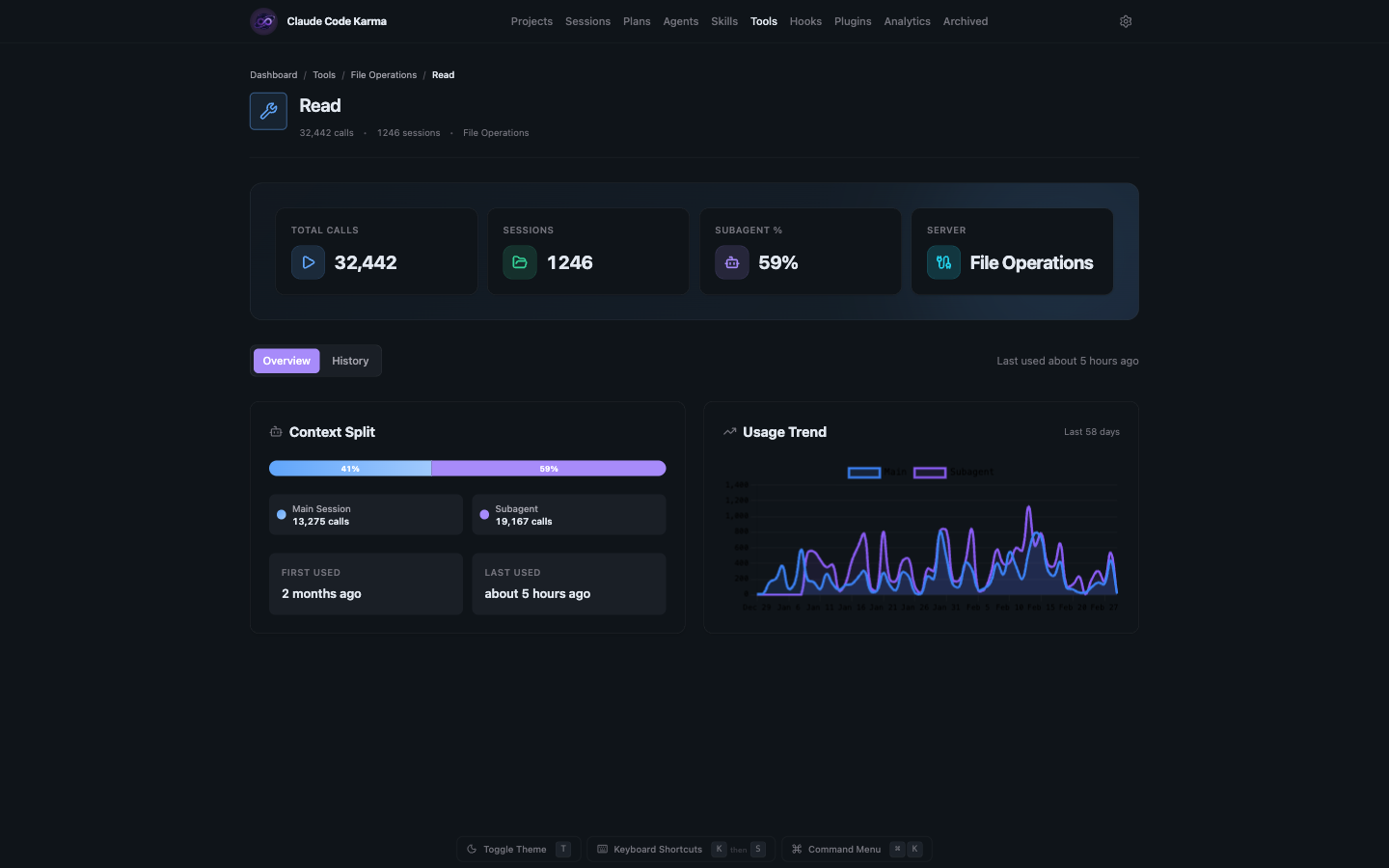
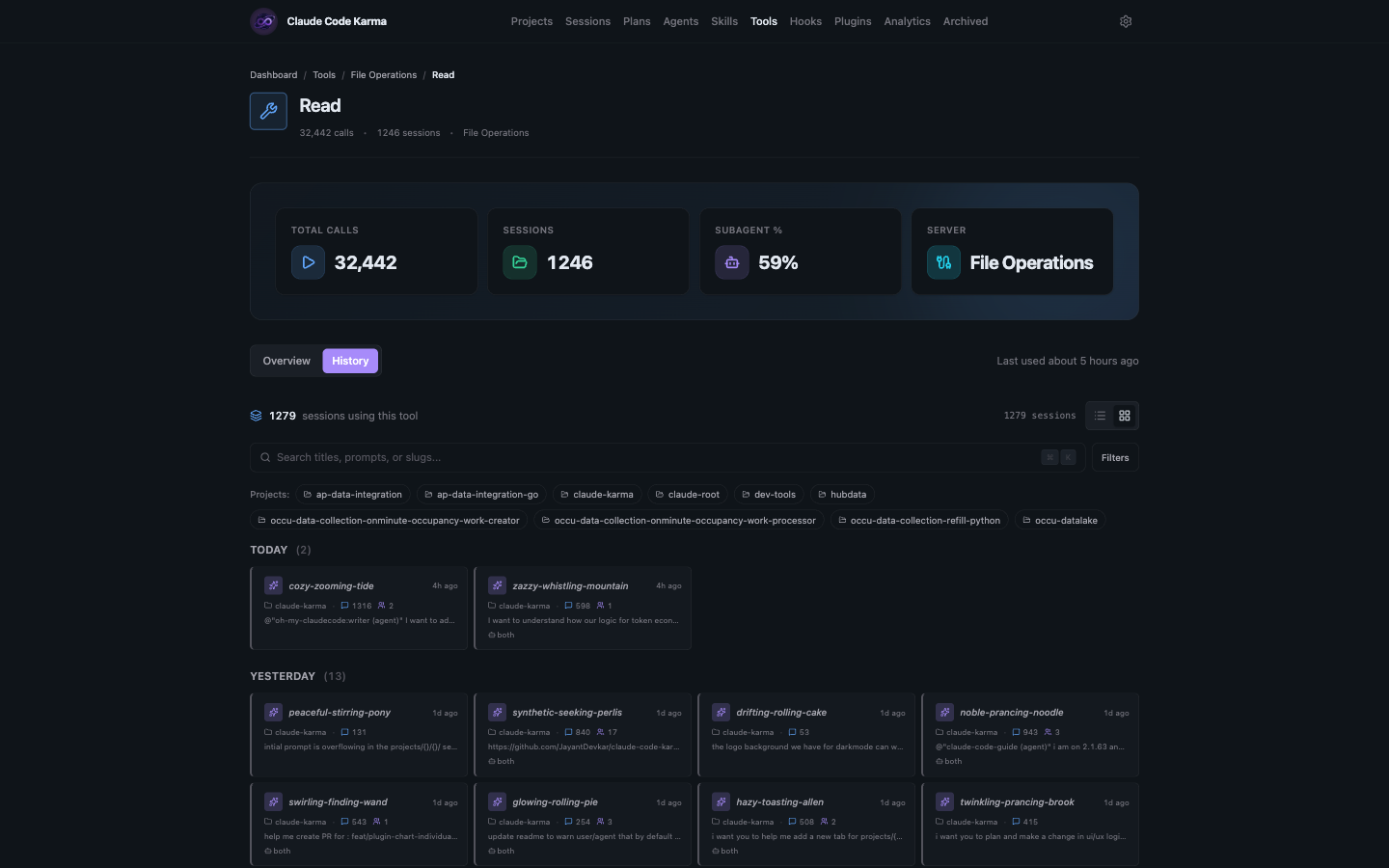
Click into any tool for detailed stats — total calls, session count, main vs subagent split, usage trend over time, and a full session history.
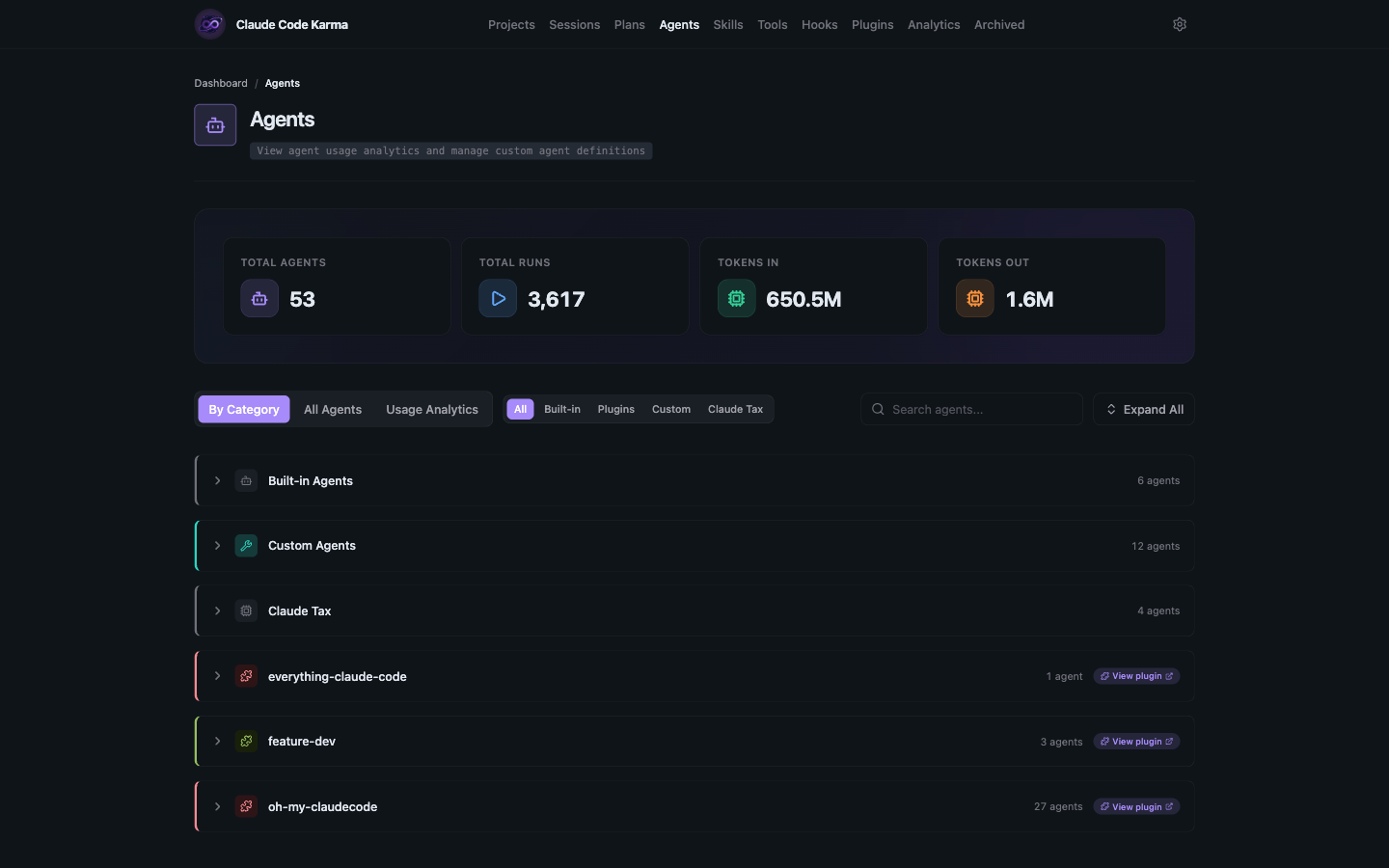
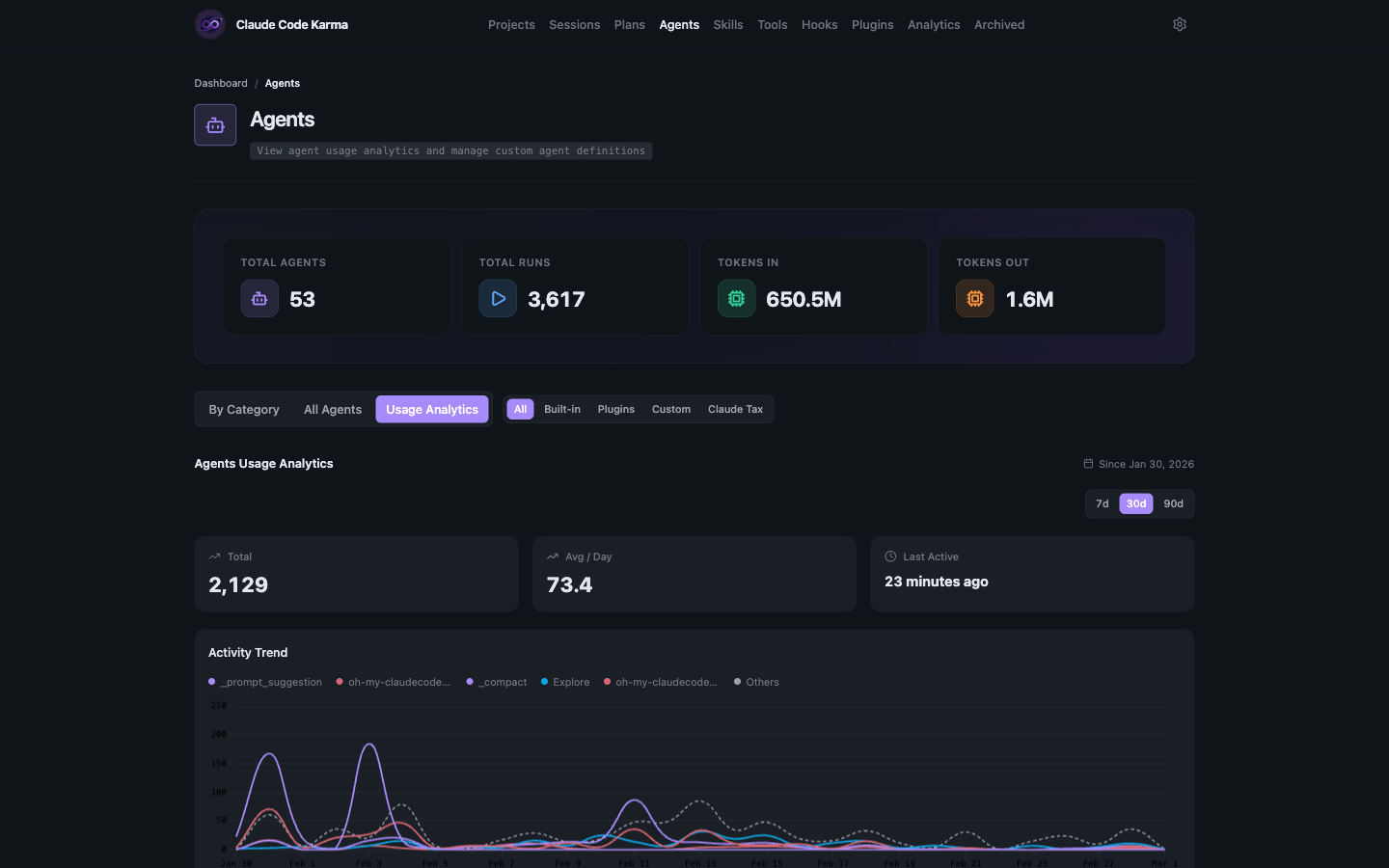
Browse all your agents — built-in, custom, and plugin-provided. See total runs, token consumption, and filter by category to understand how your agent ecosystem is being used. The Usage Analytics view shows activity trends and your most-used agents.
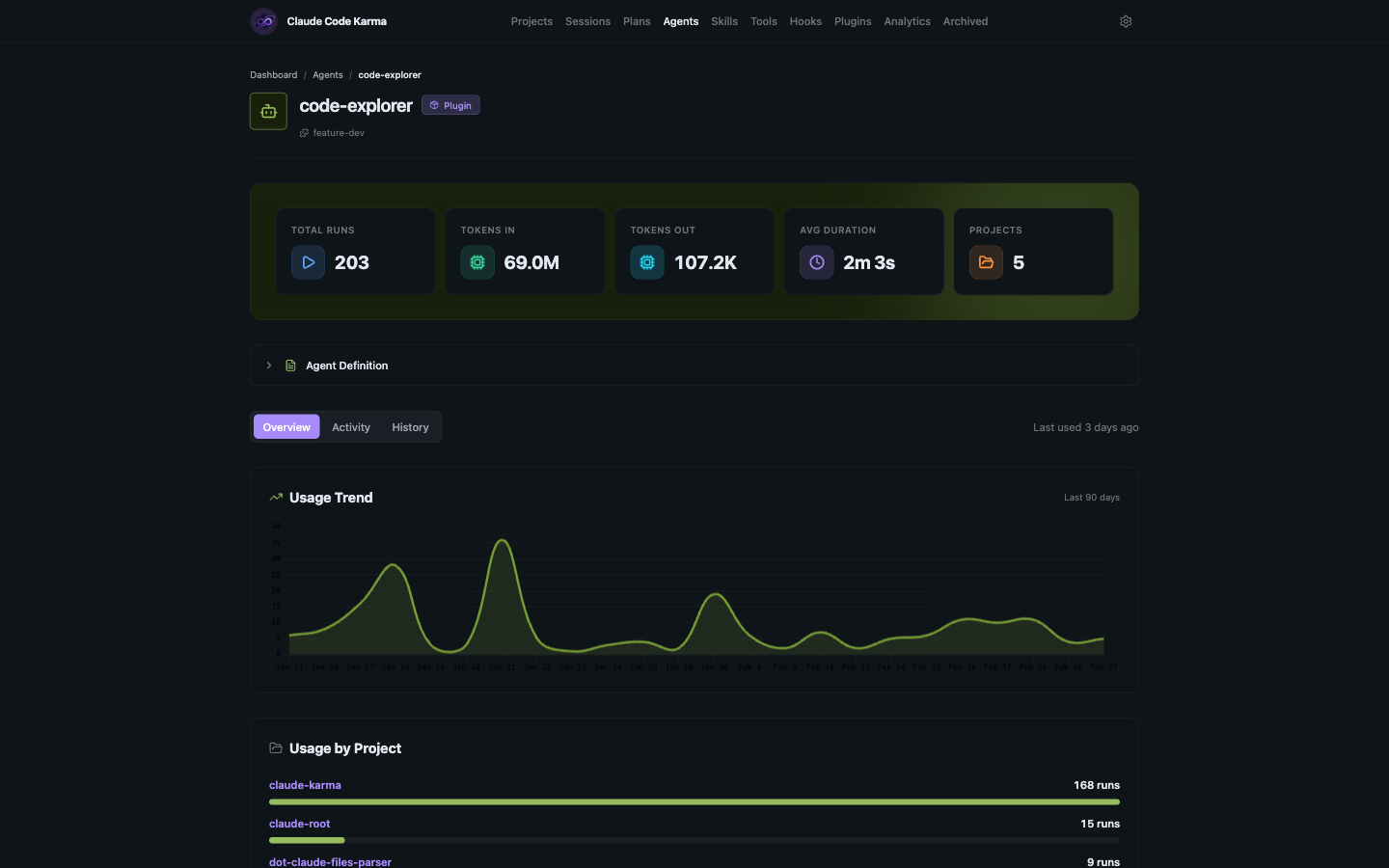
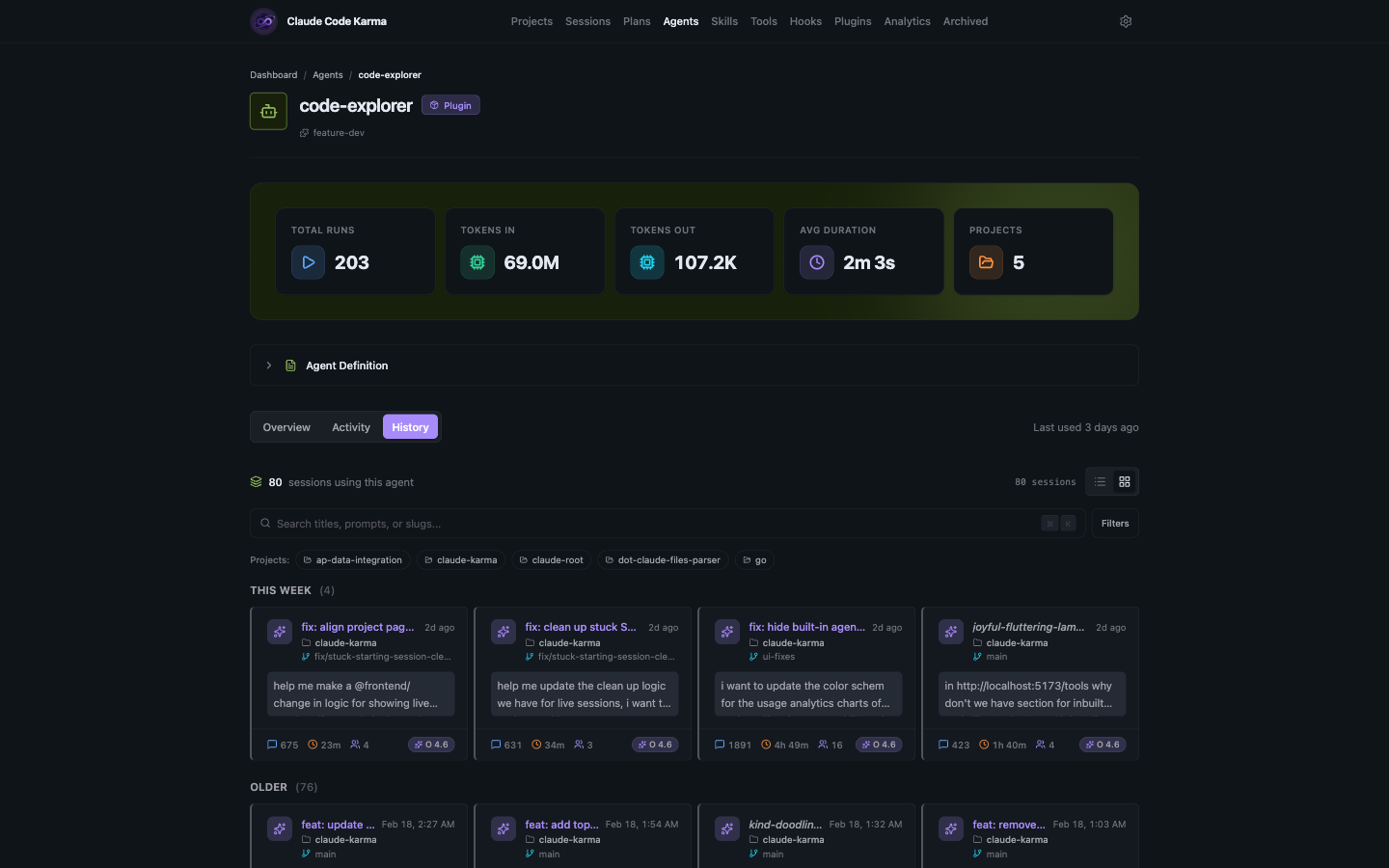
Drill into any agent for run counts, token usage, average duration, usage trends, project breakdown, and a session history showing every time that agent was used.
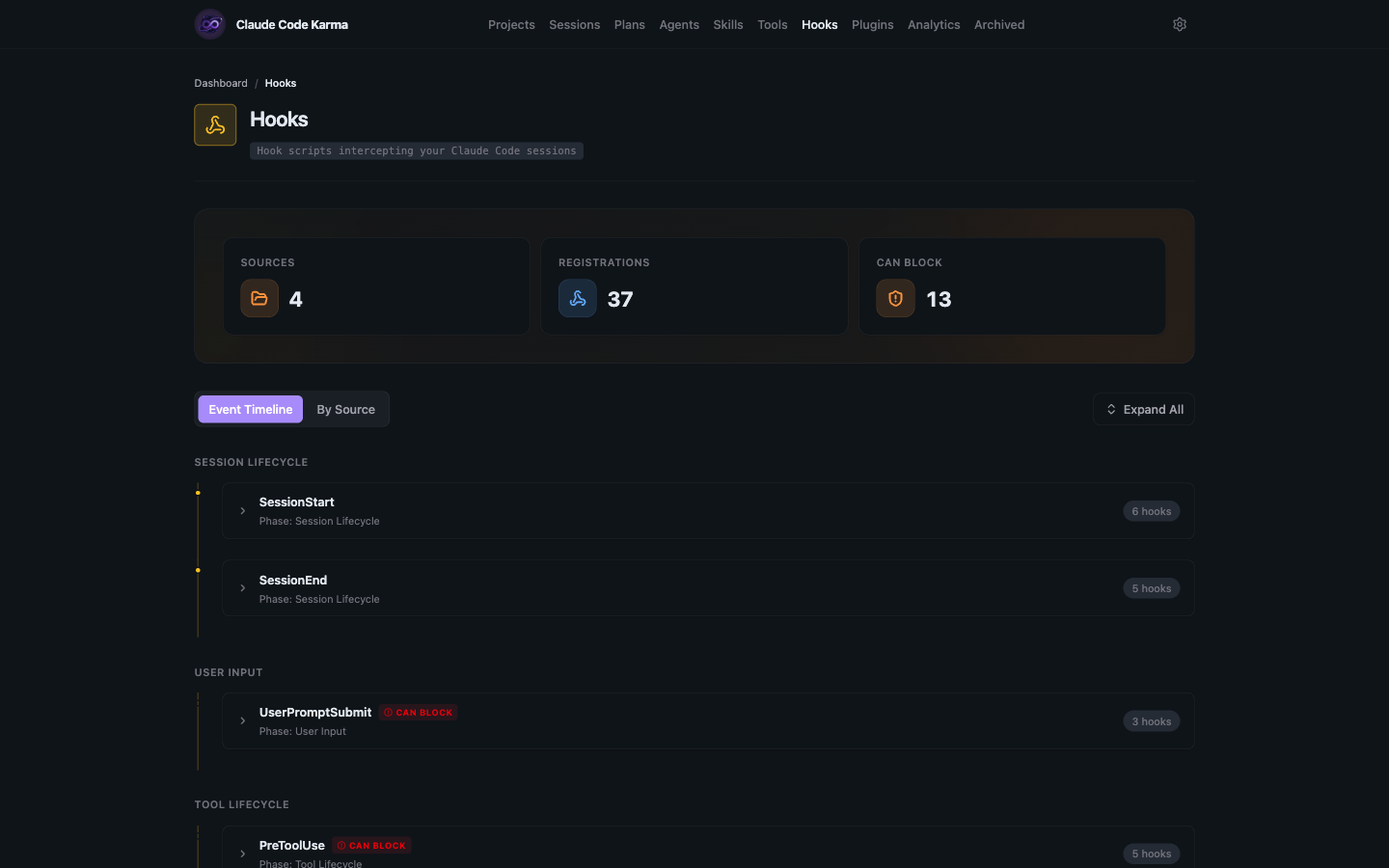
Visualize all your Claude Code hooks organized by lifecycle phase — session start/end, tool use, agent lifecycle, and permissions. See which hooks can block execution and how many registrations each event has.
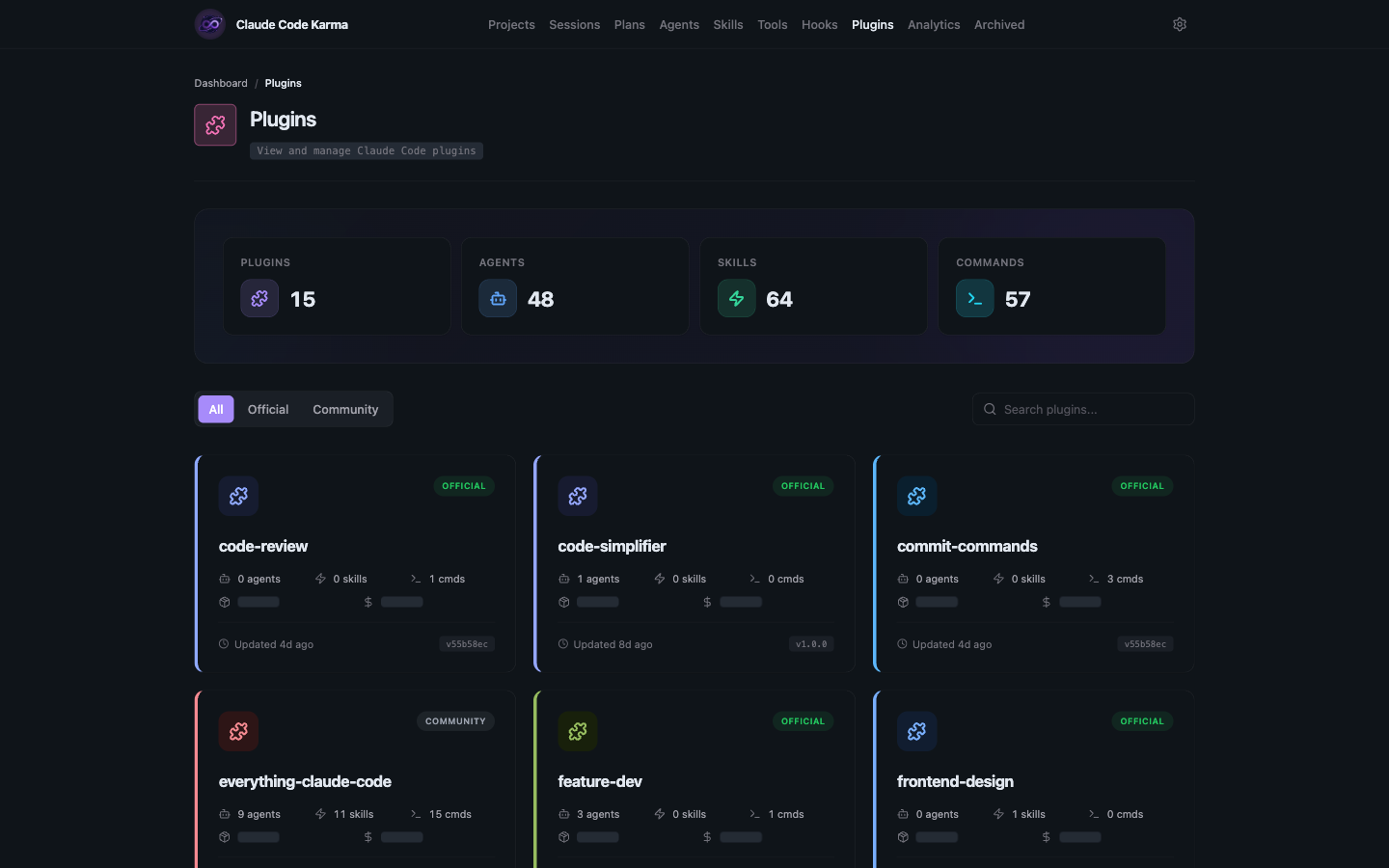
View all installed Claude Code plugins with their agents, skills, and commands. Filter between official and community plugins. See version info and when each was last updated.
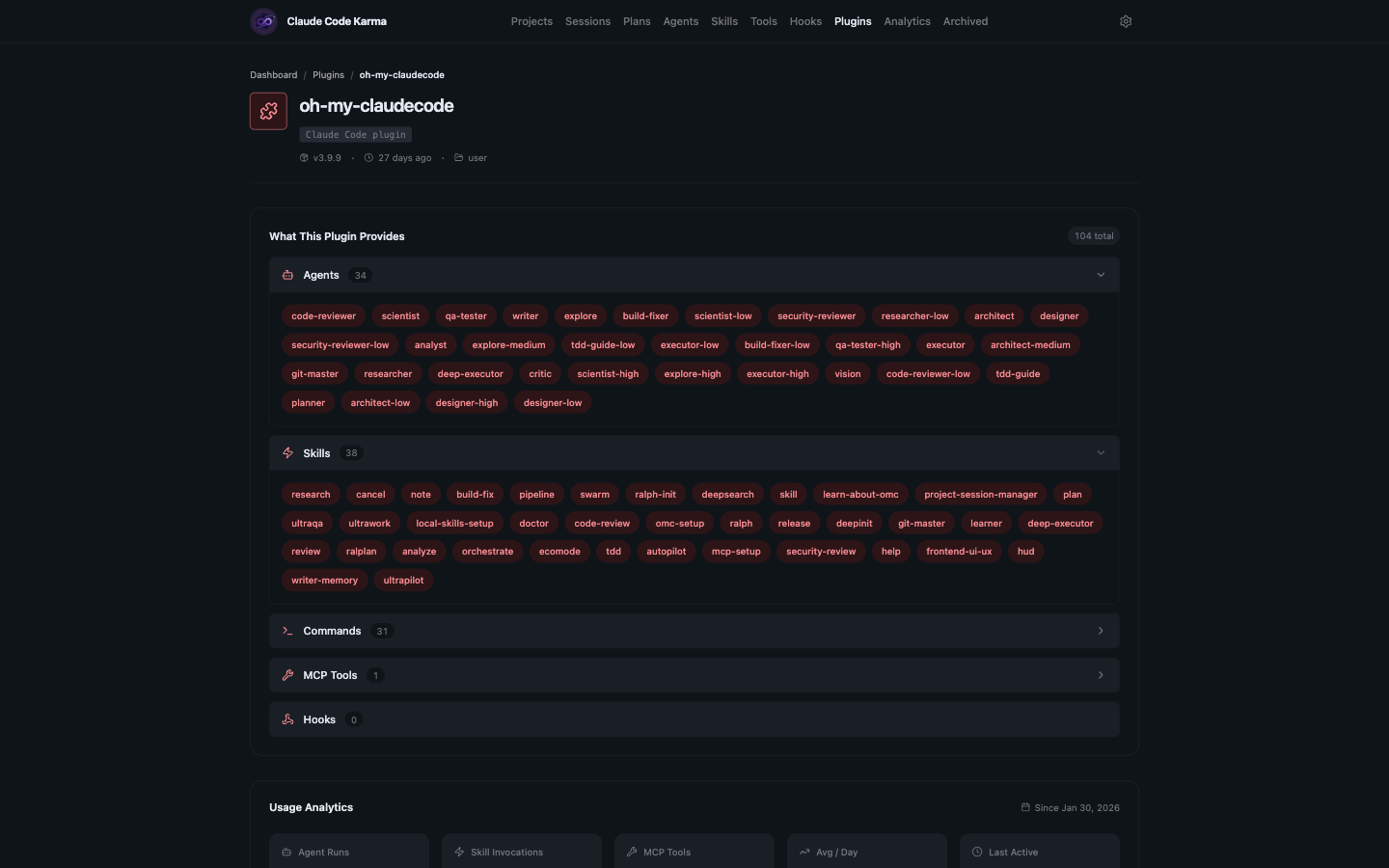
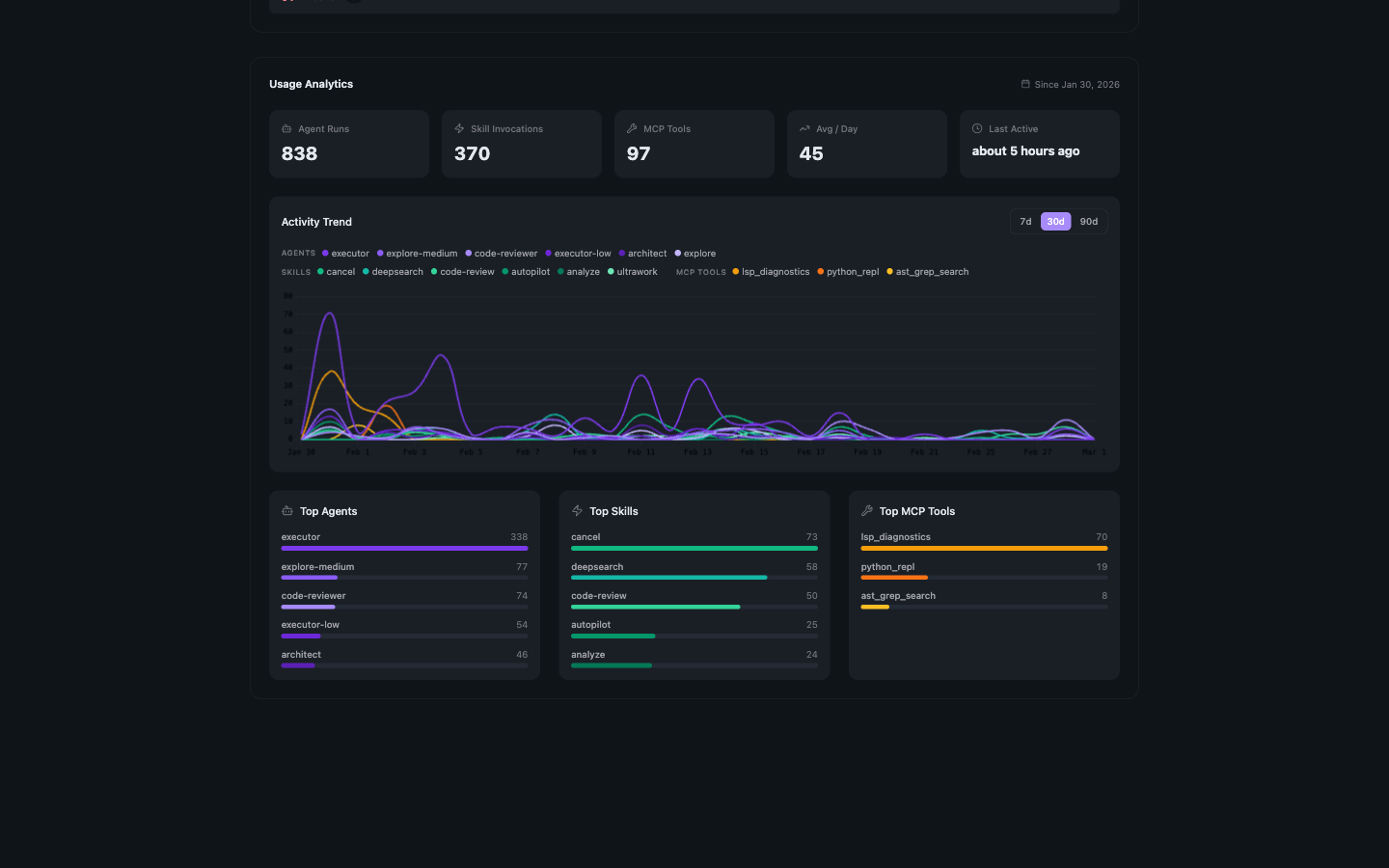
Click into any plugin to see everything it provides — agents, skills, commands, MCP tools, and hooks — along with usage analytics showing activity trends and top-used components.
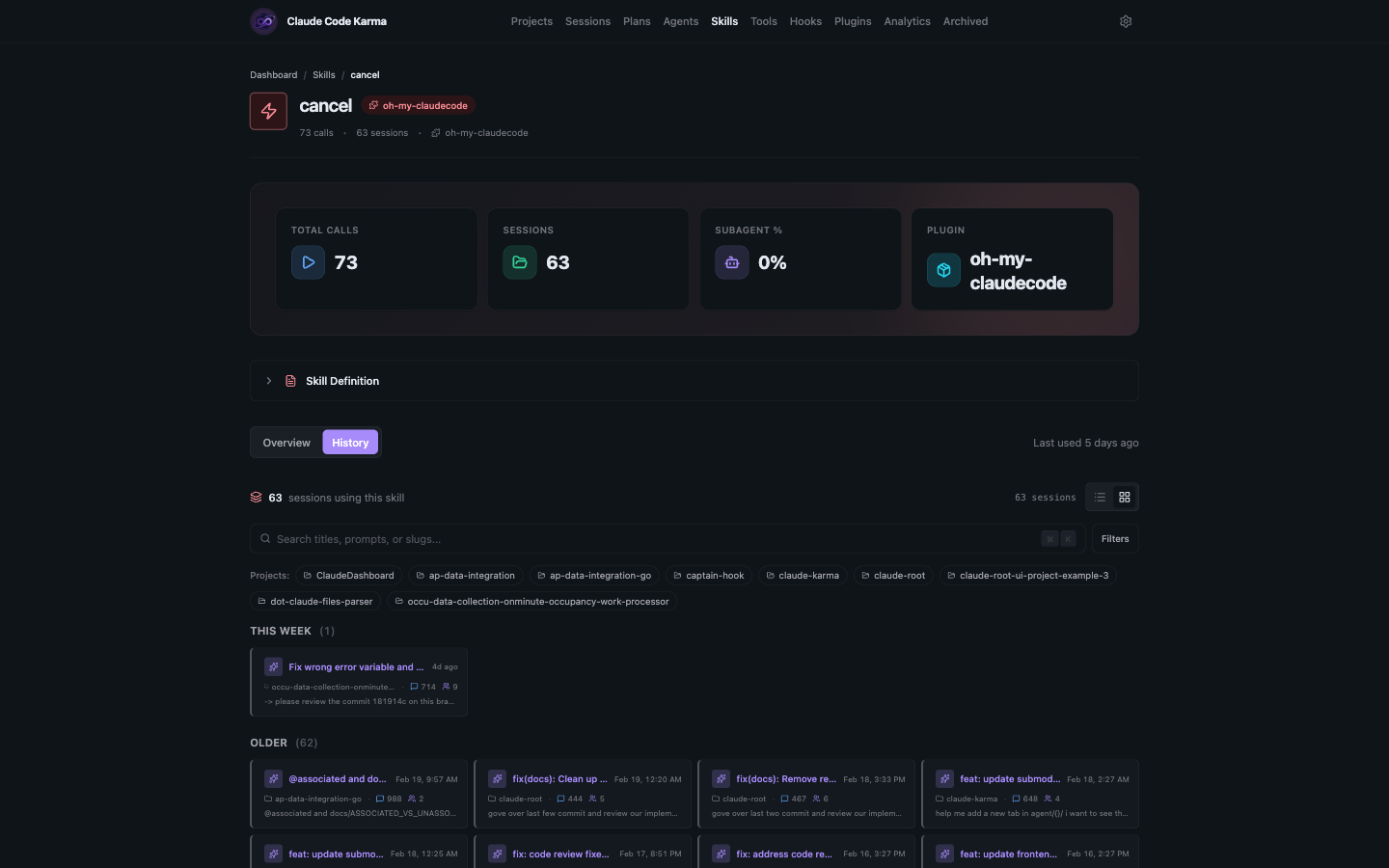
Track which skills are invoked across sessions, grouped by plugin or shown individually. Click into any skill for usage stats, context split (main vs subagent), and a full session history showing every time that skill was used.
Attach your Claude Code sessions to the tickets they were about. Karma stays read-only — it stores the link and caches the title/status, but never writes back to your ticket provider.
Three ways to link:
/link-ticket-to-session ABC-123 (or ask the agent in natural language) in any Claude Code session — uses your Linear / Atlassian / GitHub MCP server to fetch the titleSessionStart hook that watches for keys like feat/LINEAR-123-foo and links silently in the backgroundThen browse:
/tickets index showing every ticket touched, filterable by provider and projectclaude-karma/frontend/ also shows on the main claude-karma projectTickets Index — All linked tickets in a filterable table. Switch between All, Issues, and PRs on GitHub.
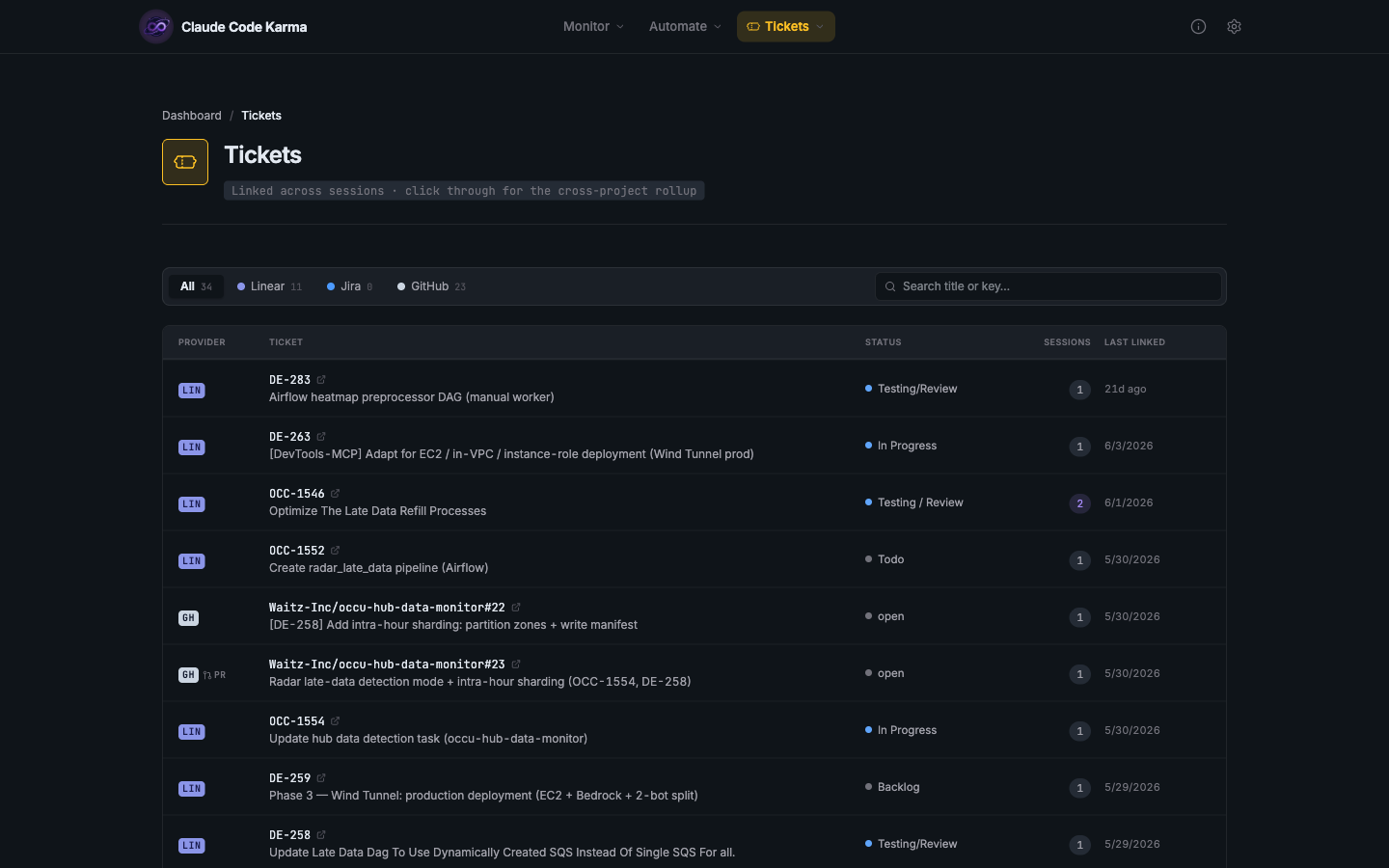
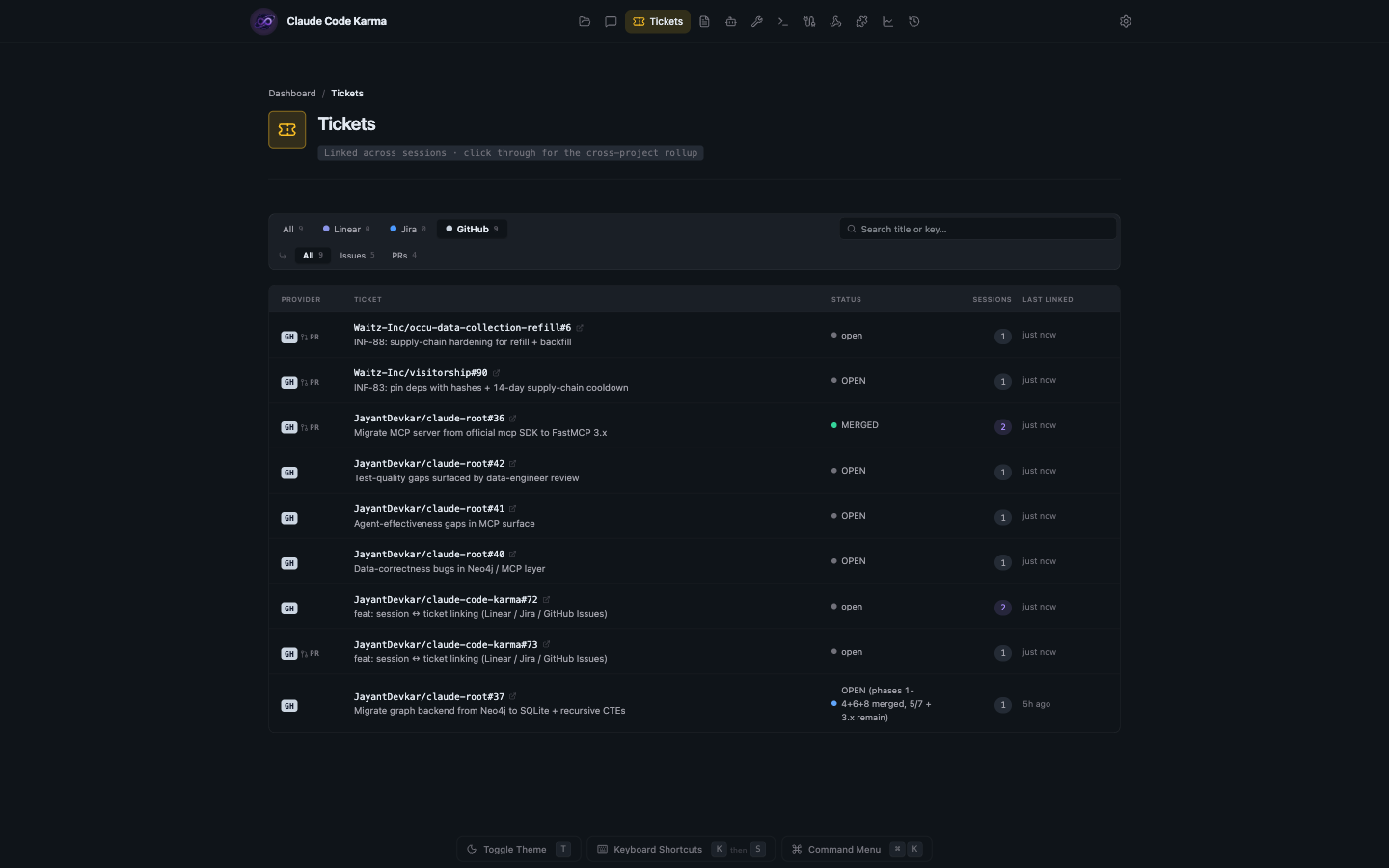
Filter by Provider — GitHub shows sub-pill filtering ([All N] [Issues N] [PRs N]) to toggle between categories.
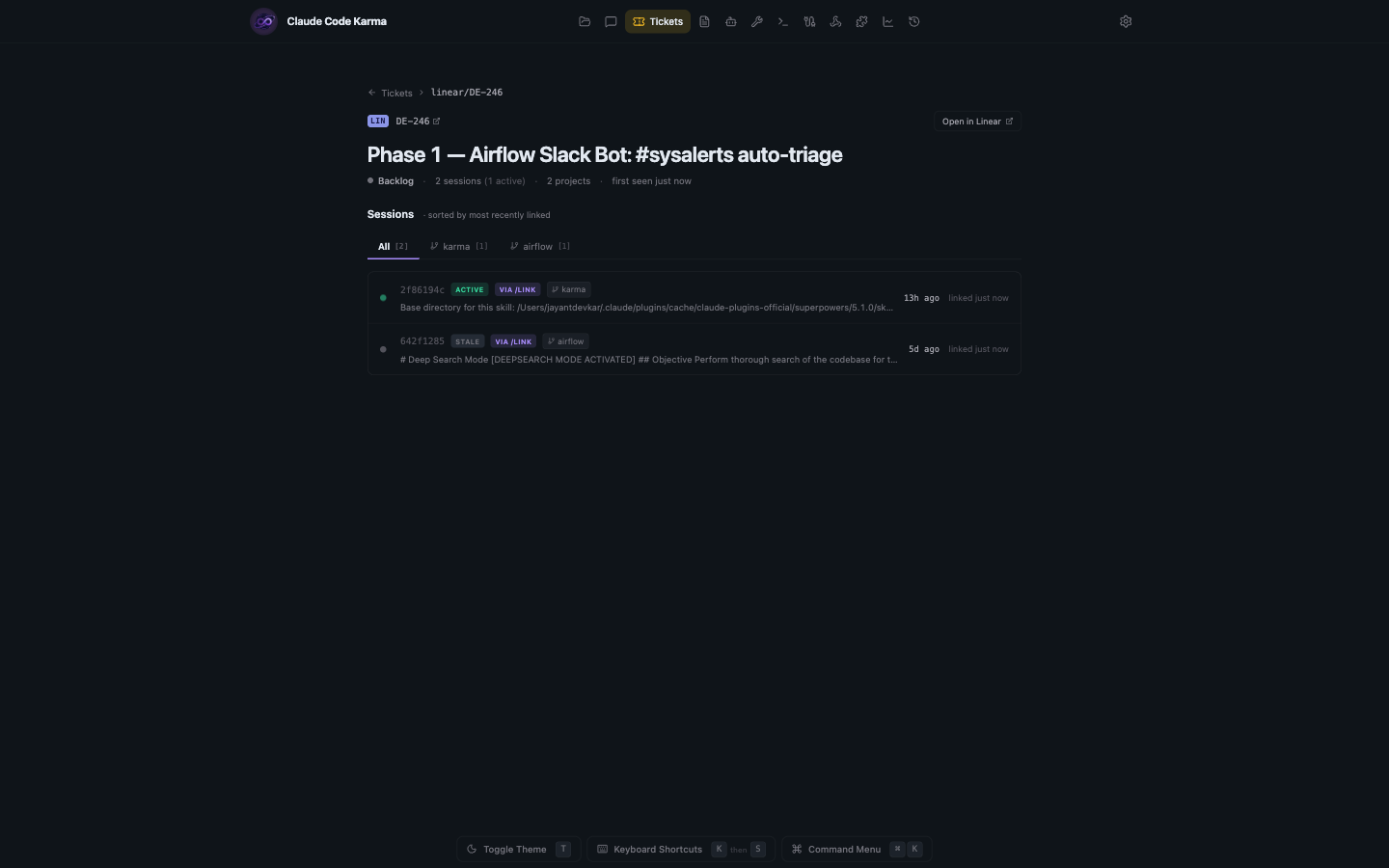
Ticket Detail — View a ticket with all linked sessions. Cross-project rollup shows "N sessions · M projects" with tabs per project.
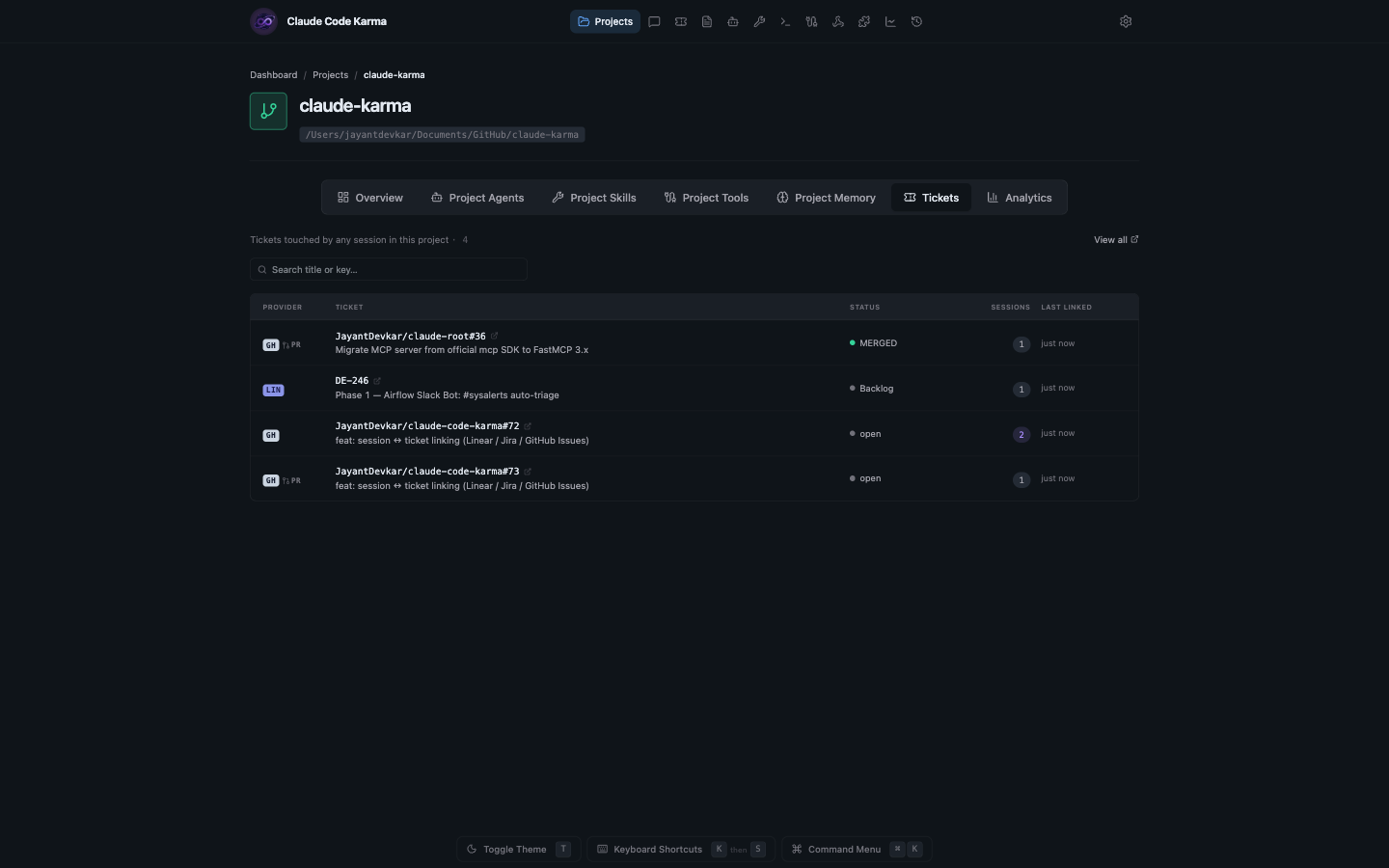
Project Tickets Tab — Every project page has a Tickets tab that aggregates across all git identity checkouts, so the same ticket appears even if linked from different branch directories.
Ctrl+K / Cmd+K# Clone the repository
git clone https://github.com/JayantDevkar/claude-code-karma.git
cd claude-code-karma
# Start API (Terminal 1)
cd api
pip install -e ".[dev]" && pip install -r requirements.txt
uvicorn main:app --reload --port 8020
# Start Frontend (Terminal 2)
cd frontend
npm install && npm run dev
Open http://localhost:5180 to view the dashboard.
This only gets you the historical dashboard. Karma's core feature — live session tracking as sessions actually run — needs one more step, Tier 2 in SETUP.md. Install through Tier 2 by default; the rest of SETUP.md's tiers are optional polish on top.
Two terminals every time gets old. Install a desktop icon that starts both servers for you and opens the dashboard:
python3 scripts/install_karma_app.py # macOS: /Applications/Karma.app
# Windows: a Desktop shortcut
python3 scripts/install_karma_app.py --dock # macOS: also pin it to the Dock
python3 scripts/install_karma_app.py --uninstall
Click the icon and Karma starts whichever servers aren't already running, then opens the dashboard. The first launch after a reboot has to compile the frontend (a minute or two), so it posts a "Starting Karma…" desktop notification straight away — the click never looks like it did nothing — and opens the dashboard once the servers answer.
Nothing is hardcoded: the installer works out your repo location from its own path and finds a Python interpreter on the machine, so a clone anywhere works.
Optional: start at login. Toggle it in Settings → Desktop App, or:
python3 scripts/install_karma_app.py --autostart      # on
python3 scripts/install_karma_app.py --no-autostart   # off
This adds a launchd agent (macOS) or a Startup-folder entry (Windows) so the servers are already up when you log in — the dashboard is simply always there, with no icon to click first. It costs roughly 150–350 MB of memory and almost no CPU while idle.
It's also what makes a browser-installed Karma work on its own: a PWA is only a window and cannot start servers, so with autostart you never need the launcher icon at all.
macOS notifies you that a background item was added and lists it under System Settings → General → Login Items; Windows shows it in Task Manager → Startup. You can disable it there at any time. Note that the dashboard's toggle reflects whether the login item is installed, not whether the OS currently has it enabled — if you switch it off in Login Items / Task Manager, the shortcut stays on disk and the toggle still reads on. Use those system settings, or the Remove button, to be sure.
Windows notes. SmartScreen may warn the first time, and Windows will show a firewall prompt when the servers first bind their ports — allow it for private networks. The shortcut runs via
pythonw.exe, so no console window flashes.
Claude Code already saves everything locally — sessions, tool calls, token counts — as JSONL files in ~/.claude/. Claude Code Karma simply reads those files and serves them through a local dashboard.
~/.claude/projects/  →  FastAPI (port 8020)  →  SvelteKit (port 5180)
   your data              parses & serves          visualizes it
Nothing leaves your machine. The API reads your local files, indexes metadata in a local SQLite database, and the frontend renders it all in the browser.
claude-code-karma/
├── api/                    # FastAPI backend (Python) — port 8020
│   ├── models/             # Pydantic models for Claude Code data
│   ├── routers/            # API endpoints
│   └── services/           # Business logic
├── frontend/               # SvelteKit frontend (Svelte 5) — port 5180
│   ├── src/routes/         # Pages
│   └── src/lib/            # Components and utilities
├── captain-hook/           # Pydantic library for Claude Code hooks
└── hooks/                  # Hook scripts (symlinked to ~/.claude/hooks/)
    ├── live_session_tracker.py
    ├── session_title_generator.py
    └── plan_approval.py
This is Karma's core feature — without it, Karma is just a historical viewer. Enable real-time session monitoring by installing Claude Code hooks. See Tier 2 in SETUP.md for setup instructions.
Live sessions also get an "open terminal" button (on the session page, the home strip, and /sessions) that raises the terminal window the session is running in — Karma runs locally, so the API can ask the OS window manager directly. macOS Terminal.app and iTerm2 get the exact window/tab, tmux gets the exact pane, other macOS terminals are raised app-level, and Linux needs X11 with xdotool or wmctrl. Design details in docs/feature/open-terminal/spec.md.
| State | Meaning |
|---|---|
LIVE | Session actively running |
WAITING | Waiting for user input |
STOPPED | Agent finished, session open |
STALE | User idle 60+ seconds |
ENDED | Session terminated |
| Endpoint | Description |
|---|---|
GET /projects | List all projects |
GET /projects/{encoded_name} | Project details with sessions |
GET /sessions/{uuid} | Session details |
GET /sessions/{uuid}/timeline | Session event timeline |
GET /sessions/{uuid}/tools | Tool usage breakdown |
GET /sessions/{uuid}/file-activity | File operations |
GET /sessions/{uuid}/subagents | Subagent activity |
| Endpoint | Description |
|---|---|
GET /analytics/projects/{encoded_name} | Project analytics |
GET /analytics/dashboard | Global dashboard metrics |
| Endpoint | Description |
|---|---|
GET /agents | List all agents |
GET /agents/{name} | Agent details |
GET /skills | List all skills |
GET /live-sessions | Real-time session state |
POST /live-sessions/{id}/focus-terminal | Raise the session's terminal window |
| Method | Endpoint | Description |
|---|---|---|
POST | /sessions/{uuid}/tickets | Link a ticket to a session |
GET | /sessions/{uuid}/tickets | List tickets linked to a session |
DELETE | /sessions/{uuid}/tickets/{id} | Unlink a ticket from a session |
GET | /tickets | List all tickets (filters: provider, project, q) |
GET | /tickets/{provider}/{key} | Get ticket details |
GET | /tickets/{provider}/{key}/sessions | Sessions linked to a ticket |
PUT | /tickets/{provider}/{key} | Refresh metadata from MCP |
POST | /admin/repair-github-urls | Repair stale /issues/ URLs to /pull/ |
| Endpoint | Description |
|---|---|
GET /cron/system | Host OS crontab (user crontab, /etc/crontab, /etc/cron.d/*, run-parts), grouped by origin |
Contributions are welcome! Please see CONTRIBUTING.md for guidelines on:
This project is licensed under the Apache License 2.0. See LICENSE for details.
Built and maintained by Jayant Devkar
Sign in to join the discussion.
No comments yet. Be the first to say what this is good for.
🪨 why use many token when few token do trick — Claude Code skill that cuts 65% of tokens by talking like caveman

The best-benchmarked open-source AI memory system. And it's free.

Orca is the ADE for working with a fleet of parallel agents. Run any coding agent with your own subscription. Available on desktop, mobile and remote runtime.
A cross-platform desktop All-in-One assistant for Claude Code, Codex, OpenCode, OpenClaw, Grok Build & Hermes Agent. Only official website: ccswitch.io

Never stop coding. Free MIT AI gateway: one endpoint, 352 providers (150+ free), 1200+ models Kimi, Claude, GPT, Gemini, GLM, DeepSeek, MiniMax. Works with Claude Code, Codex, Cursor, OpenCode, Cline & Copilot. Quota-aware auto-fallback, RTK+Caveman compression saves 15-95% tokens, MCP/A2A, Desktop/PWA. Built by 550+ contributors

Compress tool outputs, logs, files, and RAG chunks before they reach the LLM. 20% fewer tokens for coding agents, 60-95% fewer tokens for JSON, same answers. Library, proxy, MCP server.